Informative
How to check who can see your business documents
Sharing settings drift over the years. A 20-minute walk-through shows who can open your files today, and what to switch off.
Zinwe team · · 3 min read
Every share made sense on the day it was made. The accountant needed the invoices. A freelancer needed the brand files. A client needed the proposal. Three years later, all of those people can still open those folders, and nobody remembers why.
Short answer: set aside 20 minutes and check your document access permissions in four places: cloud drives, "anyone with the link" shares, shared folders on office PCs, and anything ex-staff could still reach. Remove whatever no longer has a reason.
Who has access to my files right now?
You probably can't answer that from memory, and that's normal. Sharing settings drift. People get added for one job and never removed. The only way to know is to look, one place at a time.
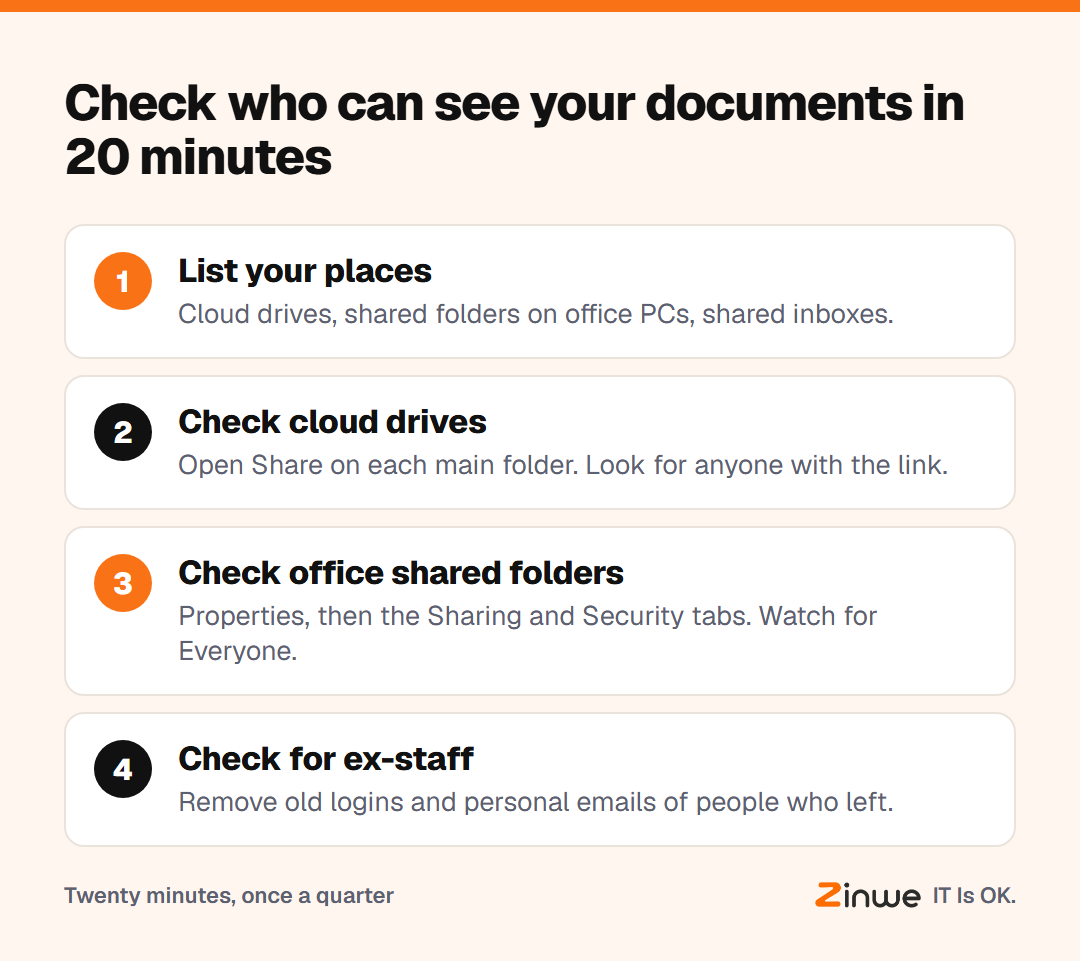
How do you check document access permissions in 20 minutes?
1. List your places (5 minutes)
Write down every cloud drive account, every shared folder on an office PC, and any shared email inbox. The list is often longer than you expect.
2. Check your cloud drives (5 minutes)
For a Google Drive sharing check, open each main folder's Share option. It shows every named person, plus whether the general access is restricted or open to anyone with the link. Other cloud drives have a similar "manage access" screen. Remove people who have finished their work with you.
3. Check office shared folders (5 minutes)
On the PC that holds a shared folder, right-click it and open Properties. The Sharing and Security tabs show who on the office network can open it. This is where shared folder access is easiest to forget, and "Everyone" is often a setting nobody chose on purpose.
4. Check for ex-staff (5 minutes)
Look for anyone who has left. Their personal email may still be on a shared folder, or their old login may still work. Close these first.
What does this look like in a small studio?
Take a 7-person interior design studio in Bengaluru. The owner ran this check on a Friday afternoon. She found two former interns still on the project drive, a client folder open to anyone with the link, and a shared folder on the main PC set to "Everyone".
None of it had caused a problem yet. All of it took a few clicks to fix. She now runs the same check each quarter, and it takes less time every round.
In short
- Shares drift; the only fix is to look
- Check cloud drives, open links, office shared folders and ex-staff
- Remove anything without a current reason, then repeat each quarter
Checking settings tells you who could open a file. On Windows PCs, Zinwe sends a plain-English alert when a large set of files is actually copied over an office network share. Start free for 3 PCs, or read how to share customer files without oversharing.