Informative
How to check privacy settings in your team's apps
You don't need to read every menu. Four apps, one setting each, and about fifteen minutes for the whole team.
Zinwe team · · 3 min read
Nobody in a small office has ever read every settings menu. Nor should they. Most apps ship with defaults built for convenience, and a handful of those defaults matter for a business.
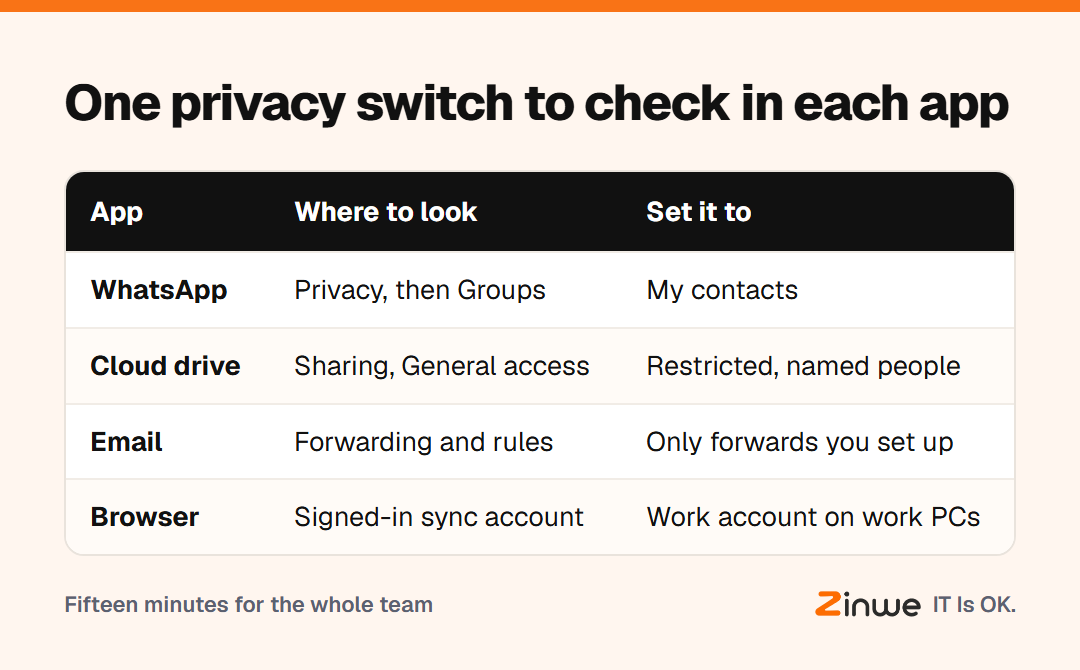
Short answer: you don't need to review all your app privacy settings. Check one switch in each of the four apps your team uses all day: WhatsApp, your cloud drive, your email and your browser. It takes about fifteen minutes, and you can do it together at the next team meeting.
Which app privacy settings matter most?
The ones that decide who else can see or receive your work. Here is the one to check in each.
WhatsApp: who can add you to groups
In WhatsApp privacy settings, look for Groups. If it's set to Everyone, any stranger can drop you into a group, which is a common start for scams. Set it to My contacts.
Cloud drive: general access on shared folders
In Google Drive sharing settings, open your main folders and look at General access. "Anyone with the link" means the link alone opens it, wherever it travels. Switch it to Restricted, then add named people.
Email: forwarding you didn't set up
Open your email settings and look for forwarding or rules. A forward to an address you don't recognise quietly copies every message out. If you didn't set it up, remove it and change your password.
Browser: whose account it's signed in to
Check which account the browser is synced to. If a work PC's browser is signed in to someone's personal account, work passwords and history may be travelling home with it.
What about app permissions?
While you're in your Google or Microsoft account settings, look at the list of connected apps. These are tools someone once allowed to read your files or email. Remove anything nobody recognises or uses.
How do you run this with a team?
Picture a 14-person trading firm in Ludhiana. At the Monday meeting, the owner puts the four checks on the screen and everyone does them on their own phone and PC at the same time.
Two people find WhatsApp group adding open to everyone. One finds a quotation folder shared by public link. One finds the office PC's browser signed in to a former employee's account. About fifteen minutes, four fixes, and nobody felt singled out.
In short
- Check one setting in each daily app, not every menu
- Groups in WhatsApp, General access in the drive, forwarding in email, sync in the browser
- Clear out connected apps nobody recognises
Zinwe doesn't change app settings, but it alerts you when new software appears on a Windows PC, so surprises don't sit unnoticed. Start free for 3 PCs, and follow up with checking who can see your documents or keeping work and personal data apart.