Tutorial
How to add your team to Zinwe and get their Member IDs
Add a person, get their Member ID, and send them the download link. Their PC connects with their email and that ID, and they agree to Zinwe on their own screen.
Zinwe team · · 3 min read
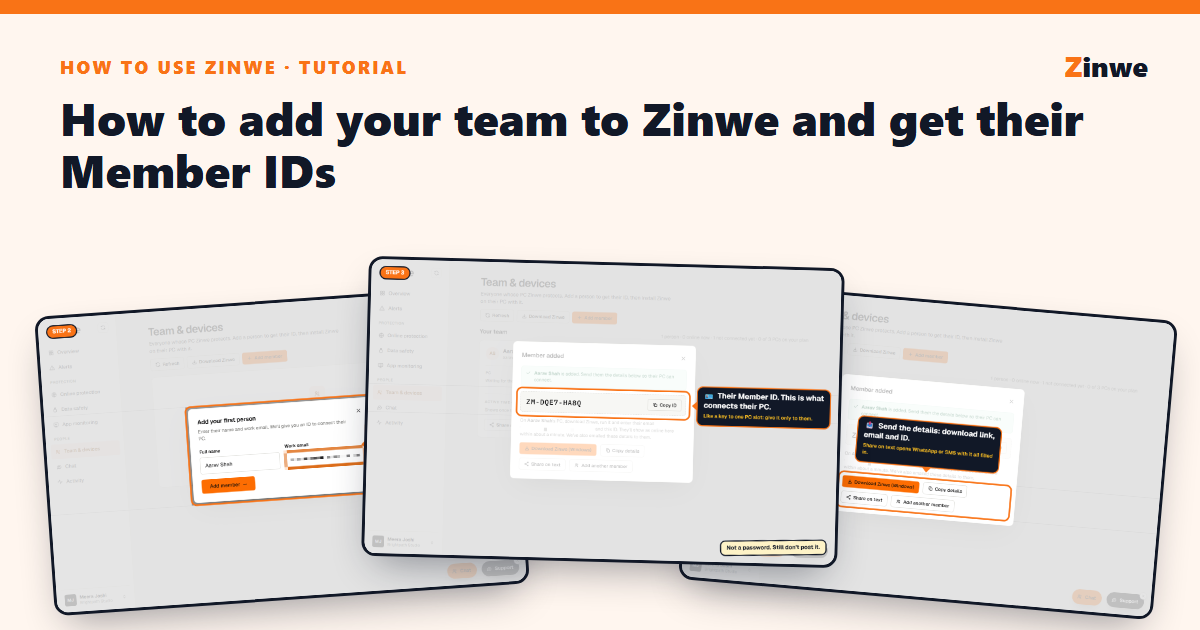
Short answer: open Team & devices, press Add member, type their name and work email. Zinwe gives them a Member ID and emails it with the download link. They install Zinwe on their Windows PC, sign in with their email and that ID, and agree to it on their screen.
Each person uses one PC slot on your plan. Free forever has 3.
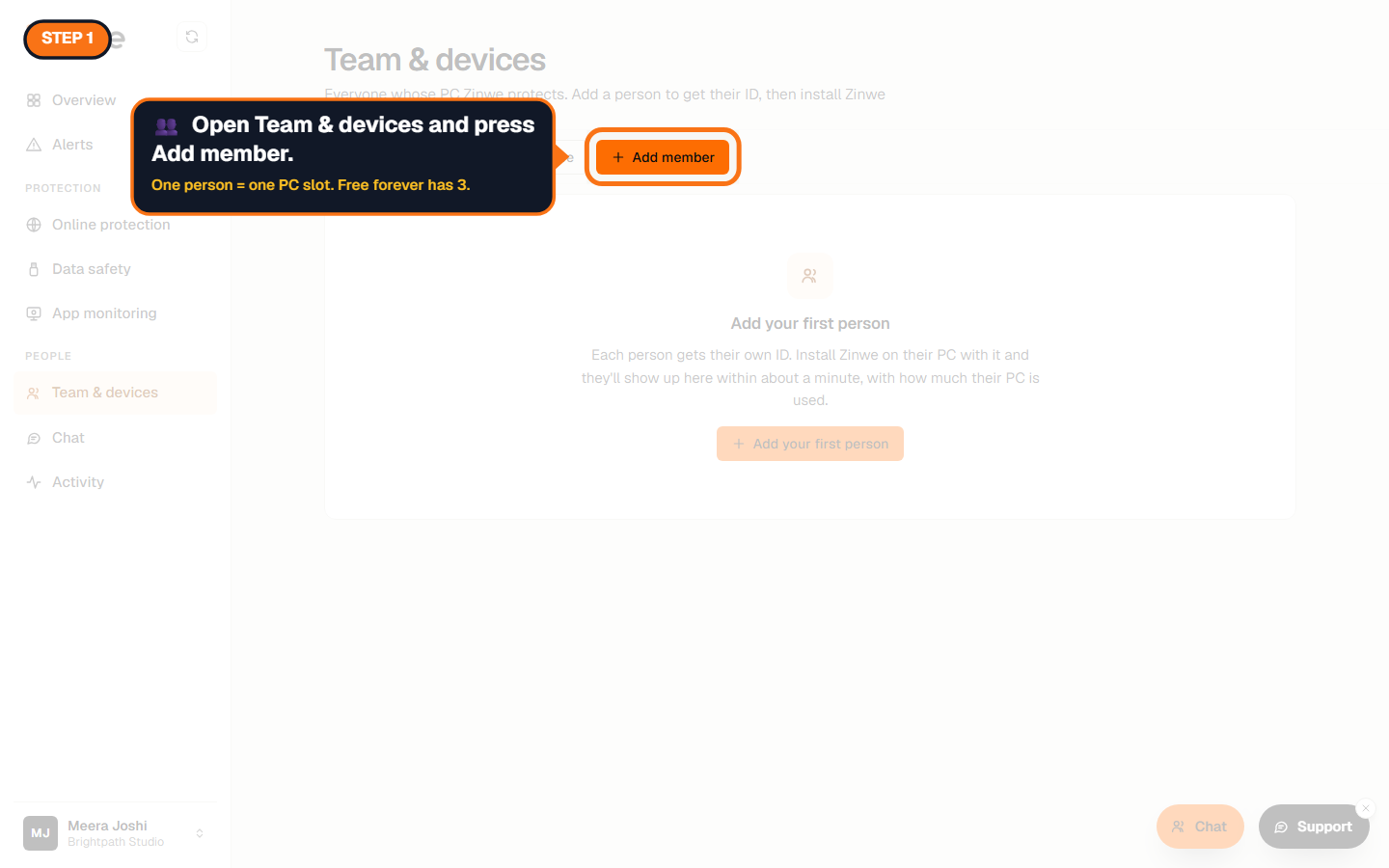
Step 1: Open Team & devices
It's under People in the sidebar. Press Add member.
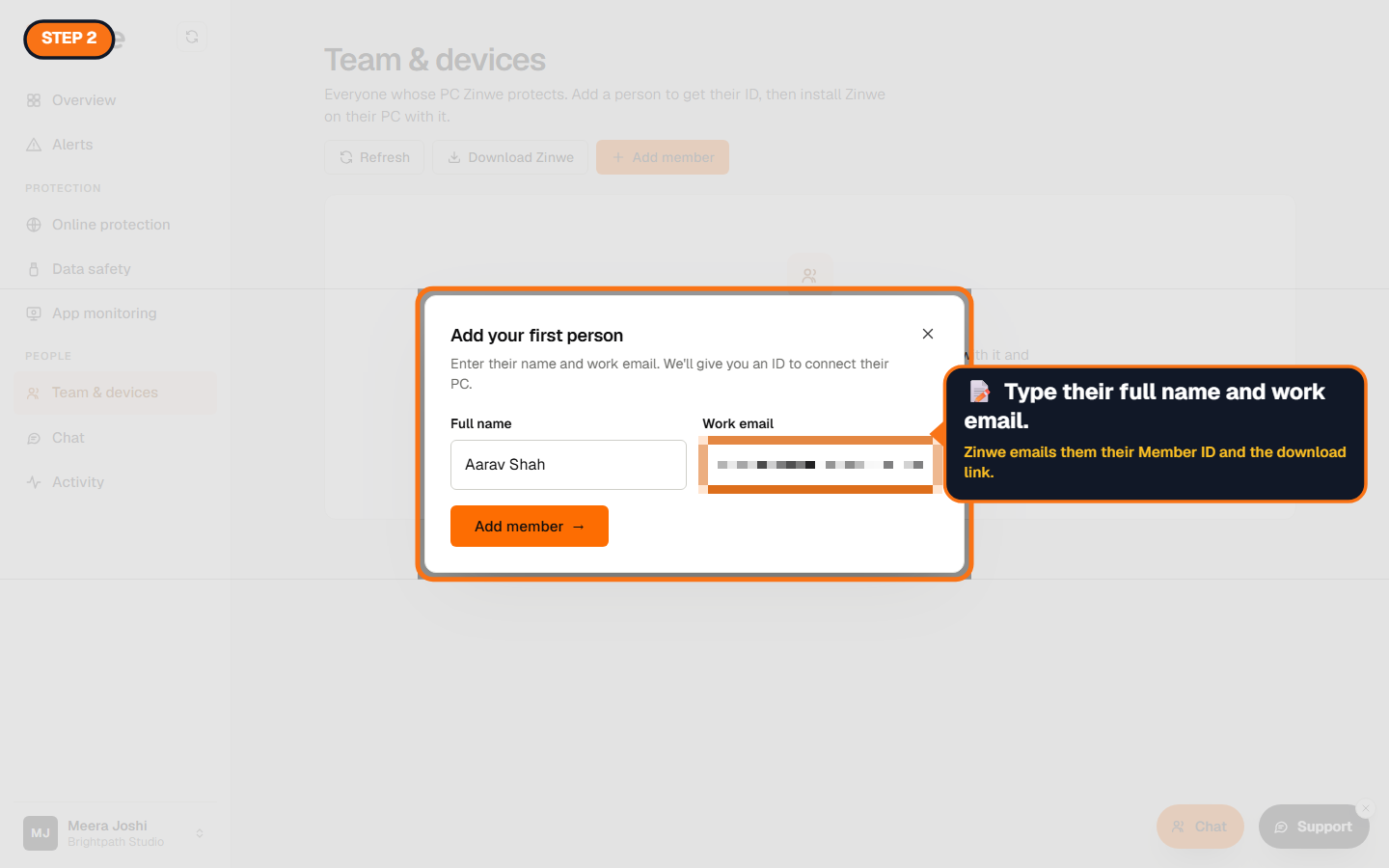
Step 2: Type their name and work email
Use the email they actually read. Zinwe sends them their Member ID and the download link there.
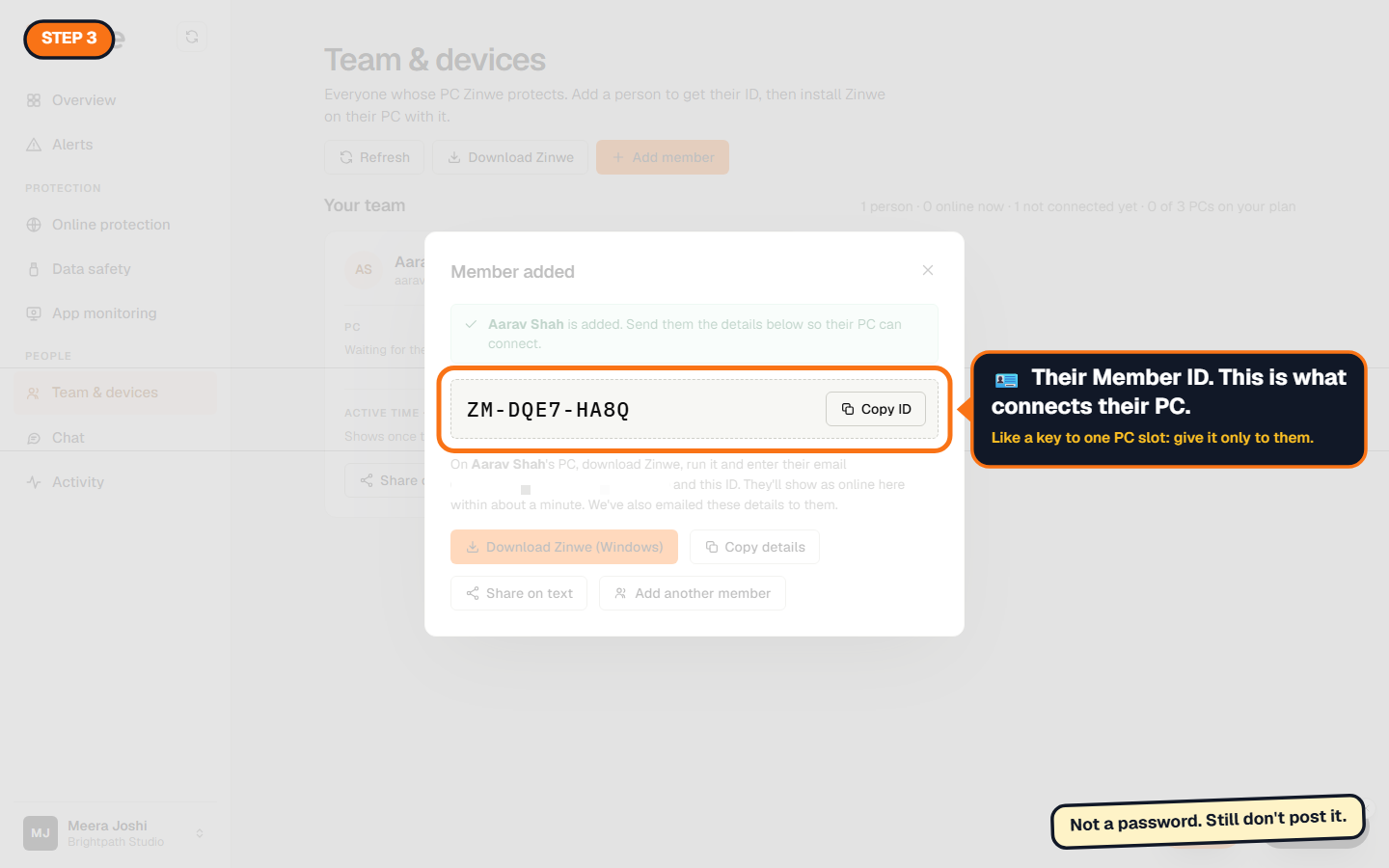
Step 3: Their Member ID
Every person gets their own ID, like ZM-XXXX-XXXX. It connects one PC to your company, so give it only to that person. There are no shared passwords.
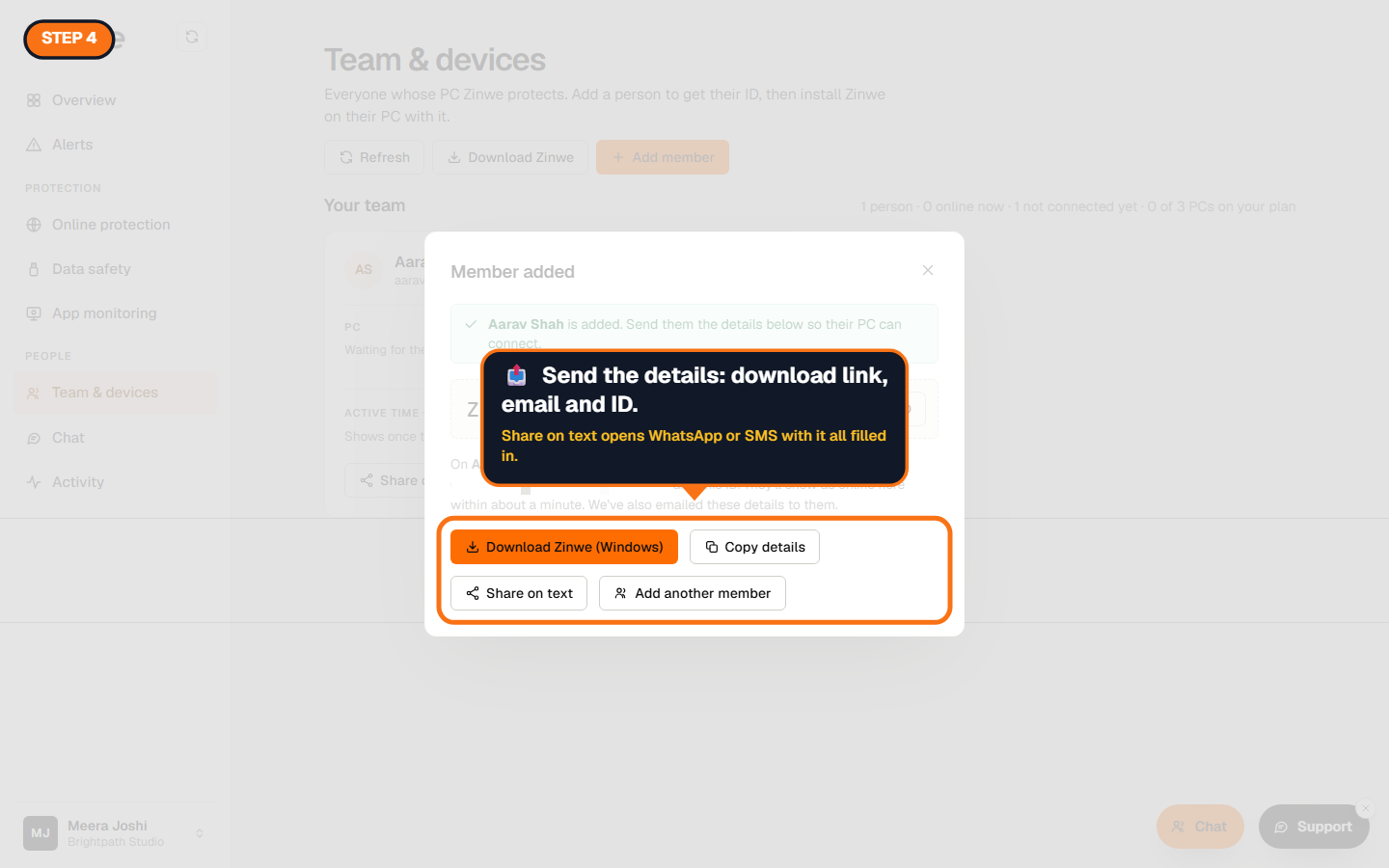
Step 4: Send them the details
We've already emailed them. If you'd rather send it yourself:
- Download Zinwe (Windows) gets the installer, if you're setting up their PC for them.
- Copy details copies the link, their email and ID in one go.
- Share on text opens WhatsApp or SMS with everything filled in.
Step 5: Wait for their PC to connect
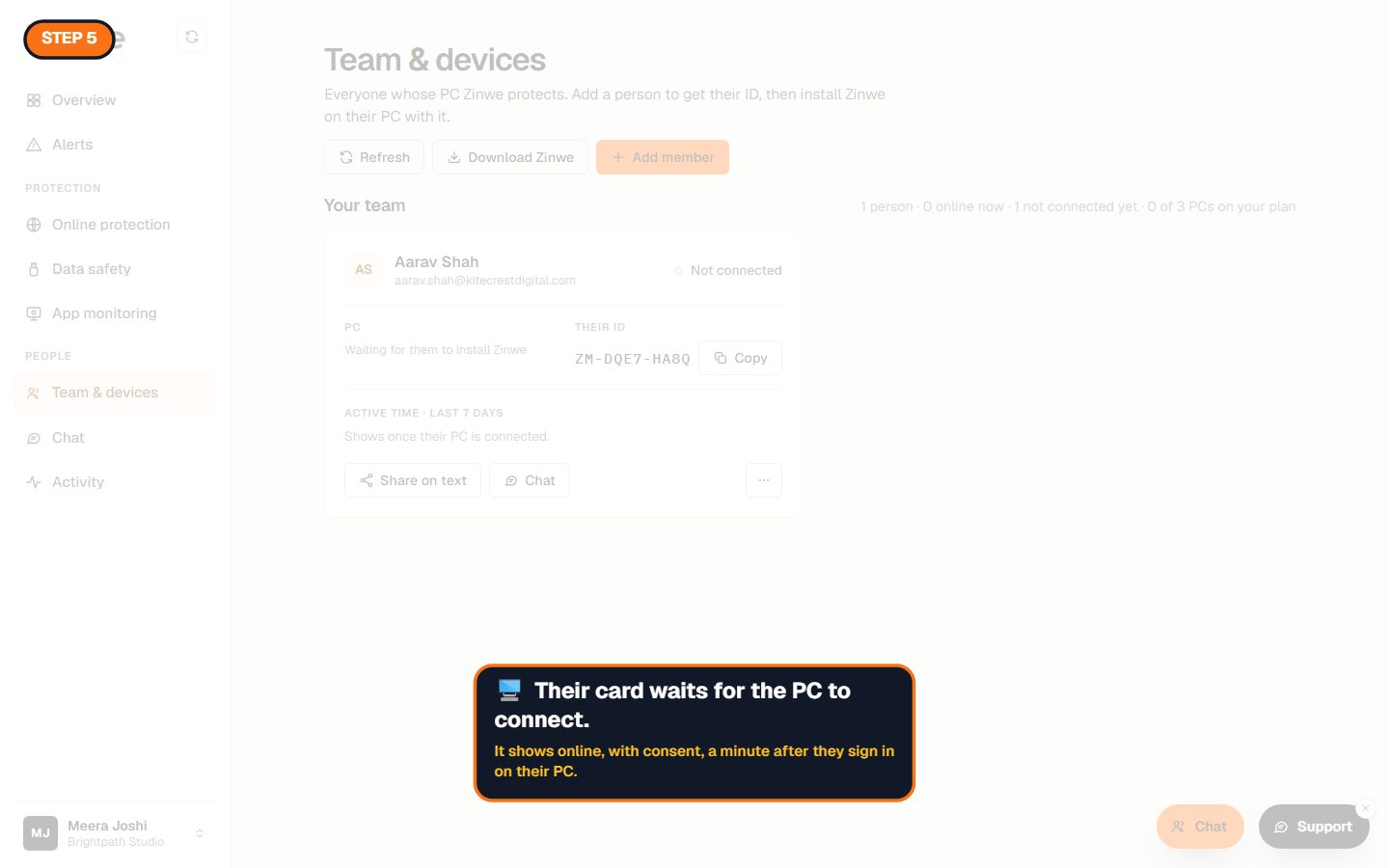
Their card says Not connected until they install Zinwe. On their PC they double-click the installer, type their email and Member ID, read what Zinwe records, and choose I agree. Nothing is recorded before they agree. About a minute later their card shows them online, with the date they gave consent.
Good to know
- Someone leaves? Remove them from the menu on their card (the ⋯ button). Their PC slot frees up at once.
- ID shared by mistake? Make a new one from the same menu. The old one stops working.
- Need more PCs? Upgrade your plan. PCs already connected never get cut off.
- Zinwe runs on Windows 10 and 11 today.
The How to use Zinwe series
Get started
Set up
- Update your company details
- Add your team (you are here)
- Manage your team
Protect your data
- Read and handle an alert
- Control pen drives
- Block remote-access tools
- Block websites
- New-software alerts
Your team
Your plan