Tutorial
How to spot and block AnyDesk, TeamViewer and other remote-access tools
Zinwe alerts you when a remote-control tool starts on an office PC, and can close the ones you don't allow: AnyDesk, TeamViewer, UltraViewer, RustDesk and more.
Zinwe team · · 2 min read
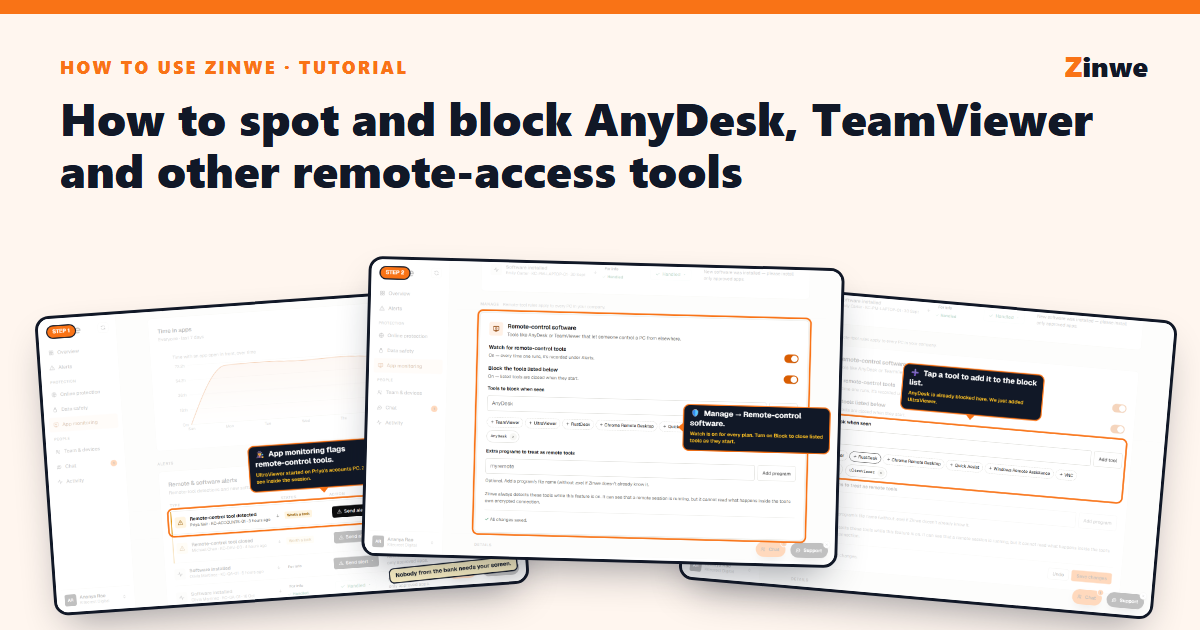
Short answer: Zinwe watches for remote-control tools on every PC and alerts you when one starts. To stop them, go to App monitoring → Remote-control software, turn on Block the tools listed below, add the tools and press Save changes.
Why it matters: a common scam is a "bank" or "support" caller who talks a staff member into installing AnyDesk or UltraViewer, then takes over the PC.
The screenshots come from our demo account: a sample company with made-up staff.
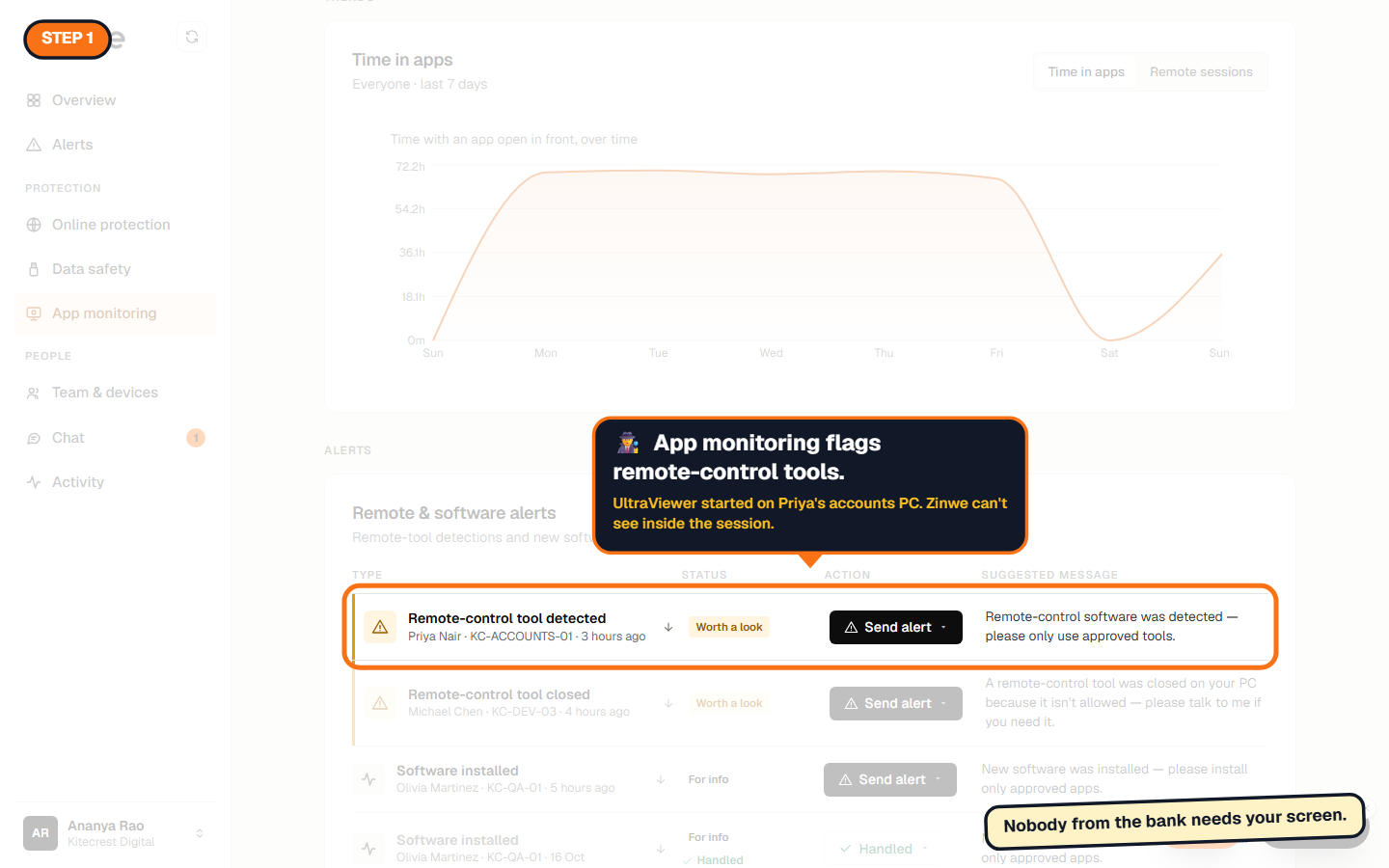
Step 1: See the alert
When a remote-control tool runs, it shows up in App monitoring and Alerts: which tool, which PC, who. Zinwe can tell a session is running, but it can't see inside it.
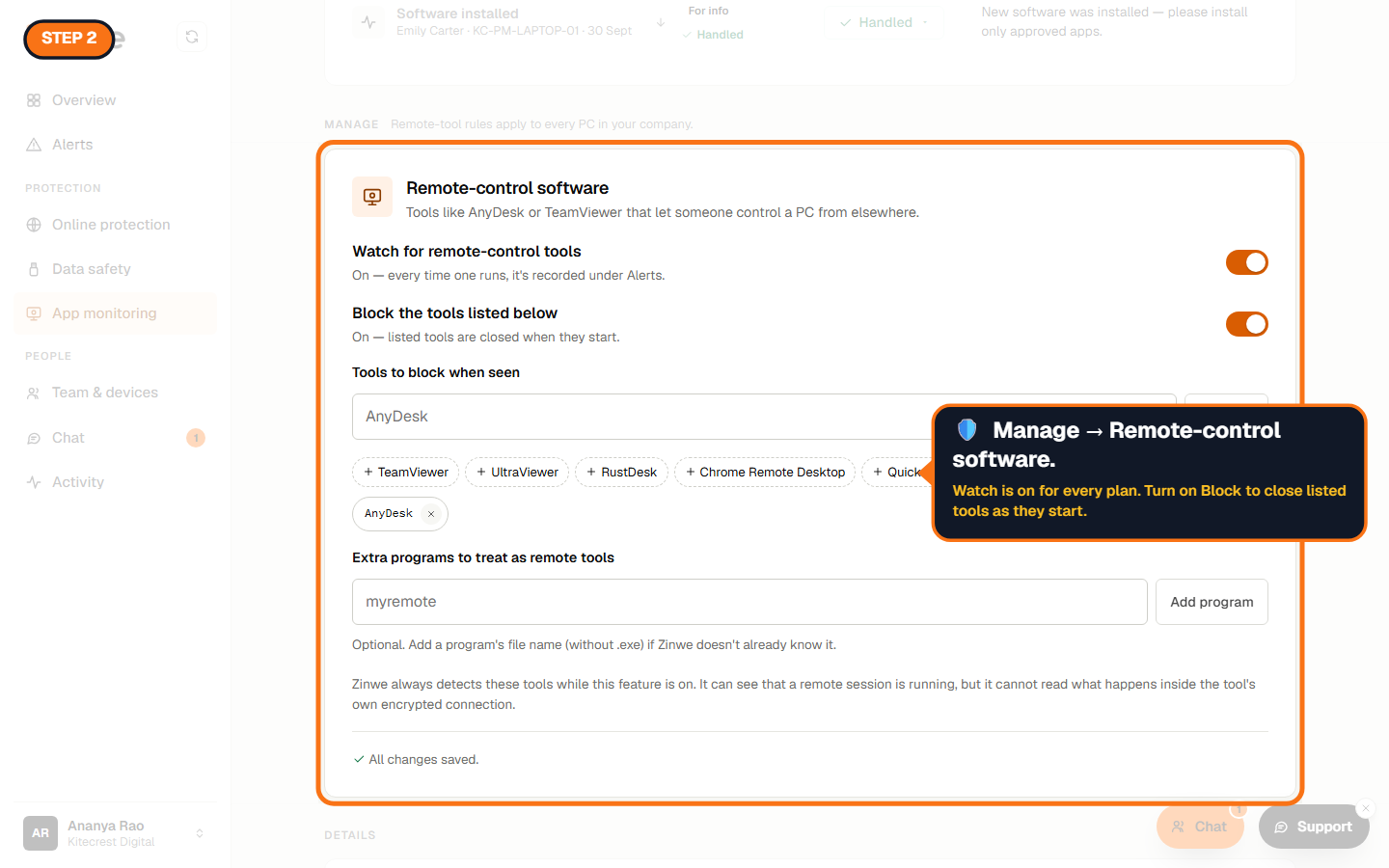
Step 2: Open the rules
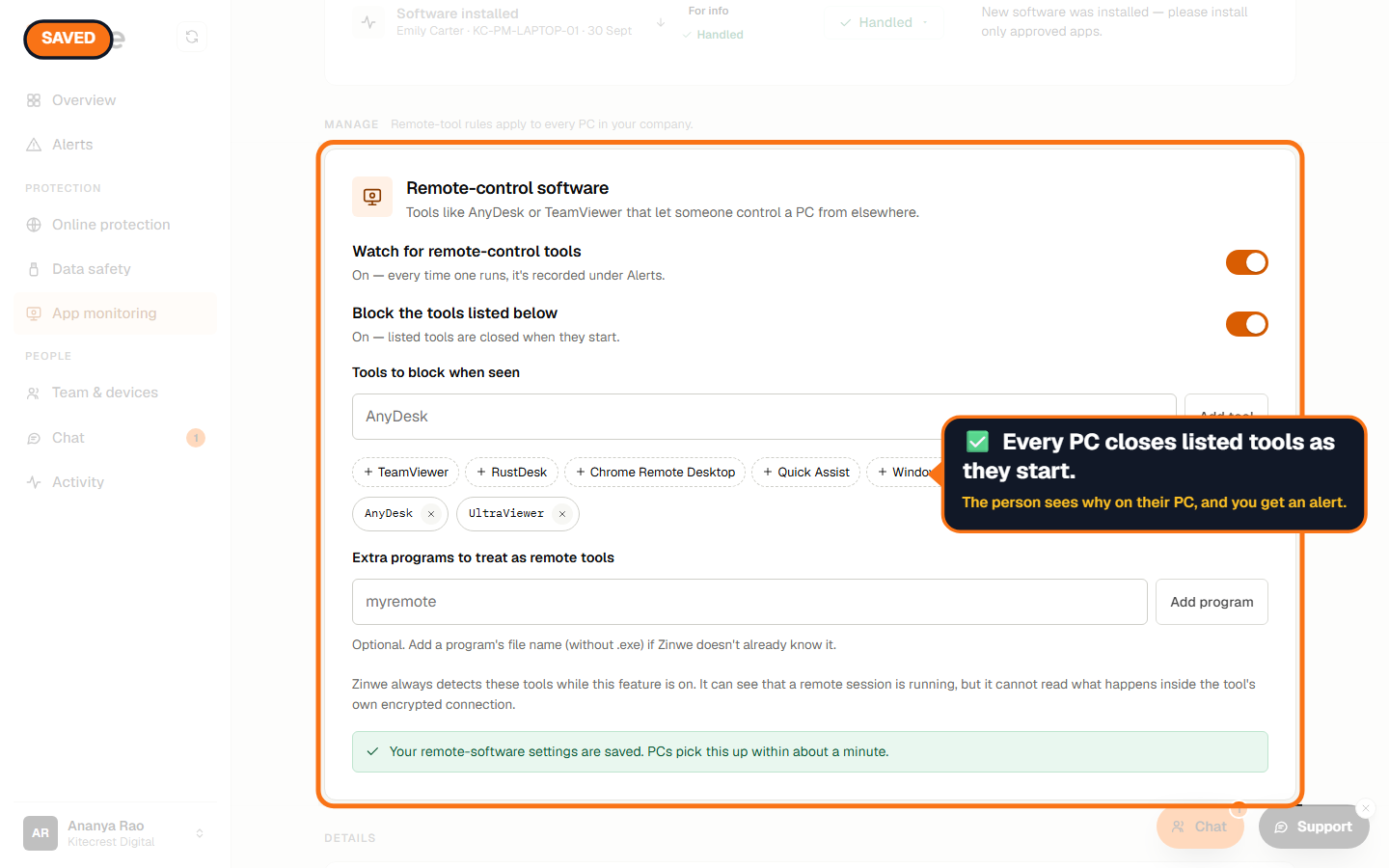
Scroll to Manage → Remote-control software. Watch for remote-control tools records every one that runs. Block the tools listed below closes listed tools as soon as they start.
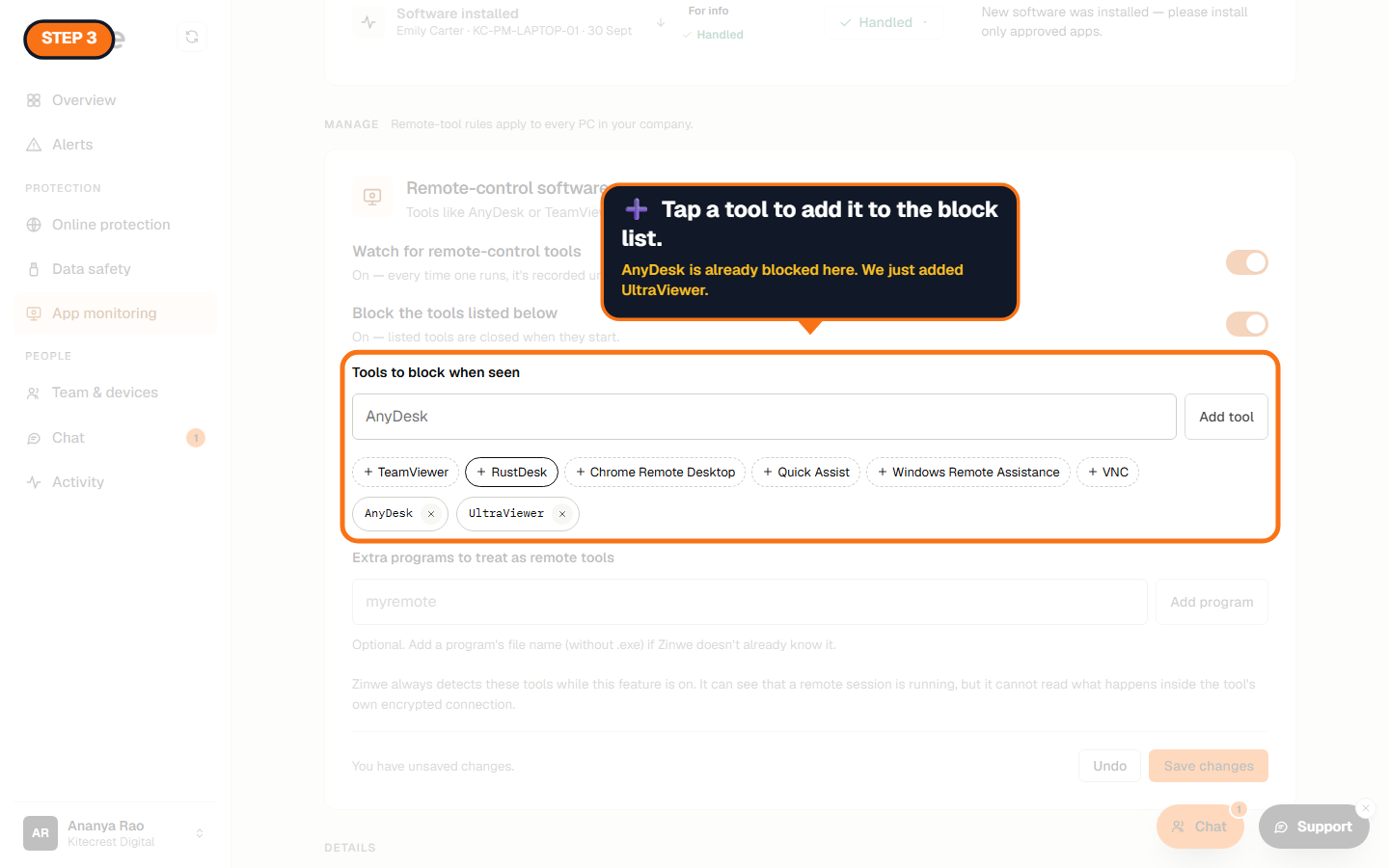
Step 3: Add tools to the block list
Tap a suggestion to add it: TeamViewer, UltraViewer, RustDesk, Chrome Remote Desktop, Quick Assist, Windows Remote Assistance or VNC. Or type a name and press Add tool. Zinwe doesn't know a tool? Add its program name under Extra programs to treat as remote tools.
Step 4: Save
Press Save changes. Every PC gets the rule in about a minute. When a blocked tool starts, Zinwe closes it, tells the person on their PC that it was blocked by your company's policy, and sends you an alert.
Good to know
- Your own IT person needs AnyDesk now and then? Take it off the list for a day, then add it back.
- Pair this with a rule for staff: never install anything a caller asks for.
The How to use Zinwe series
Get started
Set up
Protect your data
- Read and handle an alert
- Control pen drives
- Block remote-access tools (you are here)
- Block websites
- New-software alerts
Your team
Your plan