Tutorial
How to approve or deny breaks in one click
Breaks waiting for you show "to review" on the Activity page. Open the person, read the reason and note, press Approve or Not OK. They see your answer in their widget.
Zinwe team · · 2 min read
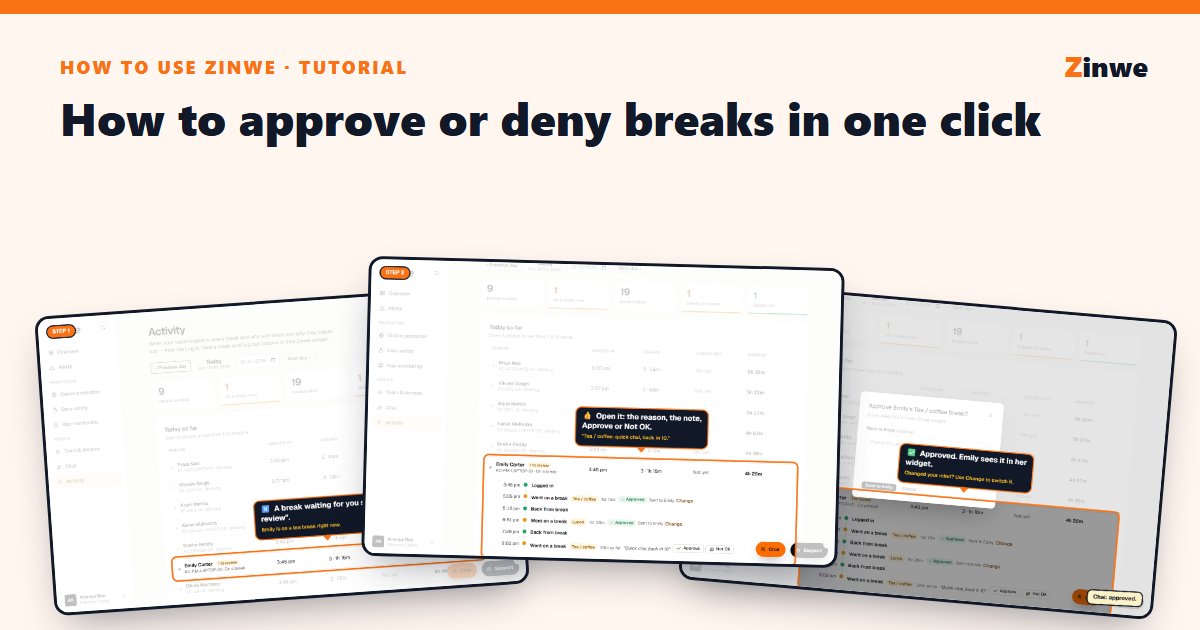
Short answer: on Activity, a person with a break waiting shows to review. Click them, read the reason, press Approve or Not OK.
A break never waits for you: the person goes on it straight away, and your answer reaches their widget afterwards.
The screenshots come from our demo account: a sample company with made-up staff.
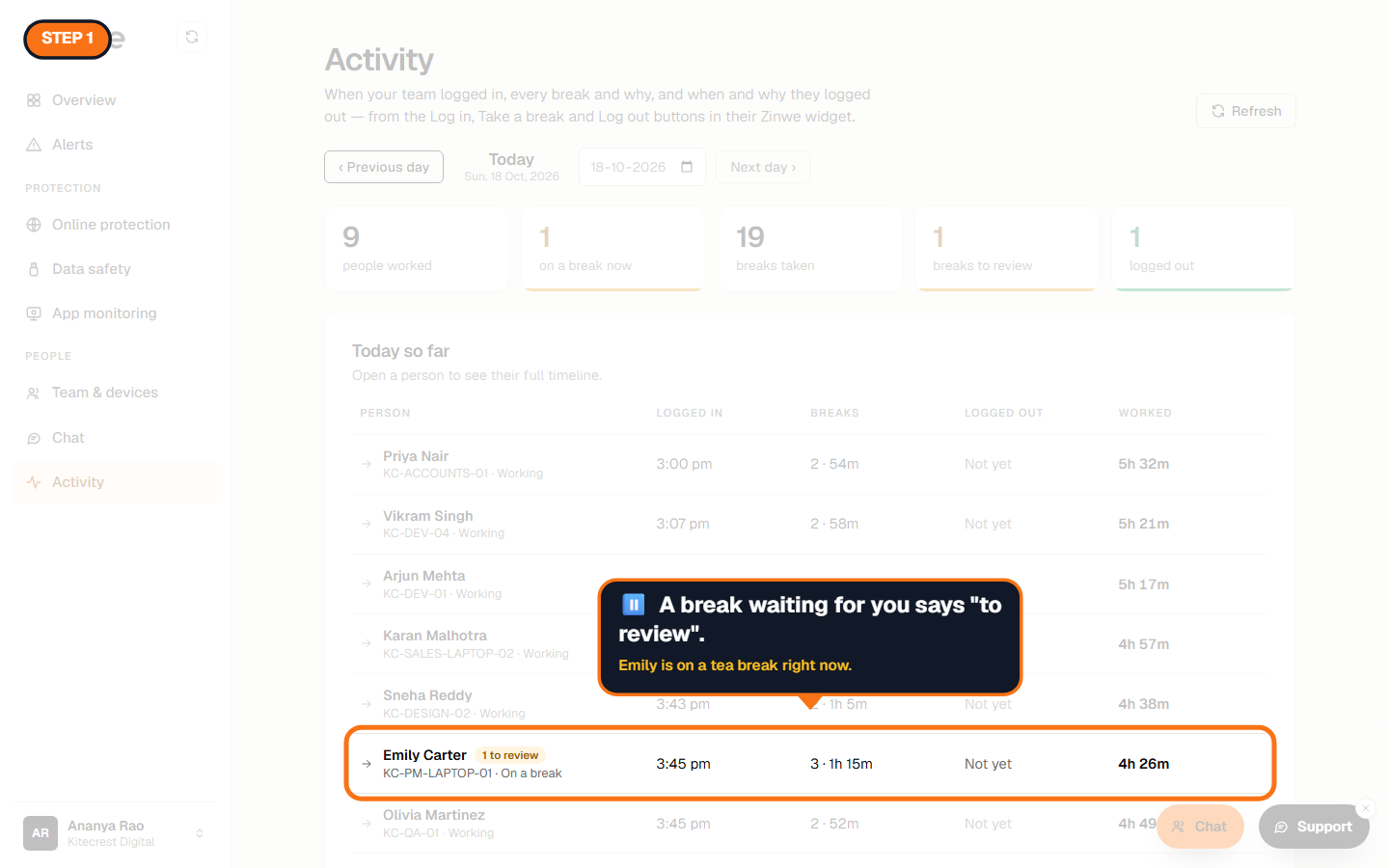
Step 1: Find breaks to review
The breaks to review tile counts them, and each person's row shows a badge.
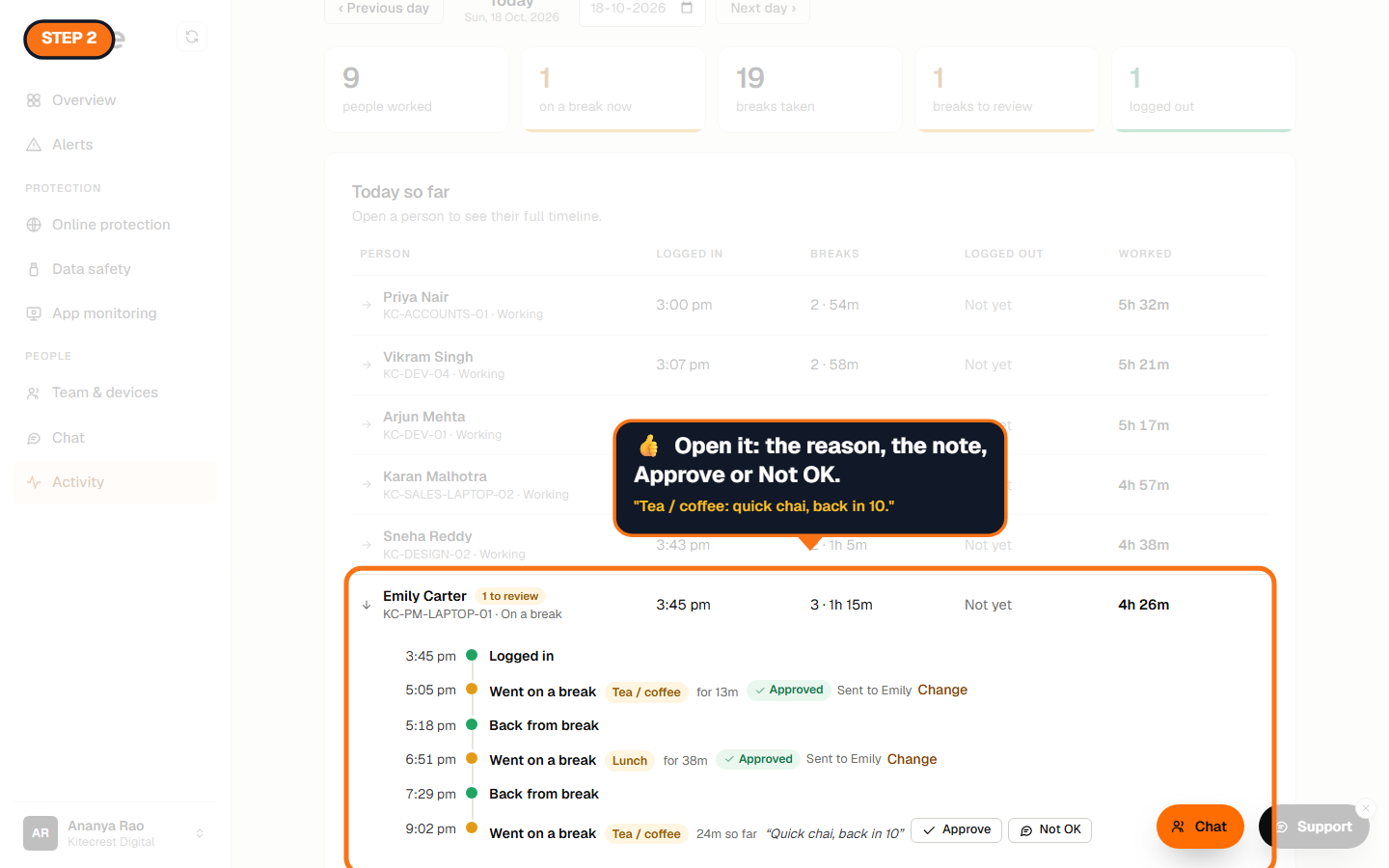
Step 2: Open the person and decide
Their timeline shows each break with its reason and note, like "Tea / coffee: quick chai, back in 10". Press Approve or Not OK.
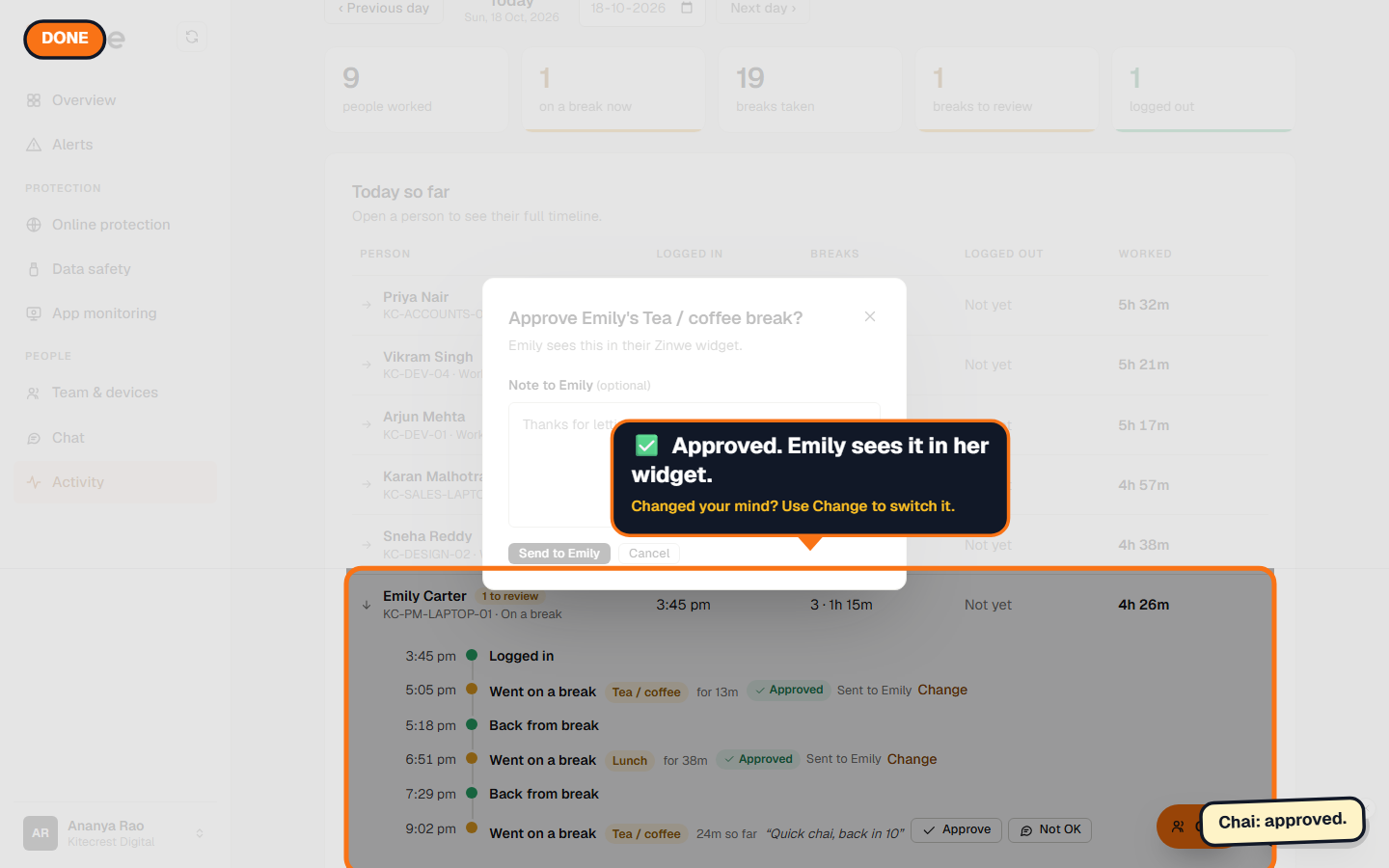
Step 3: Done
The break shows Approved, and the person is told in their widget. Changed your mind? Press Change next to it.
The How to use Zinwe series
Get started
Set up
Protect your data
- Read and handle an alert
- Control pen drives
- Block remote-access tools
- Block websites
- New-software alerts
Your team
- Message someone about an alert
- Team chat
- Work hours
- Approve breaks (you are here)
Your plan