Tutorial
How to see work hours without spying: log in, breaks and log out
Your team presses Log in, Take a break and Log out in the Zinwe widget. You see each person's day on the Activity page: start, every break and why, end, and time worked.
Zinwe team · · 2 min read
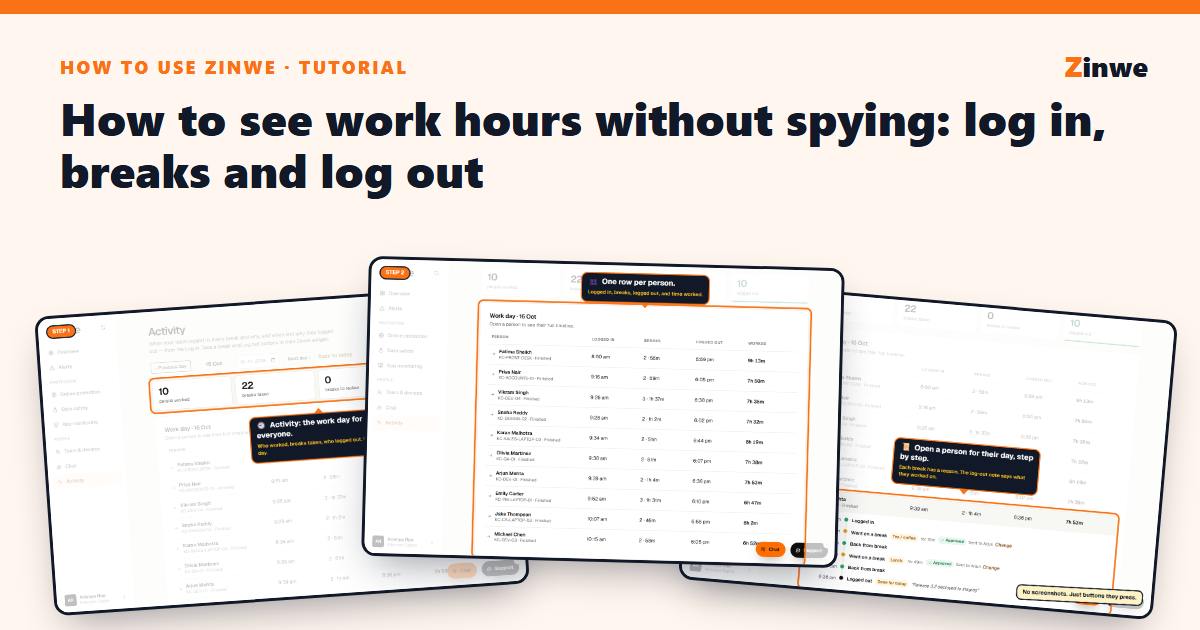
Short answer: your team presses Log in, Take a break, I'm back and Log out in the Zinwe widget on their PC. You see the day on the Activity page. No screenshots, no keystrokes: just the buttons they press.
The screenshots come from our demo account: a sample company with made-up staff.
What your team does
- Log in when they start.
- Take a break with a reason: Lunch, Tea / coffee, Meeting, Personal or Other, plus an optional note.
- I'm back when they return.
- Log out with a reason (Done for today, Leaving early, Half day, Not feeling well, Other) and, if they like, what they worked on.
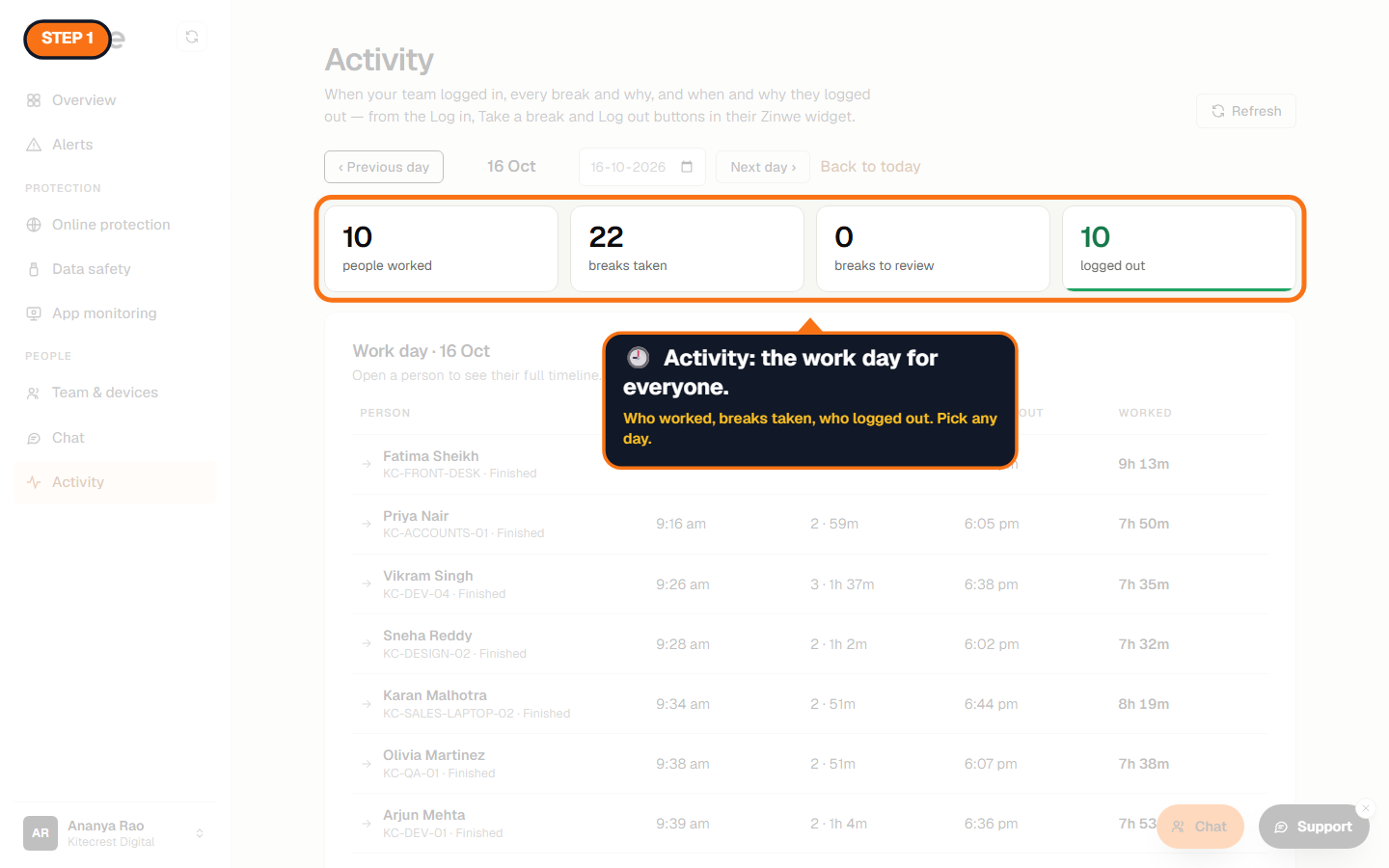
Step 1: Open Activity
The tiles show how many people worked, breaks taken, breaks to review and who logged out. Use Previous day, Next day or the date picker for any day.
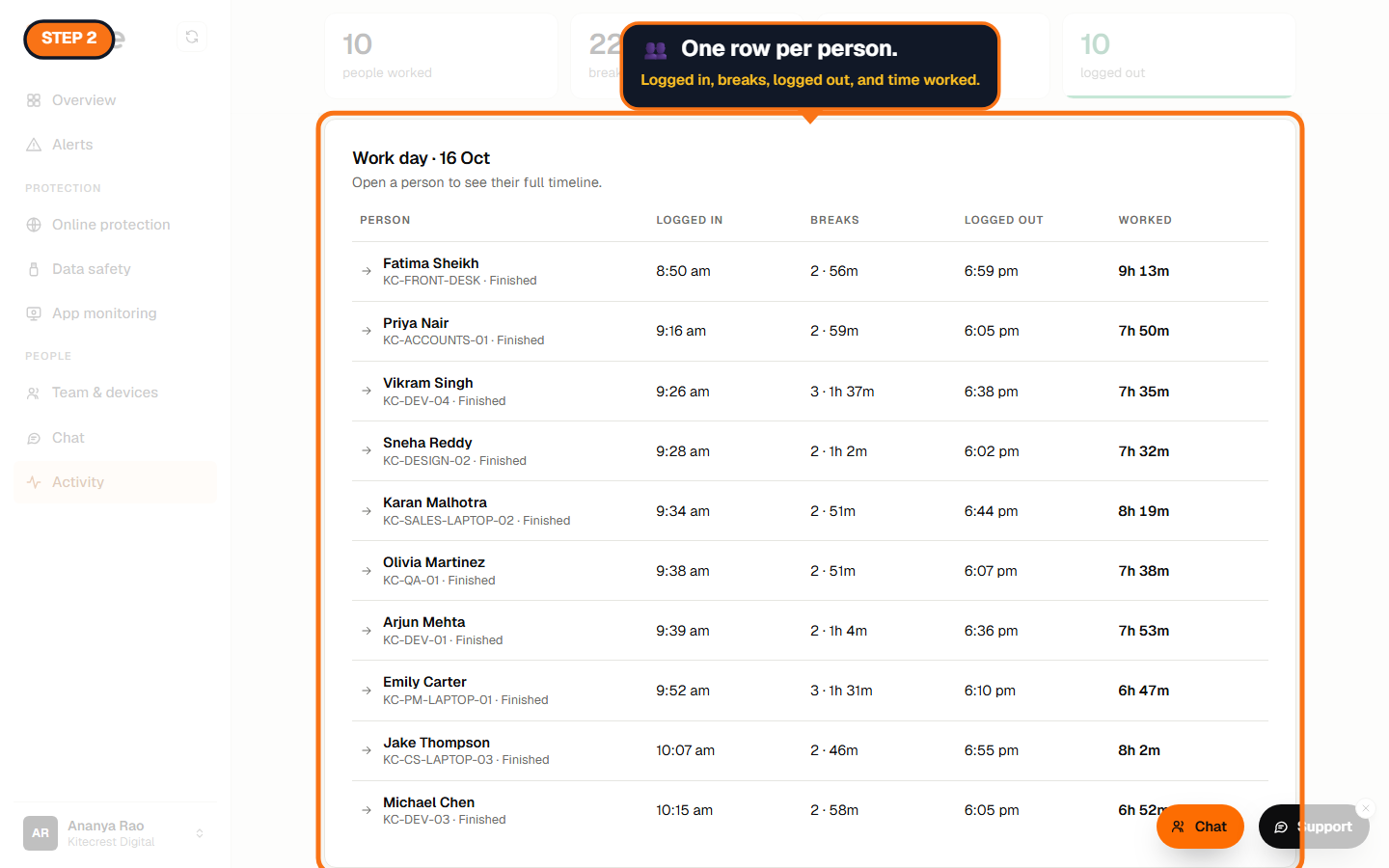
Step 2: One row per person
Logged in, breaks (how many and how long), logged out, and time worked.
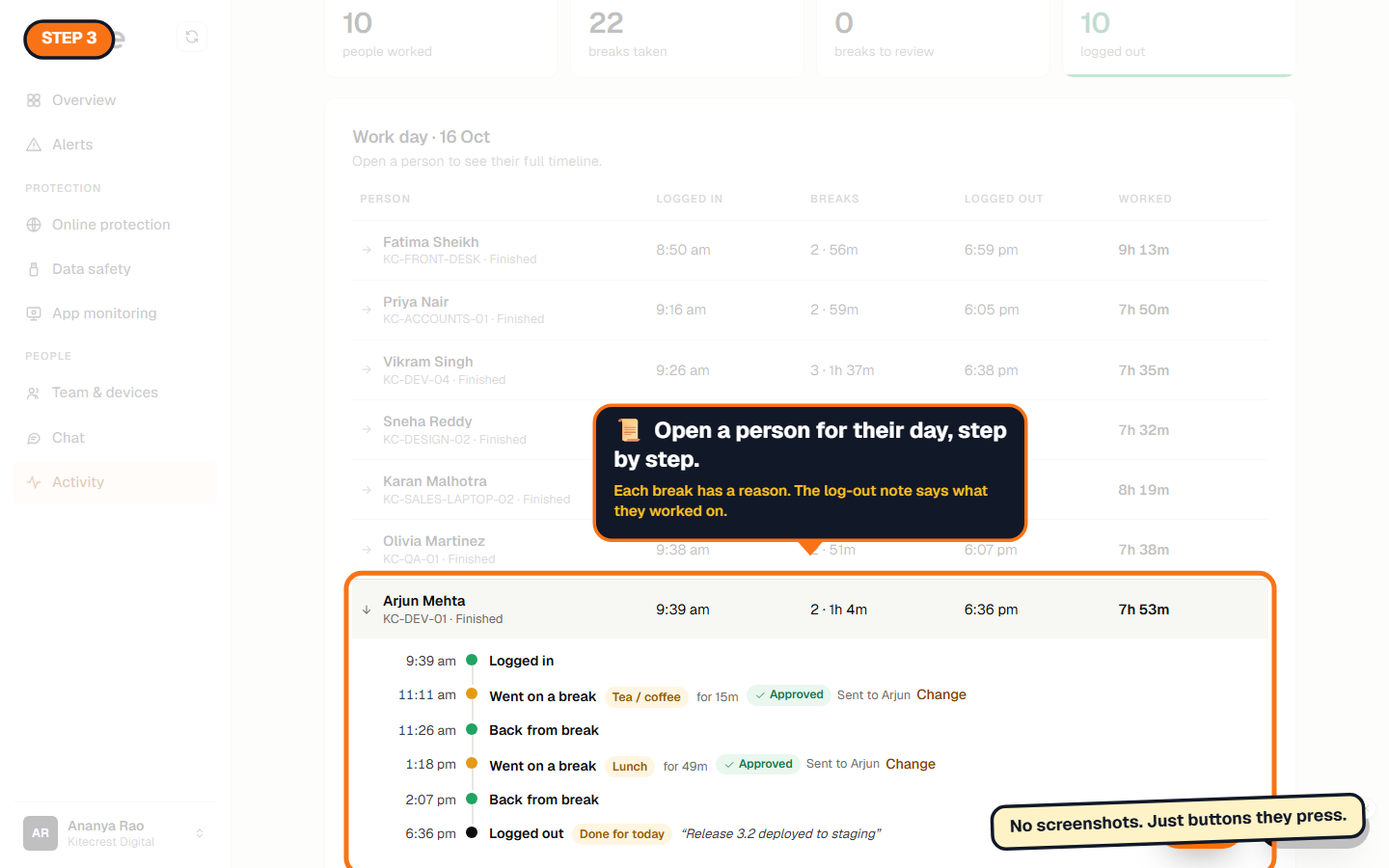
Step 3: Open a person's day
Click a name for their timeline: each step with its time, every break with its reason and length, and their log-out note.
Good to know
- Forgot to press Log out? The day still shows, and you'll see they didn't press it.
- Breaks can be approved or questioned. That's the next tutorial.
The How to use Zinwe series
Get started
Set up
Protect your data
- Read and handle an alert
- Control pen drives
- Block remote-access tools
- Block websites
- New-software alerts
Your team
- Message someone about an alert
- Team chat
- Work hours (you are here)
- Approve breaks
Your plan