Tutorial
Ask, don't accuse: how to message an employee about an alert
Send the person a polite, ready-made note about one alert, to their PC, their email, or both. Their reply comes back in Chat.
Zinwe team · · 2 min read
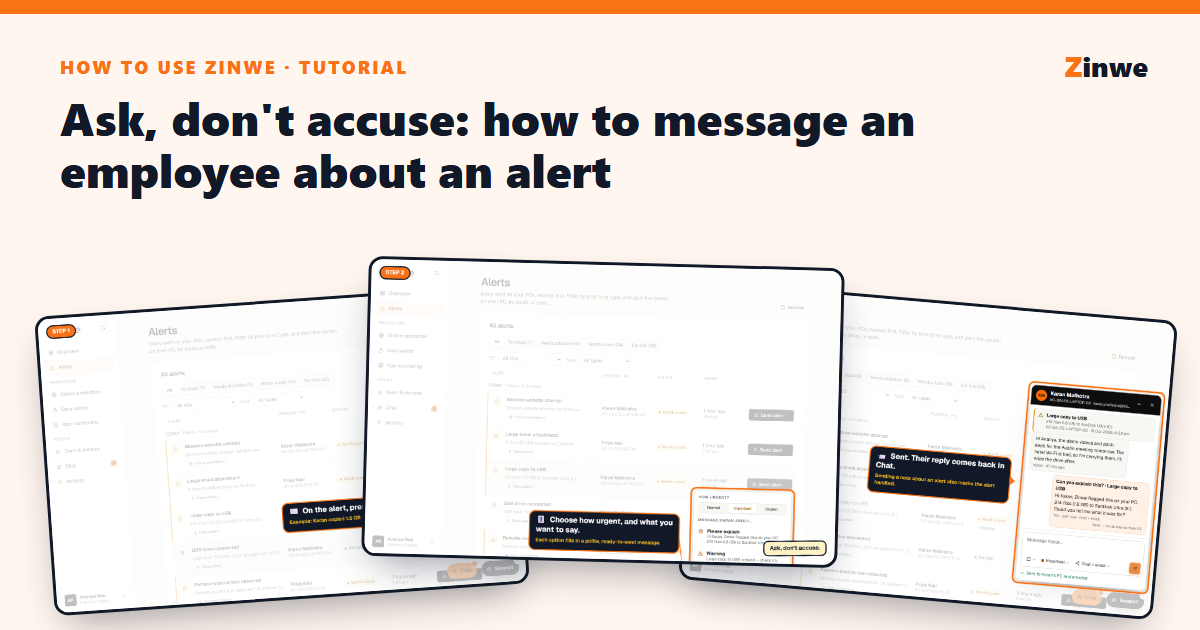
Short answer: on any alert, press Send alert, pick how urgent it is and what you want to say, check the message, and send it. It reaches their PC, their email, or both. Their reply comes back in Chat.
Most alerts have an innocent explanation. A short, polite question gets you the answer and keeps trust.
The screenshots come from our demo account: a sample company with made-up staff.
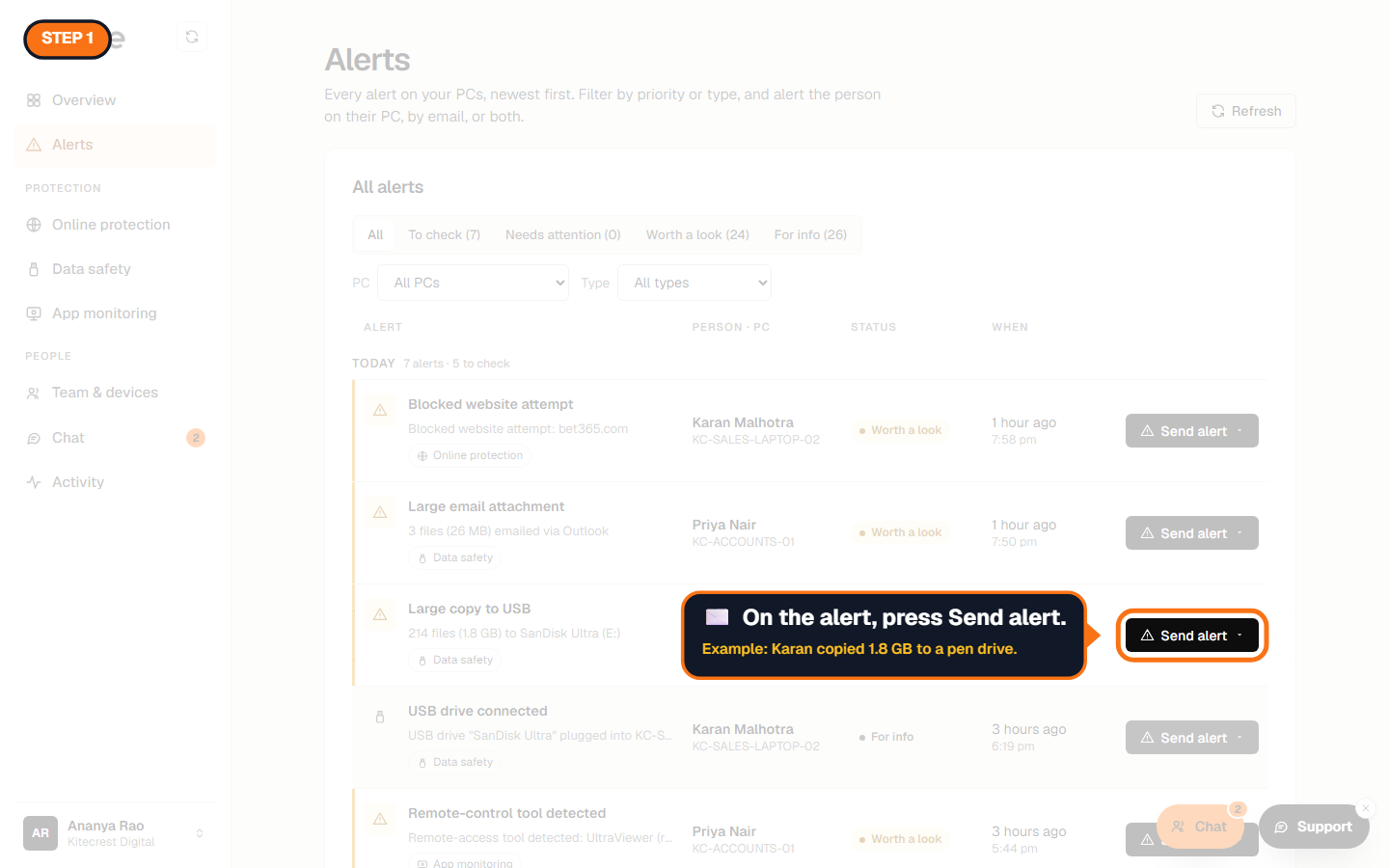
Step 1: Press Send alert
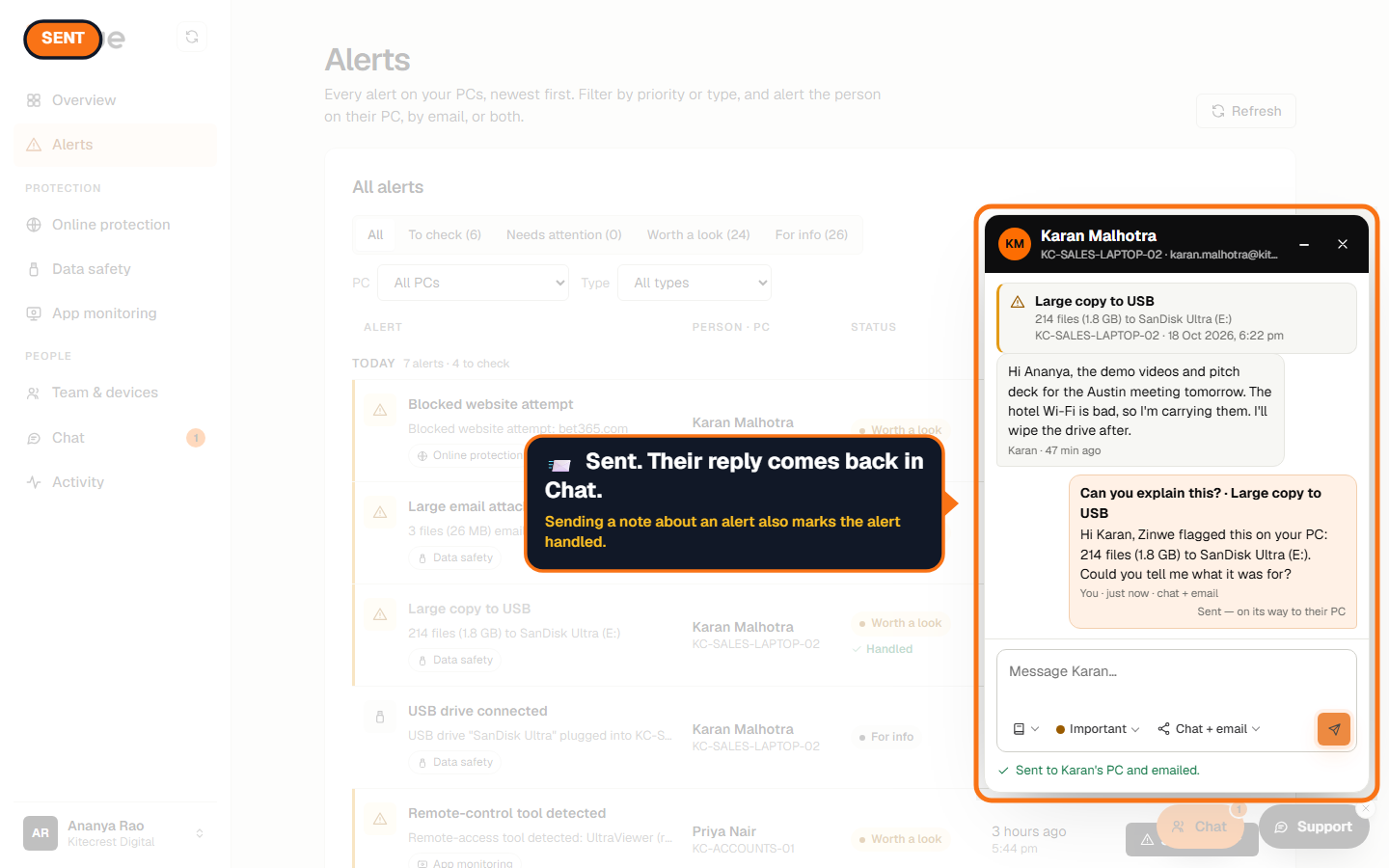
Example: Karan copied 1.8 GB to a pen drive.
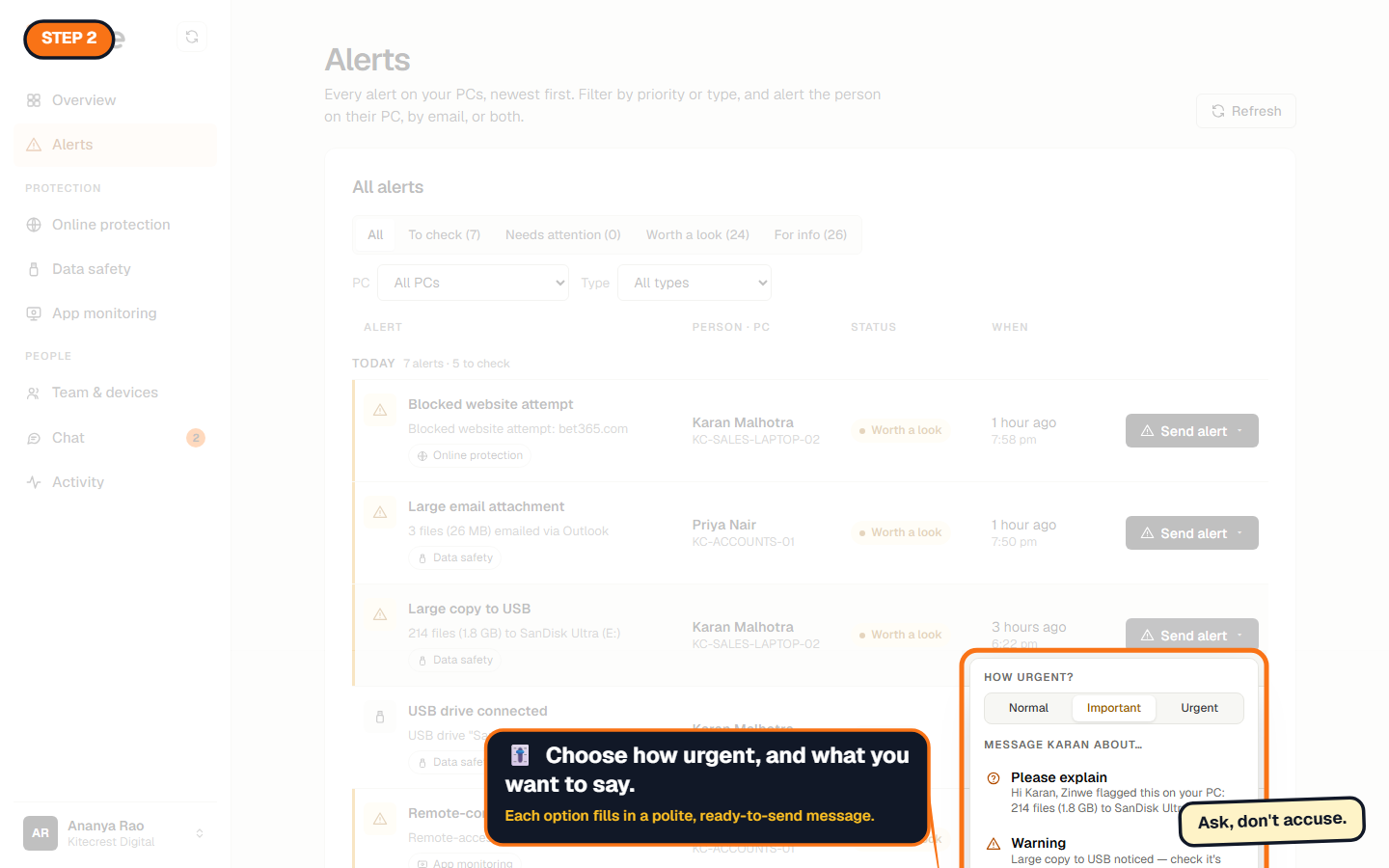
Step 2: Choose how urgent, and what to say
Normal, Important or Urgent. Then a message made for this kind of alert, like Please explain, or All clear if it's fine.
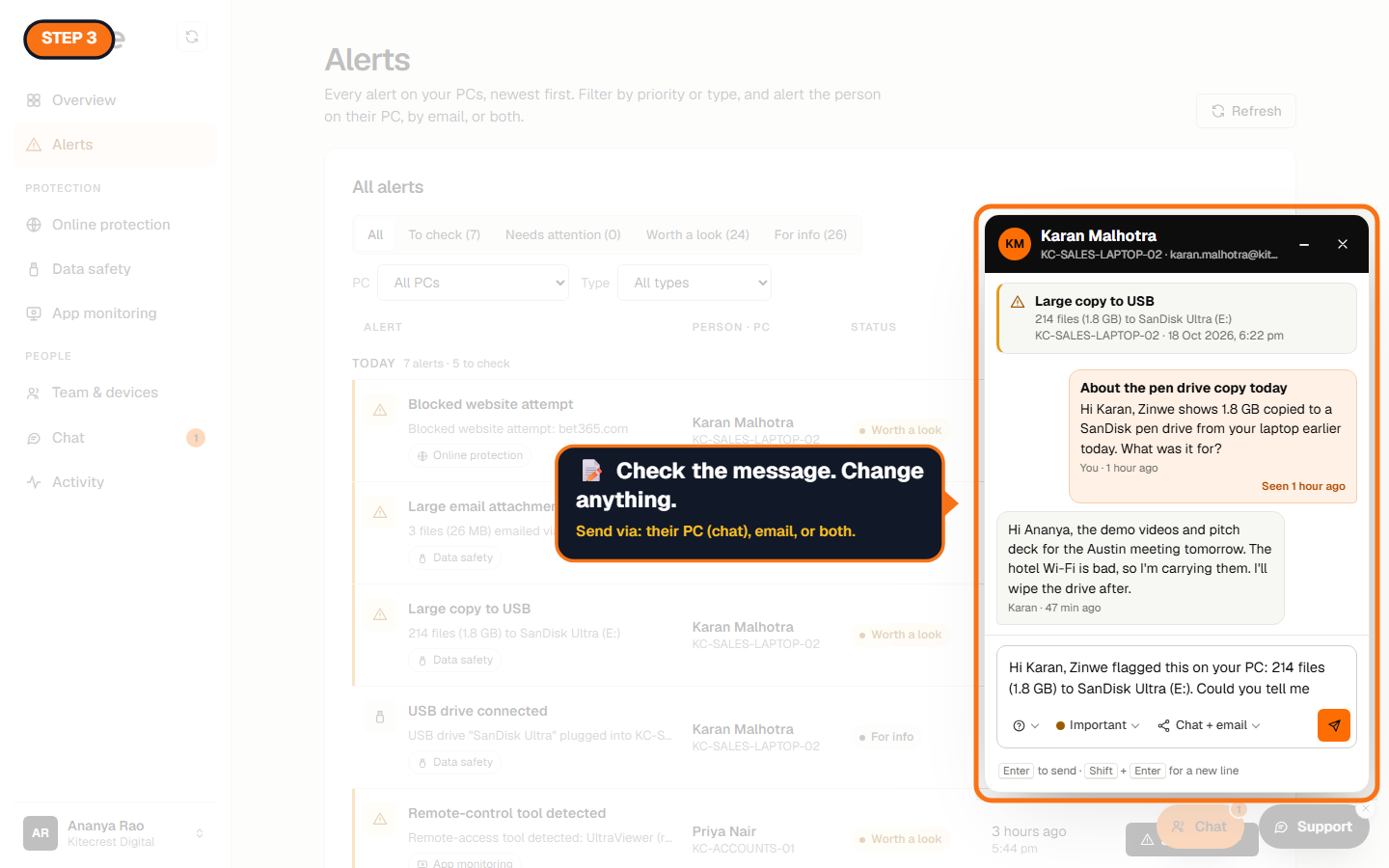
Step 3: Check the message
A chat window opens with the alert at the top and your note filled in. Change anything. Under Send via choose:
- Chat: to the Zinwe widget on their PC.
- Chat + email: their PC and their email.
- Email only: email, nothing on the PC.
Normal notes go to their PC only. Important and Urgent ones go to their PC and email, unless you pick otherwise.
Step 4: Send
You see when it's sent, delivered to their PC and seen. Their reply shows up in the same thread and in Chat. Sending a note about an alert also marks the alert handled.
The How to use Zinwe series
Get started
Set up
Protect your data
- Read and handle an alert
- Control pen drives
- Block remote-access tools
- Block websites
- New-software alerts
Your team
- Message someone about an alert (you are here)
- Team chat
- Work hours
- Approve breaks
Your plan