Tutorial
How to message your team from the Zinwe dashboard
Chat sends notes to the Zinwe widget on each person's PC, by email, or both. Use ready-made suggestions, set the priority, and see when it's delivered and seen.
Zinwe team · · 2 min read
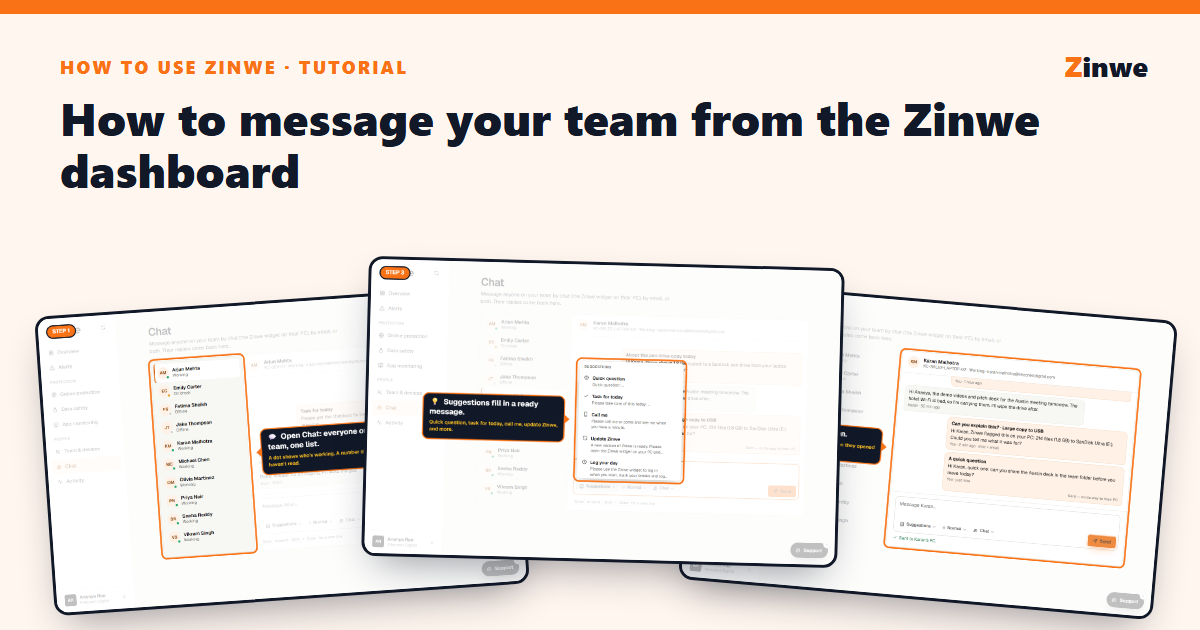
Short answer: open Chat, pick a person, write (or pick a suggestion), choose how to send it, and press Send. It appears in the Zinwe widget on their PC, and they reply from there.
The screenshots come from our demo account: a sample company with made-up staff.
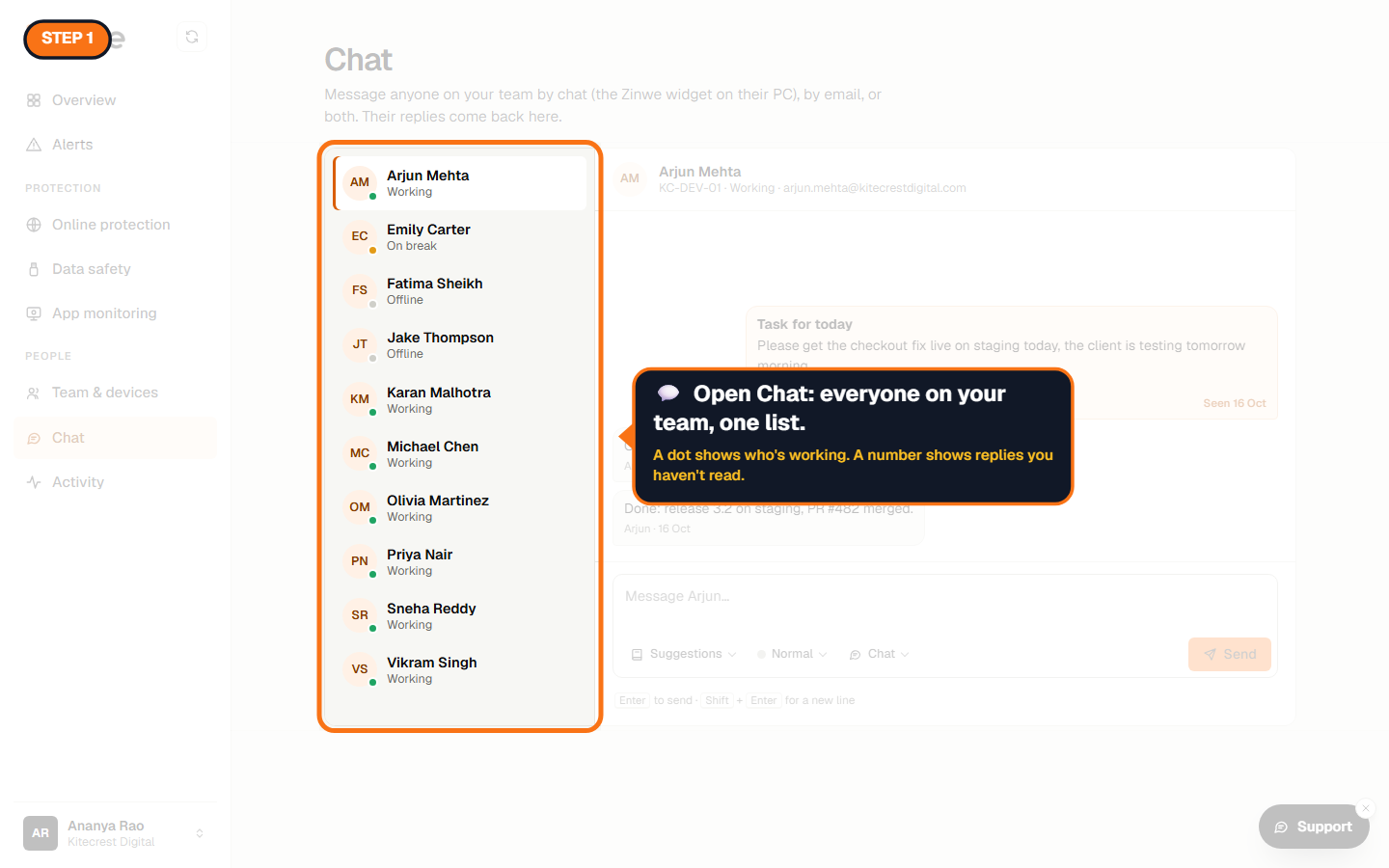
Step 1: Open Chat
Everyone on your team, one list. A dot shows who's working; a number shows replies you haven't read.
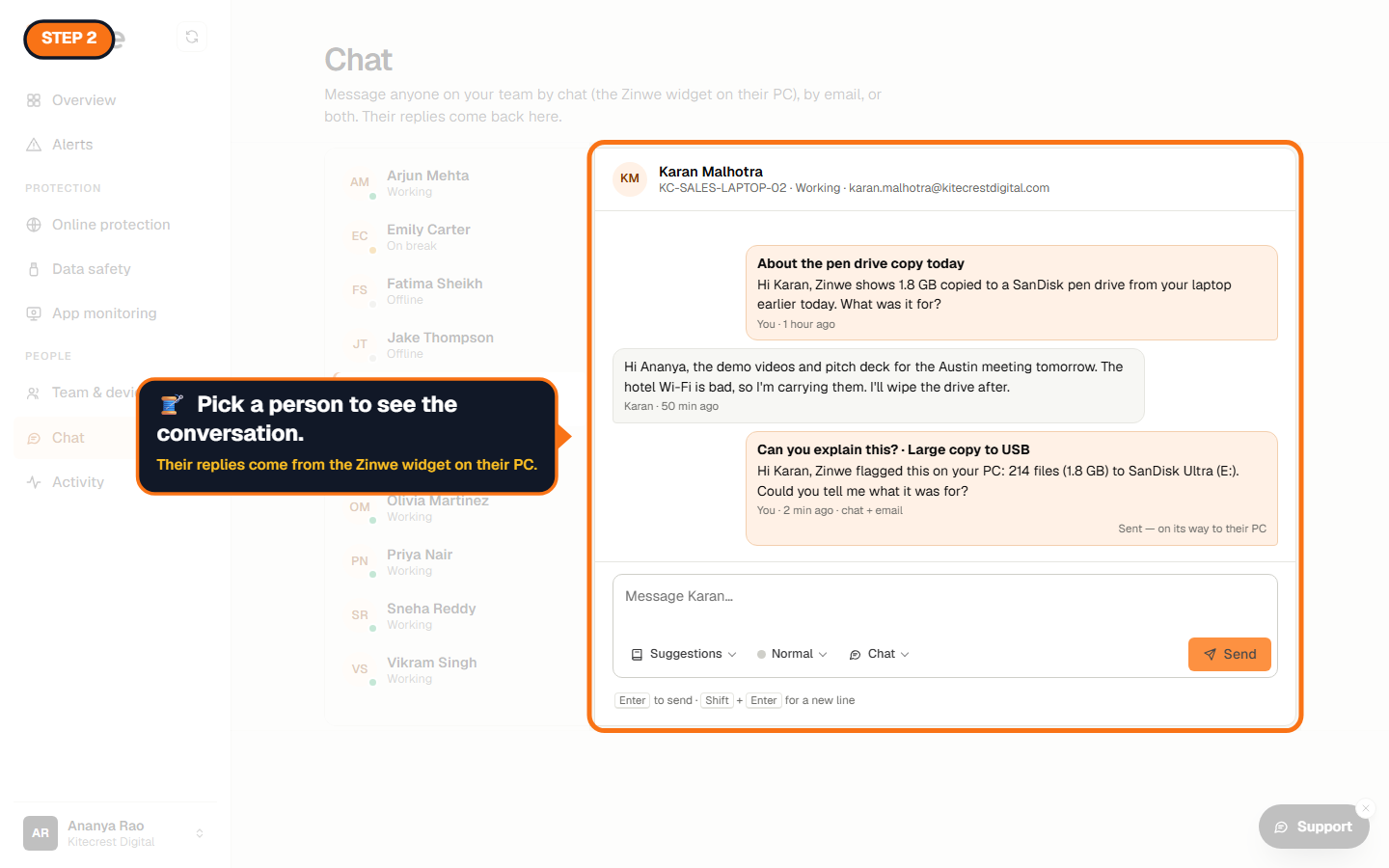
Step 2: Pick a person
You see the whole conversation, including notes about alerts.
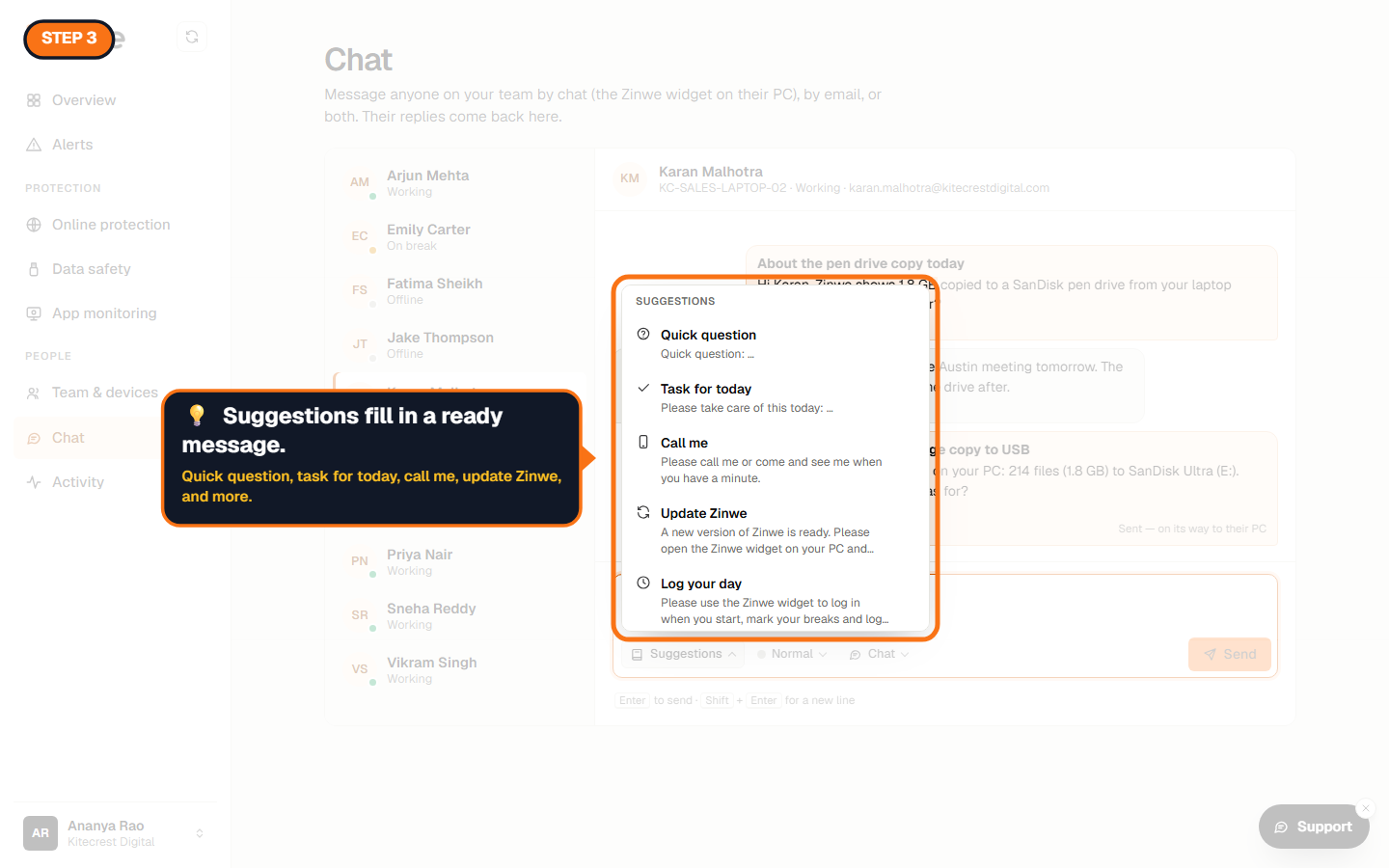
Step 3: Use a suggestion
Suggestions fills in a ready message and subject: Quick question, Task for today, Call me, Update Zinwe, Log your day, Data rules, Thank you.
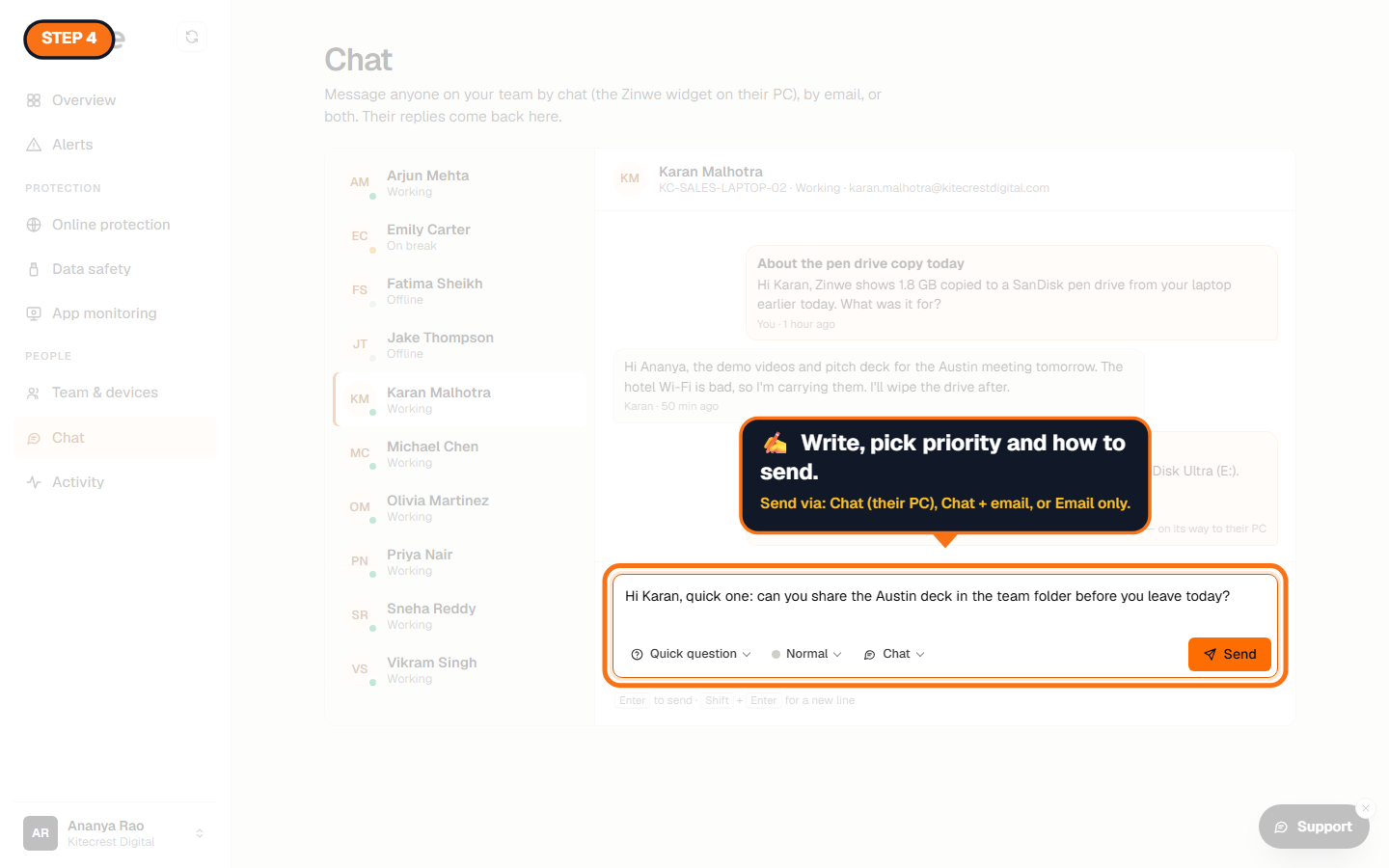
Step 4: Write, set priority, choose how to send
Pick Normal, Important or Urgent, and send via Chat (their PC), Chat + email, or Email only. Email-only notes never appear on their PC.
Step 5: Send and follow it
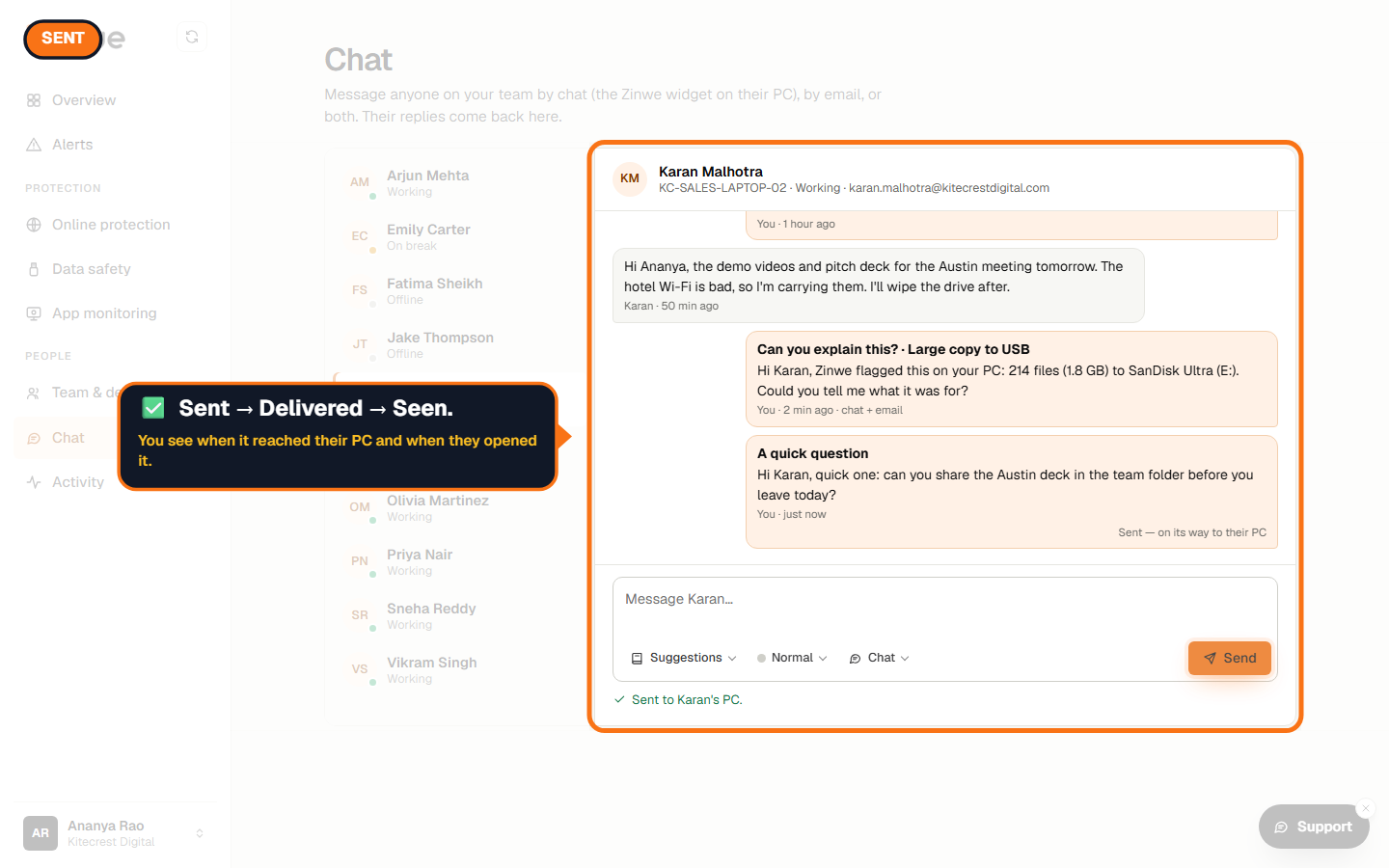
Each note shows Sent, then Delivered when it reaches their PC, then Seen when they open it.
Good to know
- There's also a floating Chat button on every page for a quick note.
- Team chat is on every plan.
The How to use Zinwe series
Get started
Set up
Protect your data
- Read and handle an alert
- Control pen drives
- Block remote-access tools
- Block websites
- New-software alerts
Your team
- Message someone about an alert
- Team chat (you are here)
- Work hours
- Approve breaks
Your plan