Tutorial
How to block risky websites on every office PC
Switch Online protection to Block & watch, pick the kinds of sites to block (adult, gambling, malware, phishing), add your own, and see every blocked attempt.
Zinwe team · · 2 min read
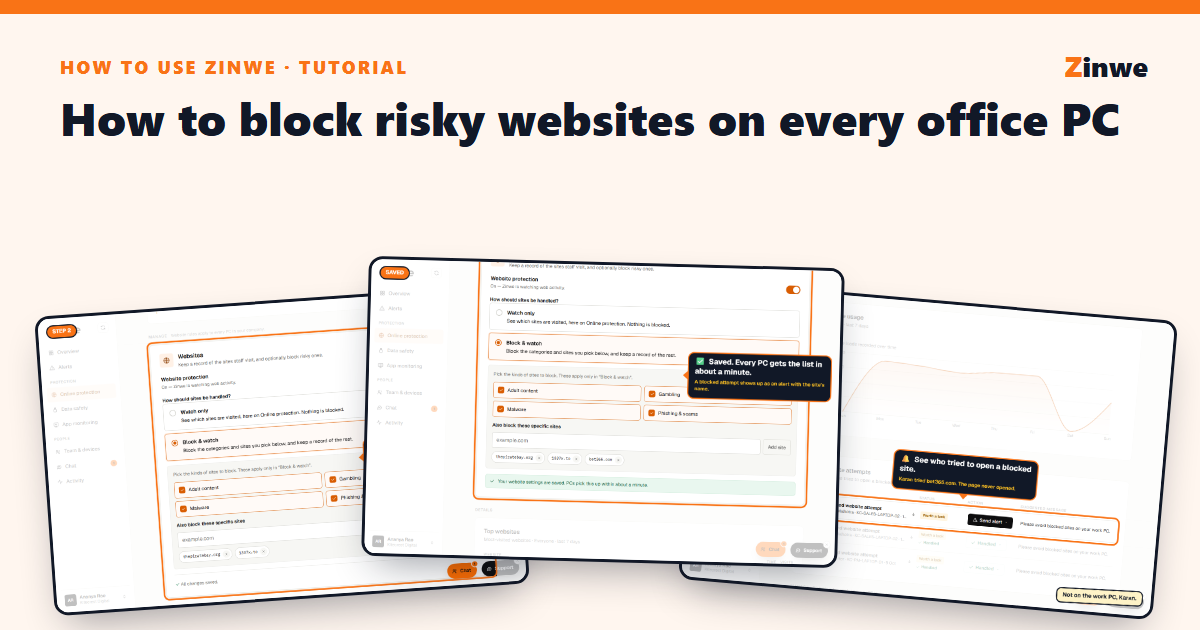
Short answer: open Online protection, choose Block & watch, tick the kinds of sites to block, add any specific sites, and you're done. Every PC gets the list in about a minute.
The screenshots come from our demo account: a sample company with made-up staff.
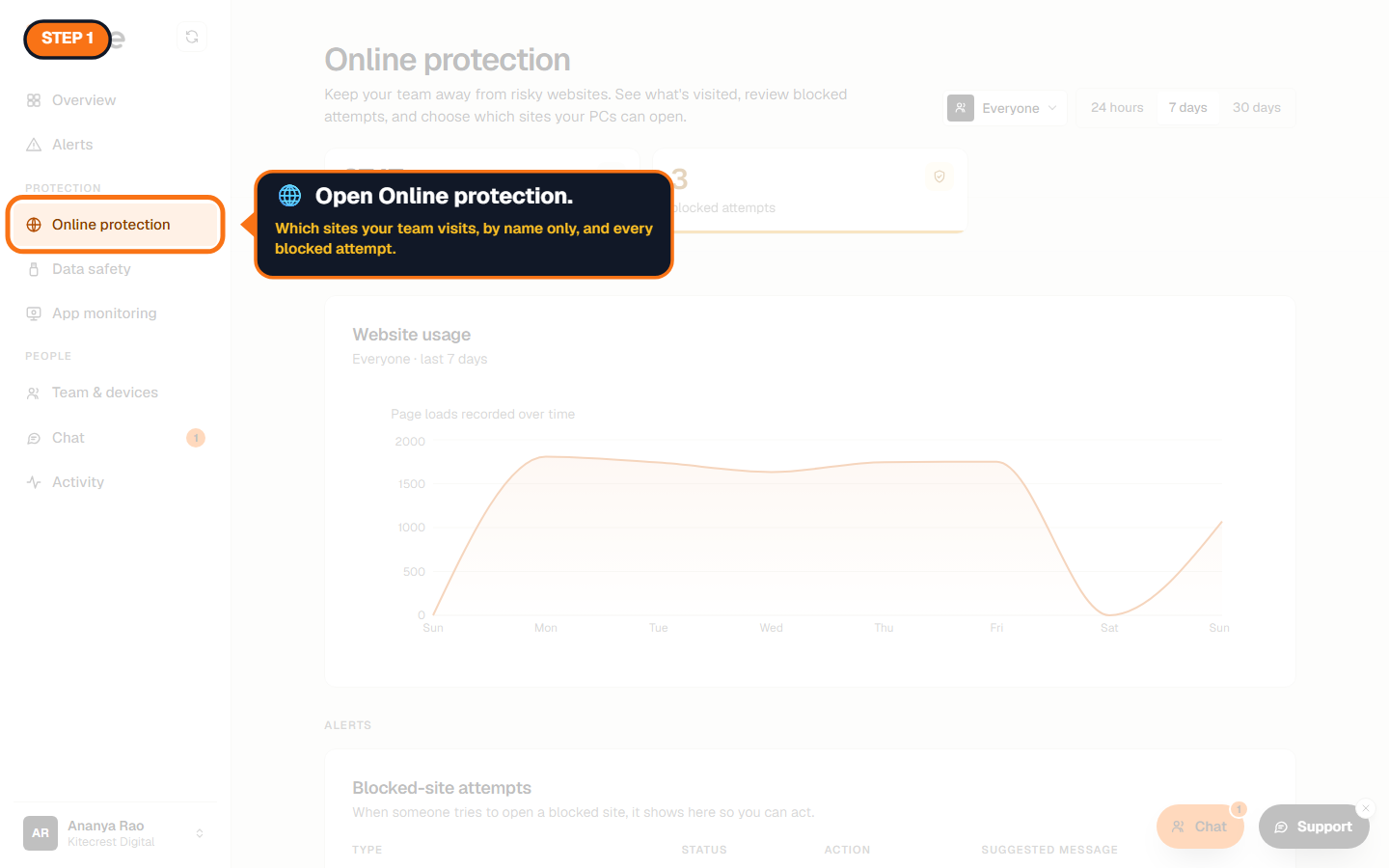
Step 1: Open Online protection
It shows which sites your team visits, by name only (never the page or what they typed), and every attempt to open a blocked site.
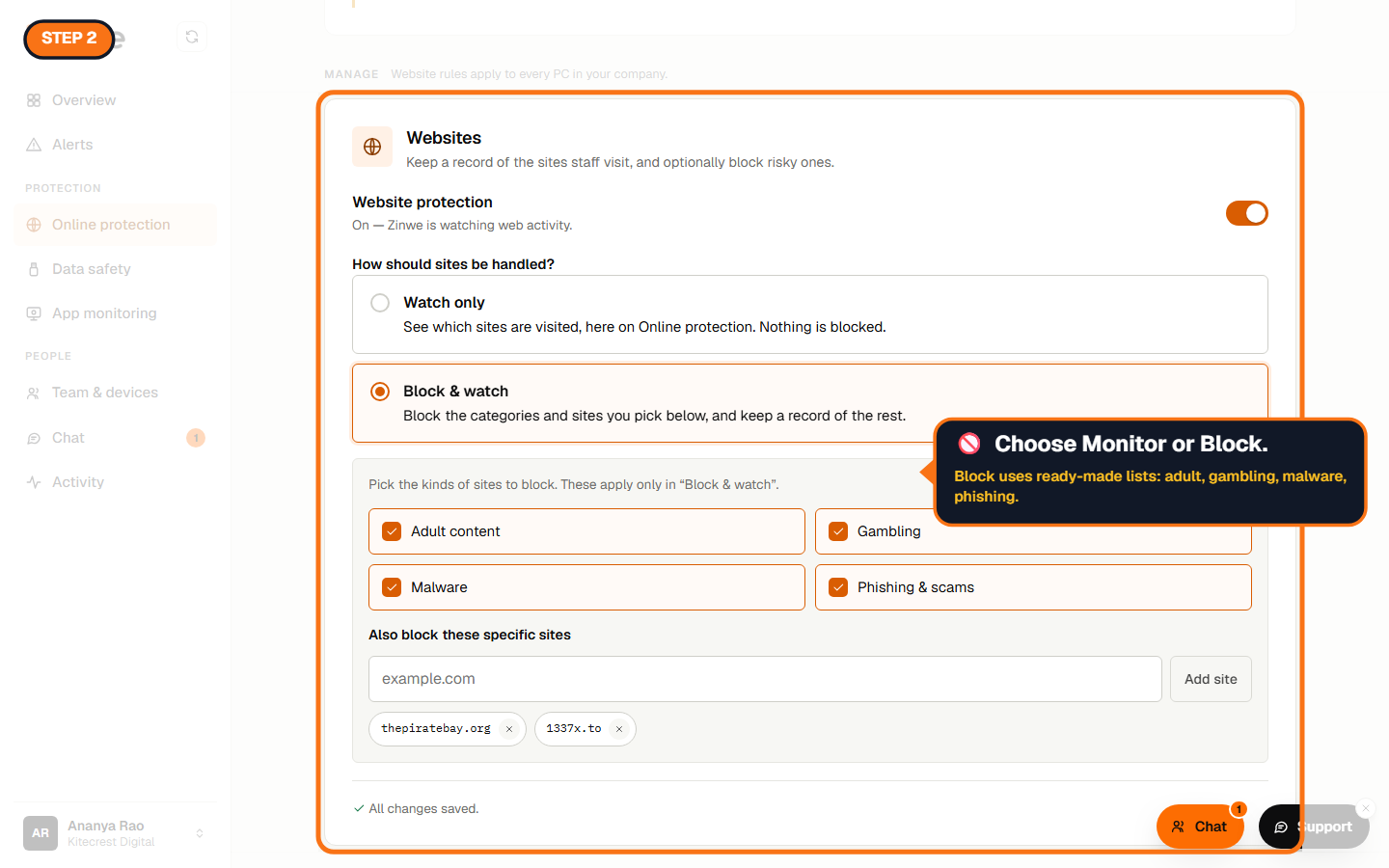
Step 2: Watch only, or Block & watch
Under Manage → Websites:
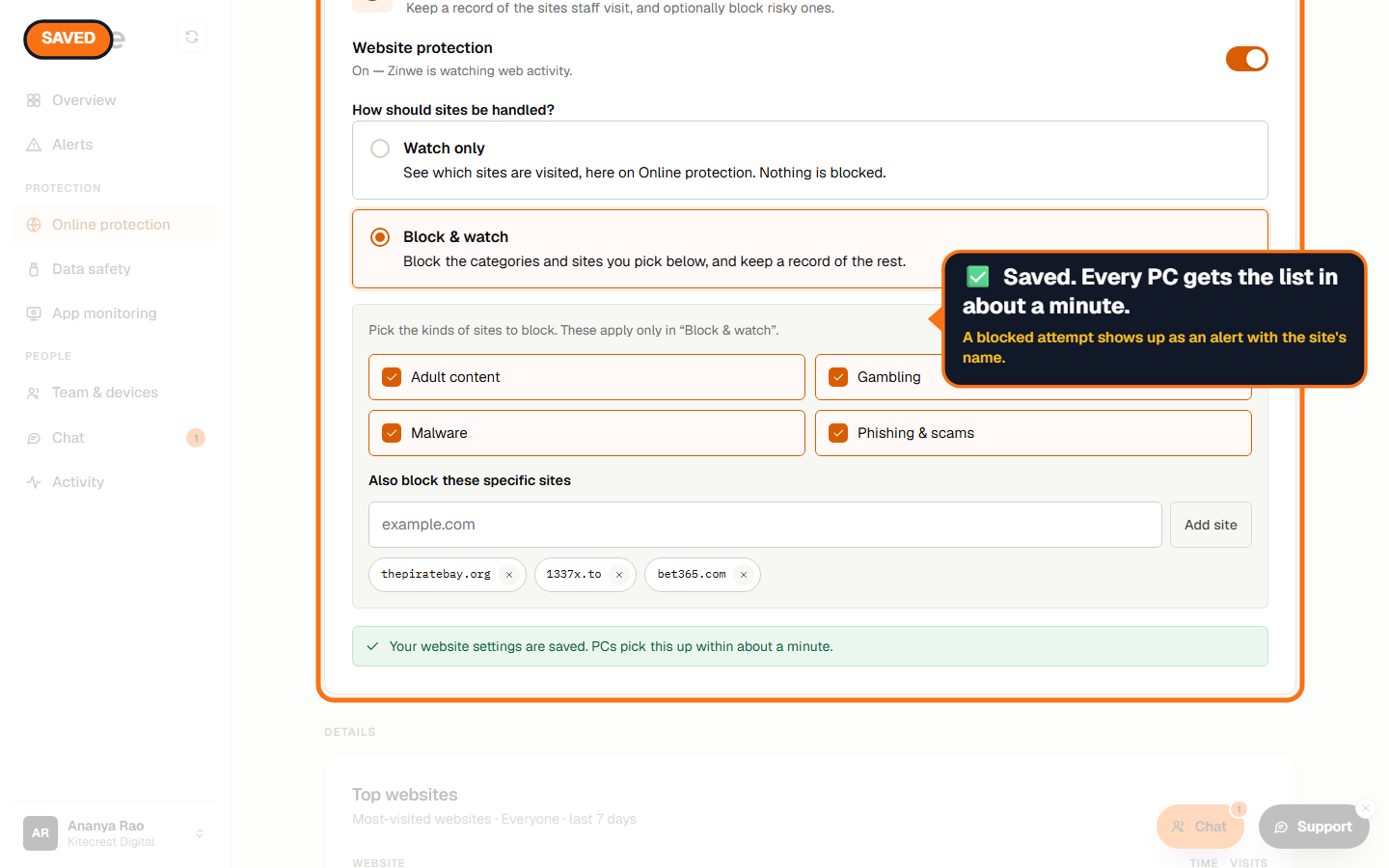
- Watch only: see which sites are visited. Nothing is blocked.
- Block & watch: block what you pick, keep a record of the rest.
Then tick the kinds of sites to block: Adult content, Gambling, Malware, Phishing & scams.
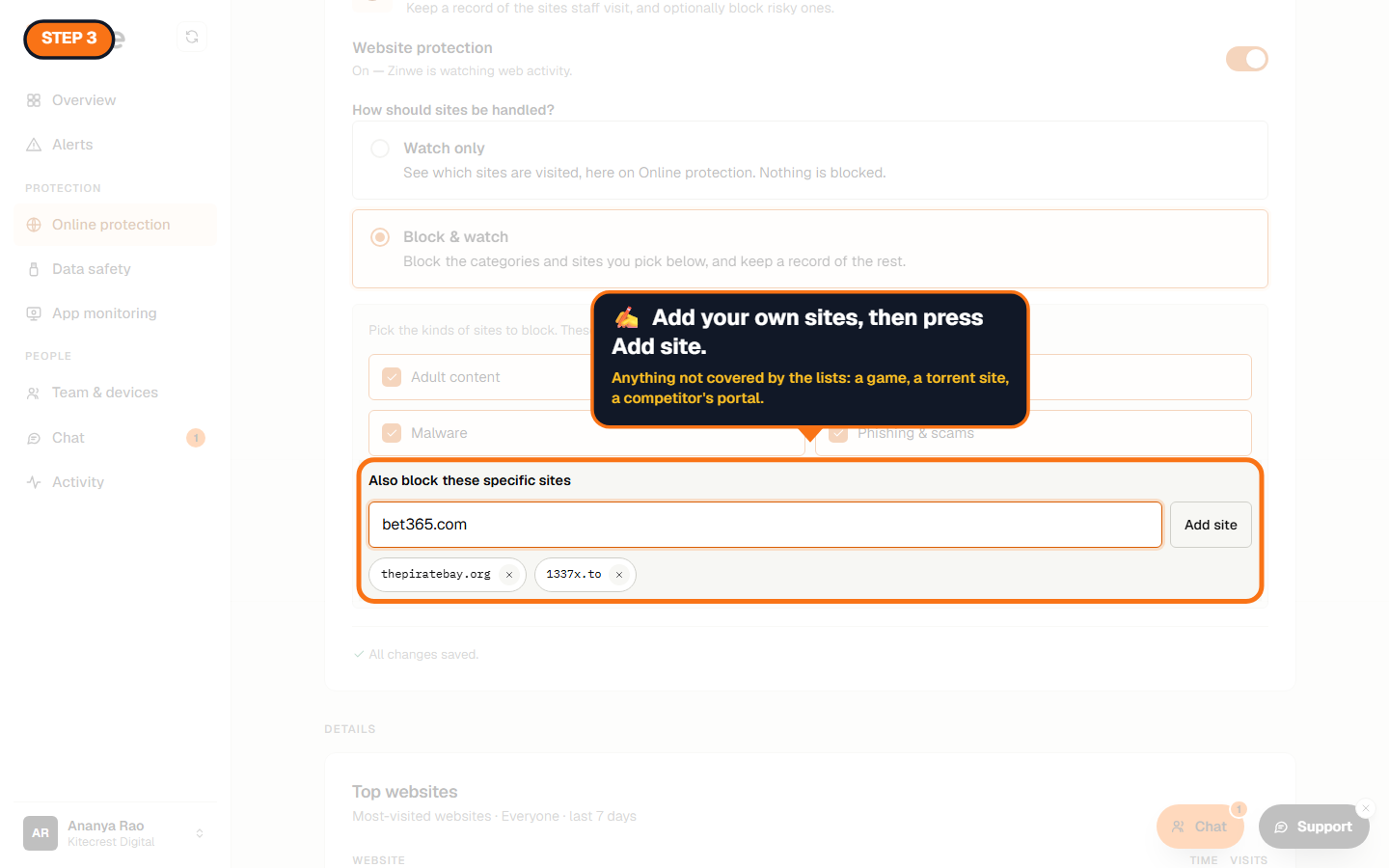
Step 3: Add your own sites
Under Also block these specific sites, type a site (like example.com) and press Add site.
Step 4: See blocked attempts
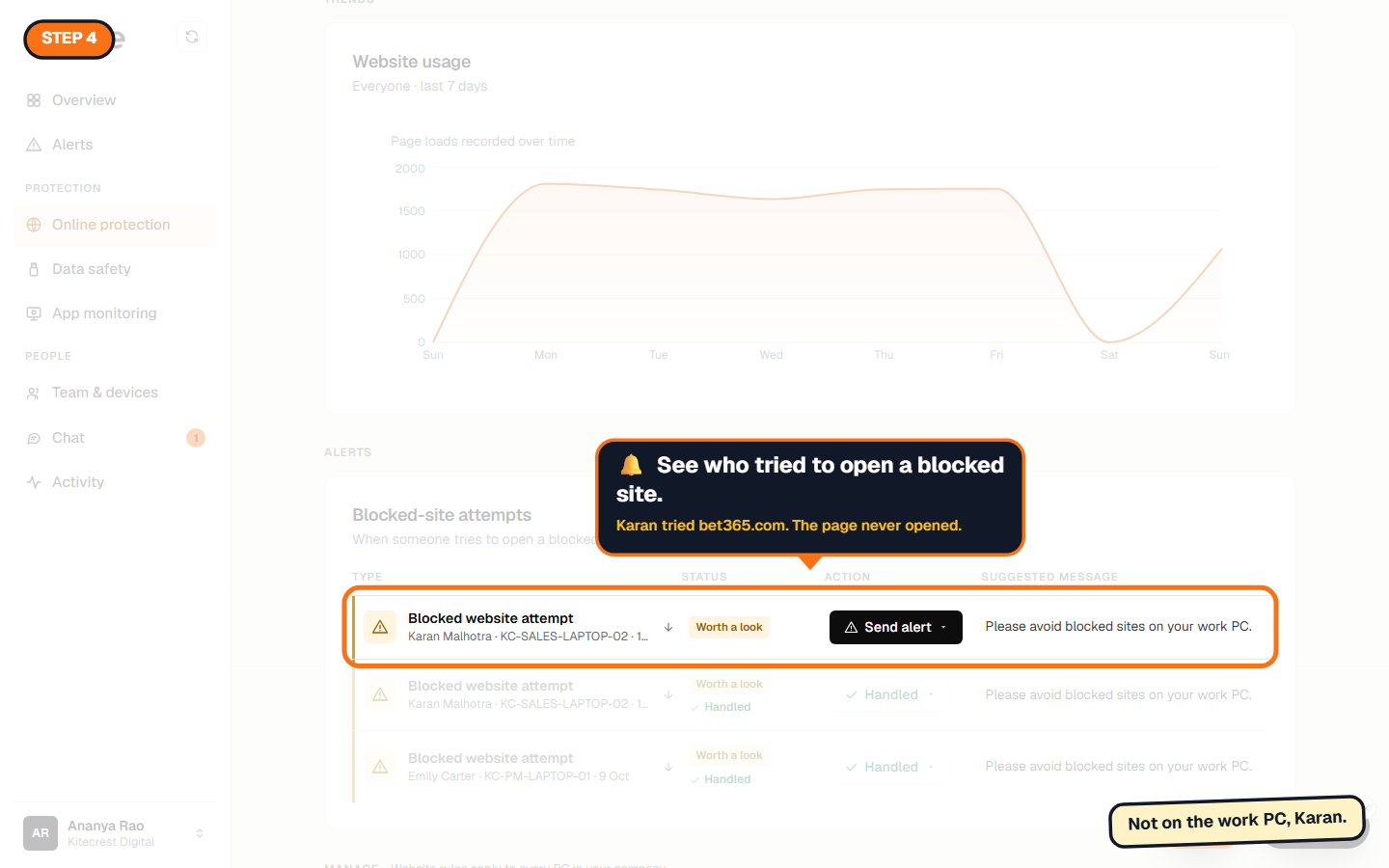
When someone tries a blocked site, the page doesn't open, their PC shows a short note that it's your company's rule, and you get an alert with the site's name.
Good to know
- Website blocking is on every plan, including Free forever.
- Zinwe records site names only: no full web addresses, page contents or search terms.
The How to use Zinwe series
Get started
Set up
Protect your data
- Read and handle an alert
- Control pen drives
- Block remote-access tools
- Block websites (you are here)
- New-software alerts
Your team
Your plan