Tutorial
How to stop company data leaving on pen drives: Allow, Read-only or Block USB
See every big copy to a pen drive, then choose one USB rule for every PC: Allow (alerts only), Read-only or Block. Or keep USB on with a size limit that locks it when a copy is too big.
Zinwe team · · 3 min read
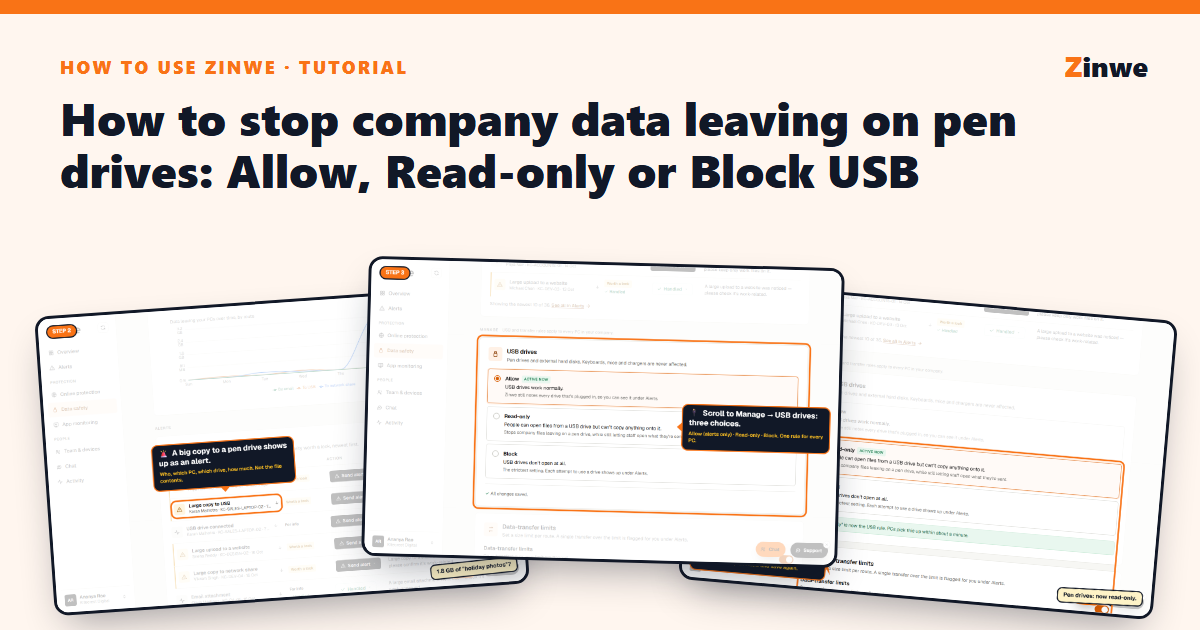
Short answer: go to Data safety and scroll to USB drives. Pick Read-only so files can be opened from a pen drive but nothing can be copied onto it, or Block so drives don't open at all. Press Save, and every PC gets the rule in about a minute.
Not ready to restrict USB? Leave it on Allow. You'll still get an alert for big copies, and you can set a size limit that switches a PC to Read-only on its own.
The screenshots below come from our demo account, a sample company with made-up staff.
Step 1: Open Data safety
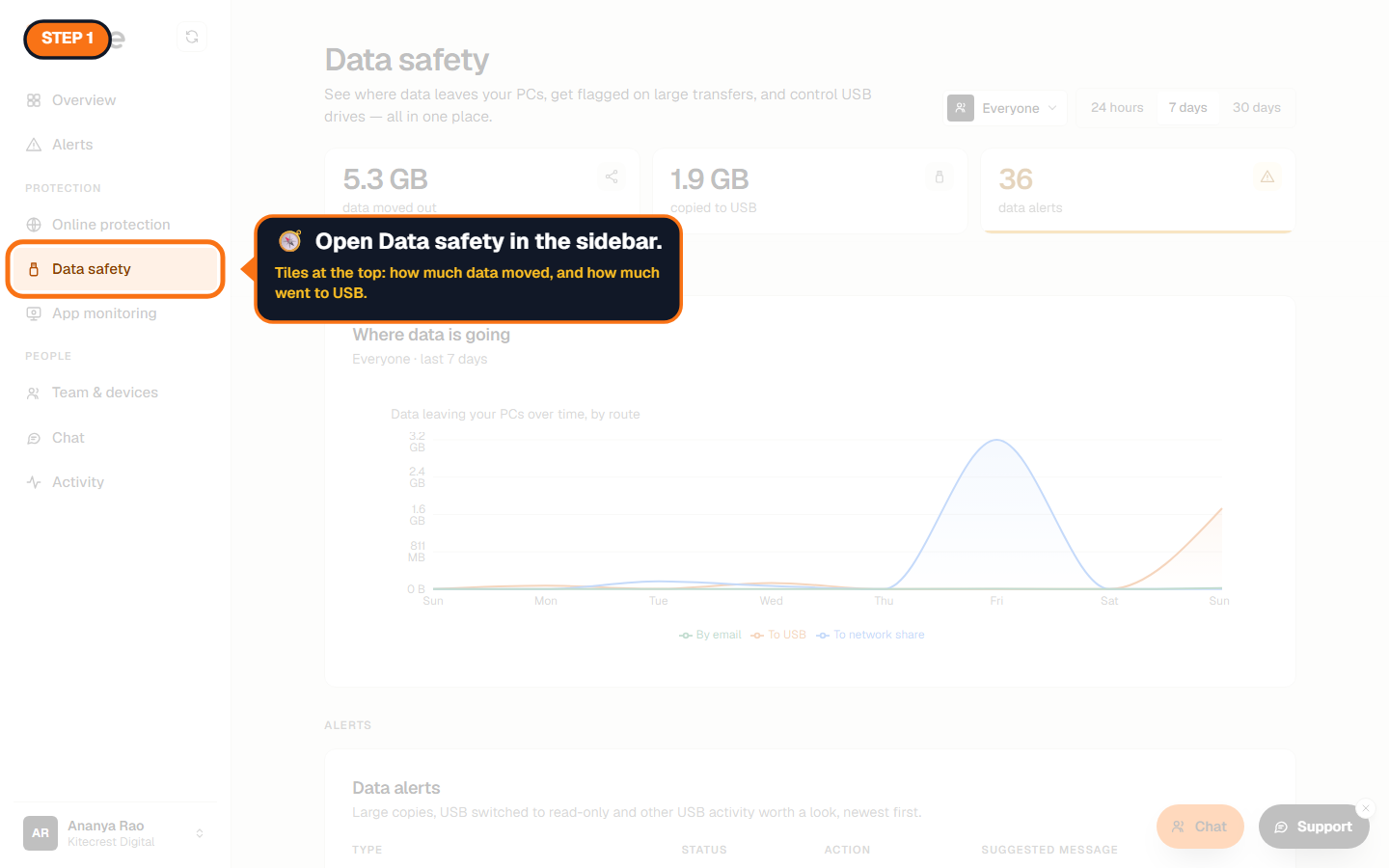
It's under Protection in the sidebar. The tiles at the top show how much data left your PCs, and how much of it went to USB drives.
Step 2: See what's been copied
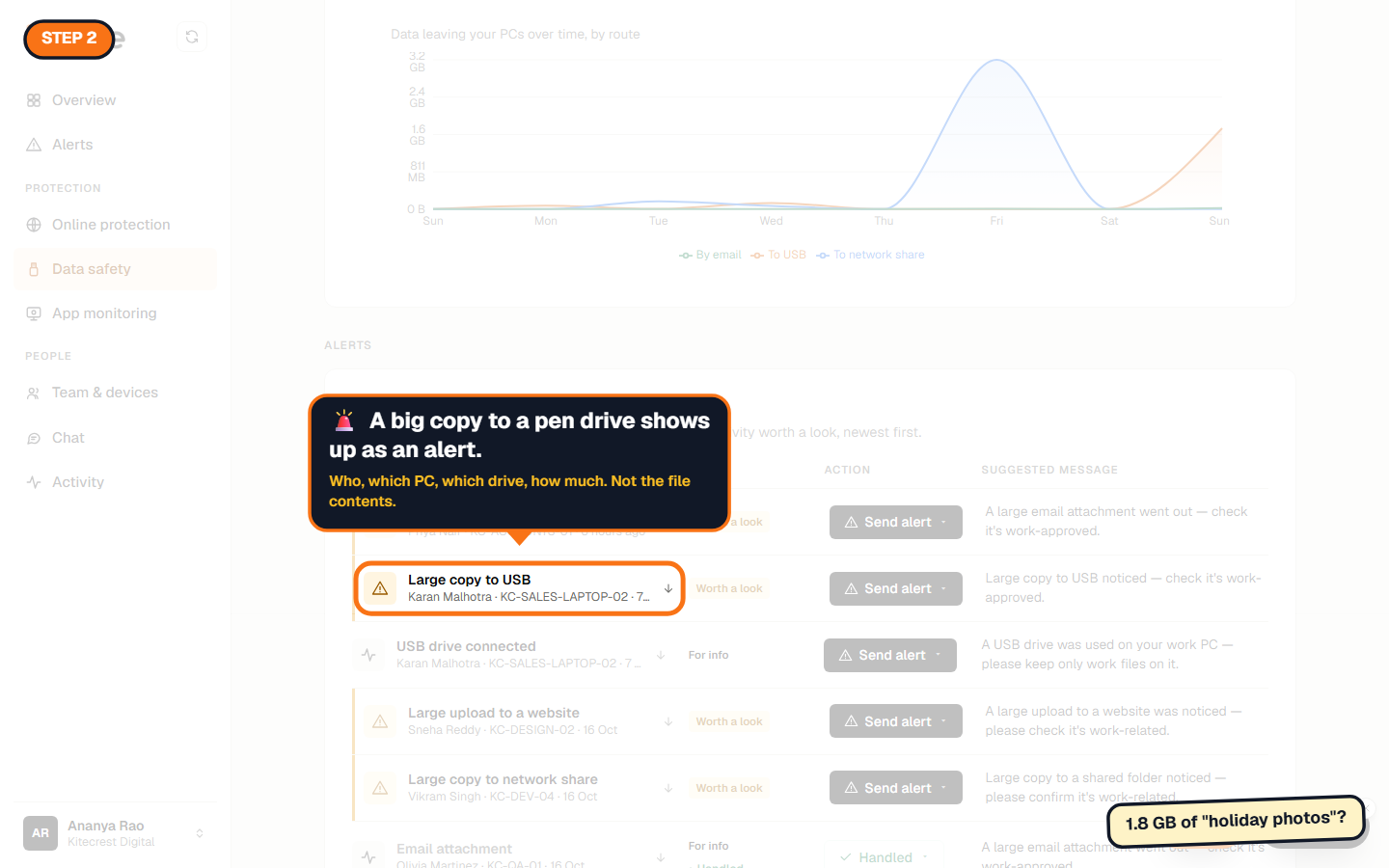
A large copy to a pen drive shows up as an alert: who, which PC, which drive and how much. Zinwe never reads the files themselves. From the alert you can send the person a note, or mark it handled.
Step 3: Choose a USB rule
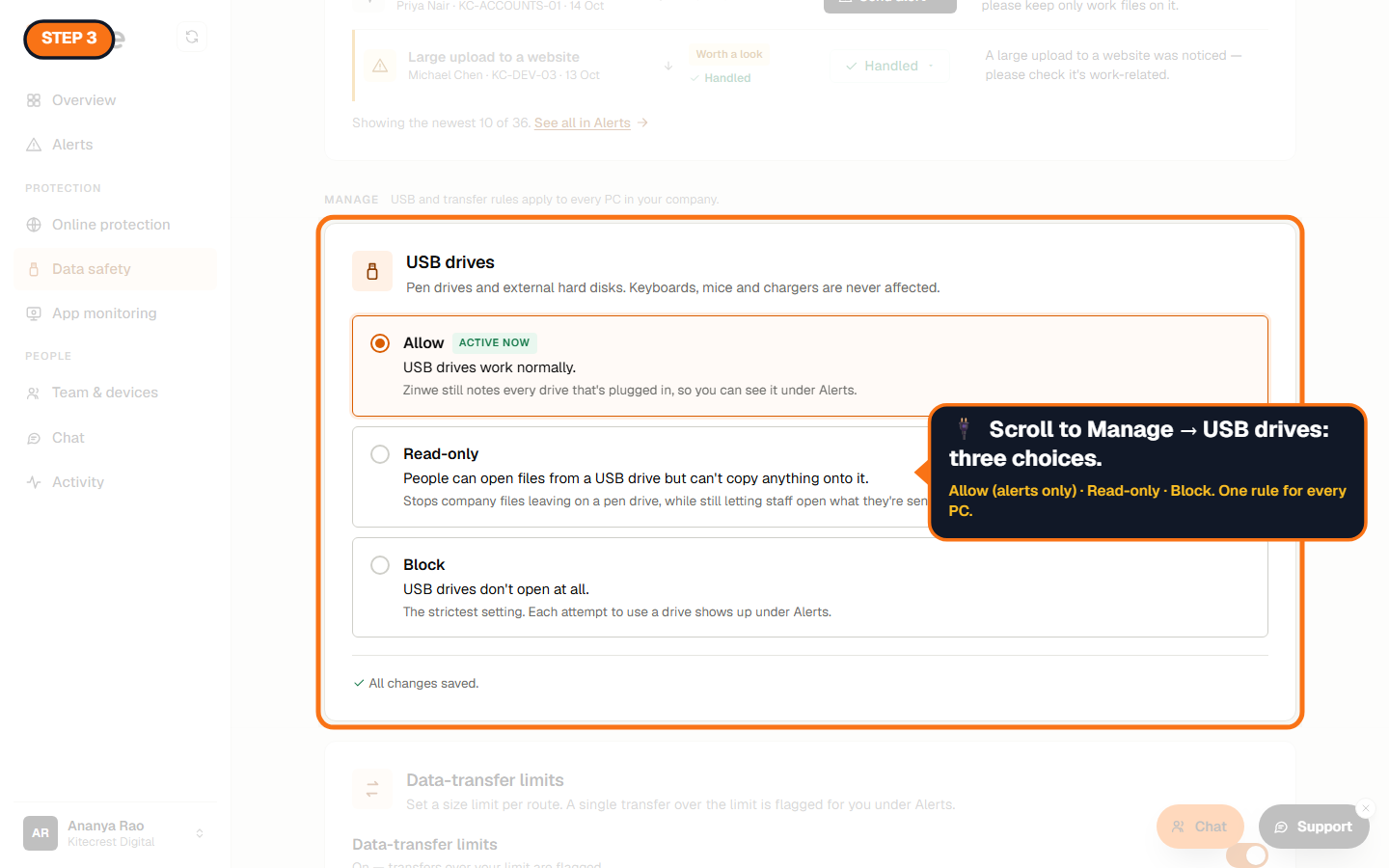
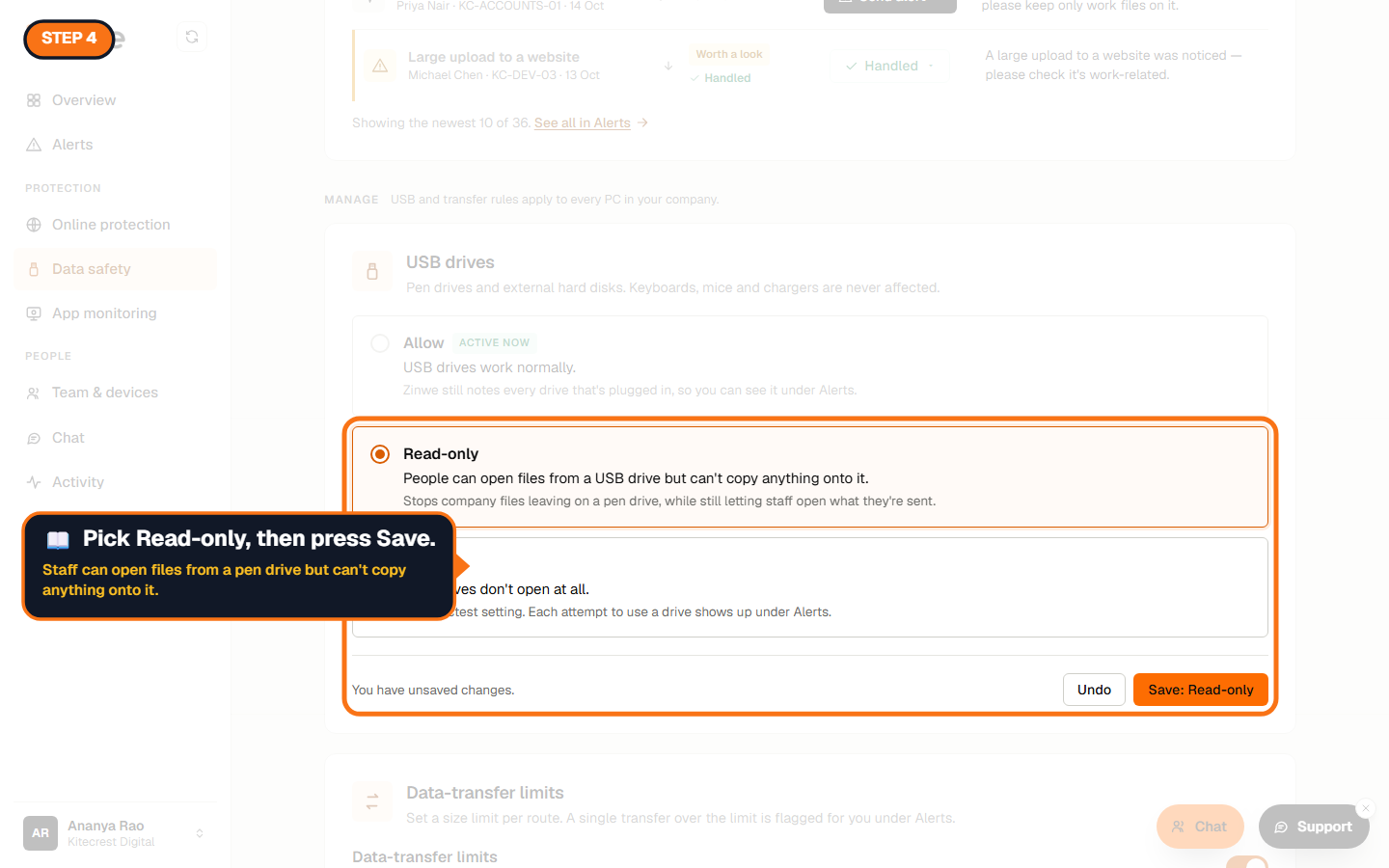
Scroll to Manage → USB drives. Three choices, one rule for every PC in your company:
- Allow: drives work normally. You still see every drive plugged in, and every big copy.
- Read-only: staff can open files from a drive but can't copy anything onto it.
- Block: drives don't open at all. Each attempt shows up under Alerts.
Keyboards, mice and chargers are never affected.
Step 4: Pick Read-only and press Save
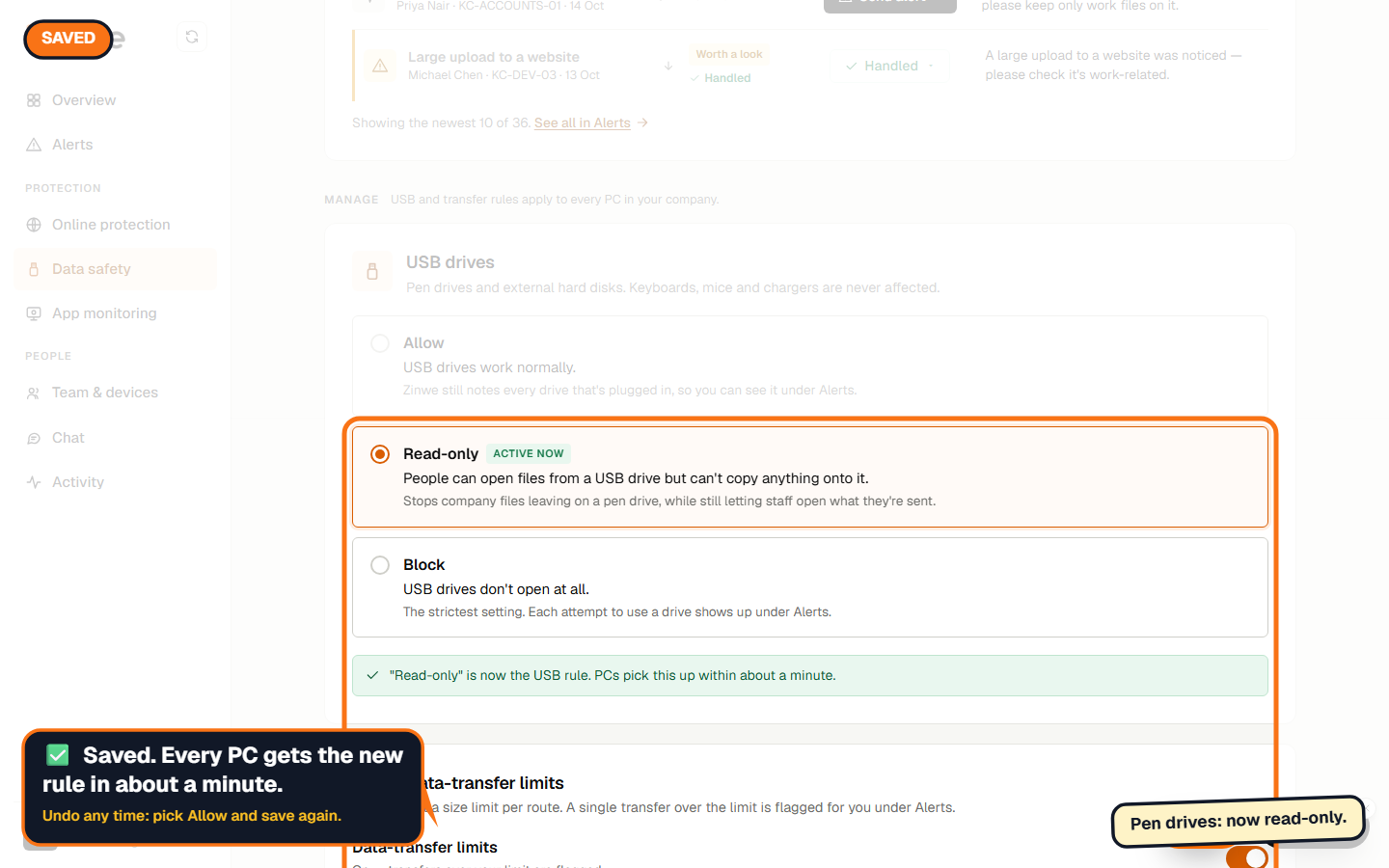
Zinwe confirms the new rule. PCs pick it up within about a minute. To undo it, pick Allow and save again.
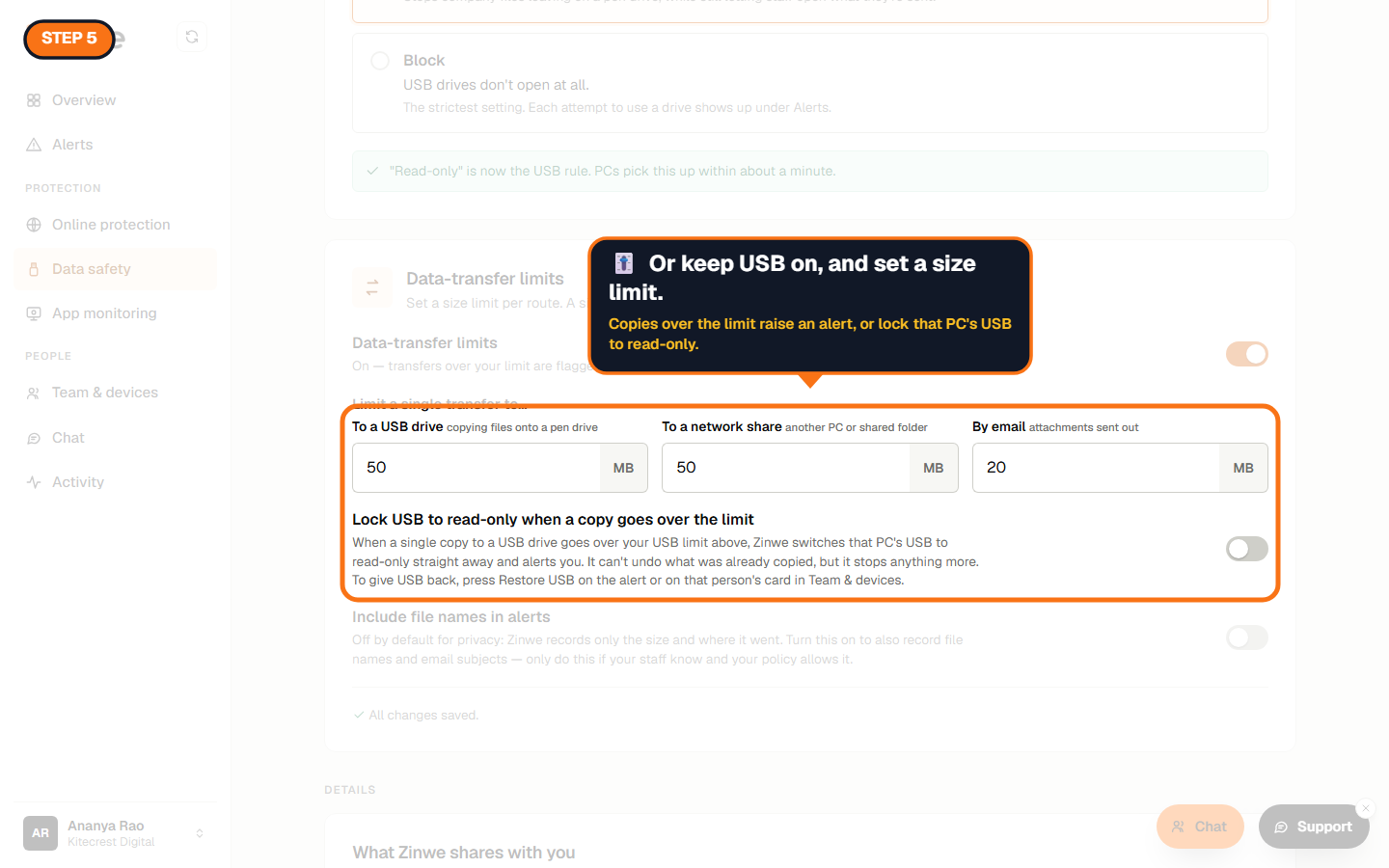
Step 5: Or keep USB on, with a limit
Under Data-transfer limits, set the size of a single copy that's worth an alert, for USB drives, network shares and email attachments. The defaults are 50 MB, 50 MB and 20 MB.
Turn on Lock USB to read-only when a copy goes over the limit, and Zinwe switches that one PC to Read-only straight away and alerts you. It can't undo a copy that already happened, but it stops anything more. To give USB back, press Restore USB on the alert or on that person's card.
Good to know
- USB control is on every plan, including Free forever.
- File names stay out of alerts unless you turn that on. Do that only if your team knows and your policy allows it.
- Your team sees the Zinwe widget on their PC and agreed to it when they connected. Tell them before you change the USB rule. It saves questions.
The How to use Zinwe series
Get started
Set up
Protect your data
- Read and handle an alert
- Control pen drives (you are here)
- Block remote-access tools
- Block websites
- New-software alerts
Your team
Your plan