Tutorial
How to get help in Zinwe: the tour, How to use, and Support
Everything is in your account menu: How to use (with the one-minute tour), Support to message the Zinwe team, Give feedback, and Policies.
Zinwe team · · 2 min read
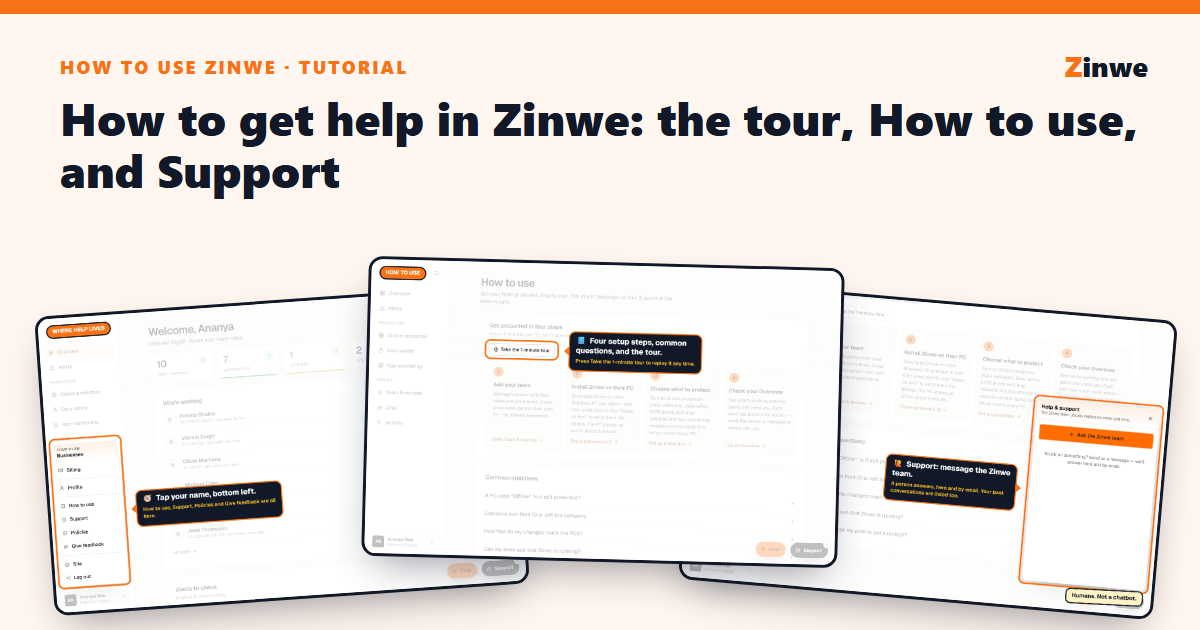
Short answer: tap your name at the bottom left. How to use has the setup steps and the tour, Support messages the Zinwe team, Give feedback tells us what to improve, and Policies shows what Zinwe records.
The screenshots come from our demo account: a sample company with made-up staff.
Where help lives
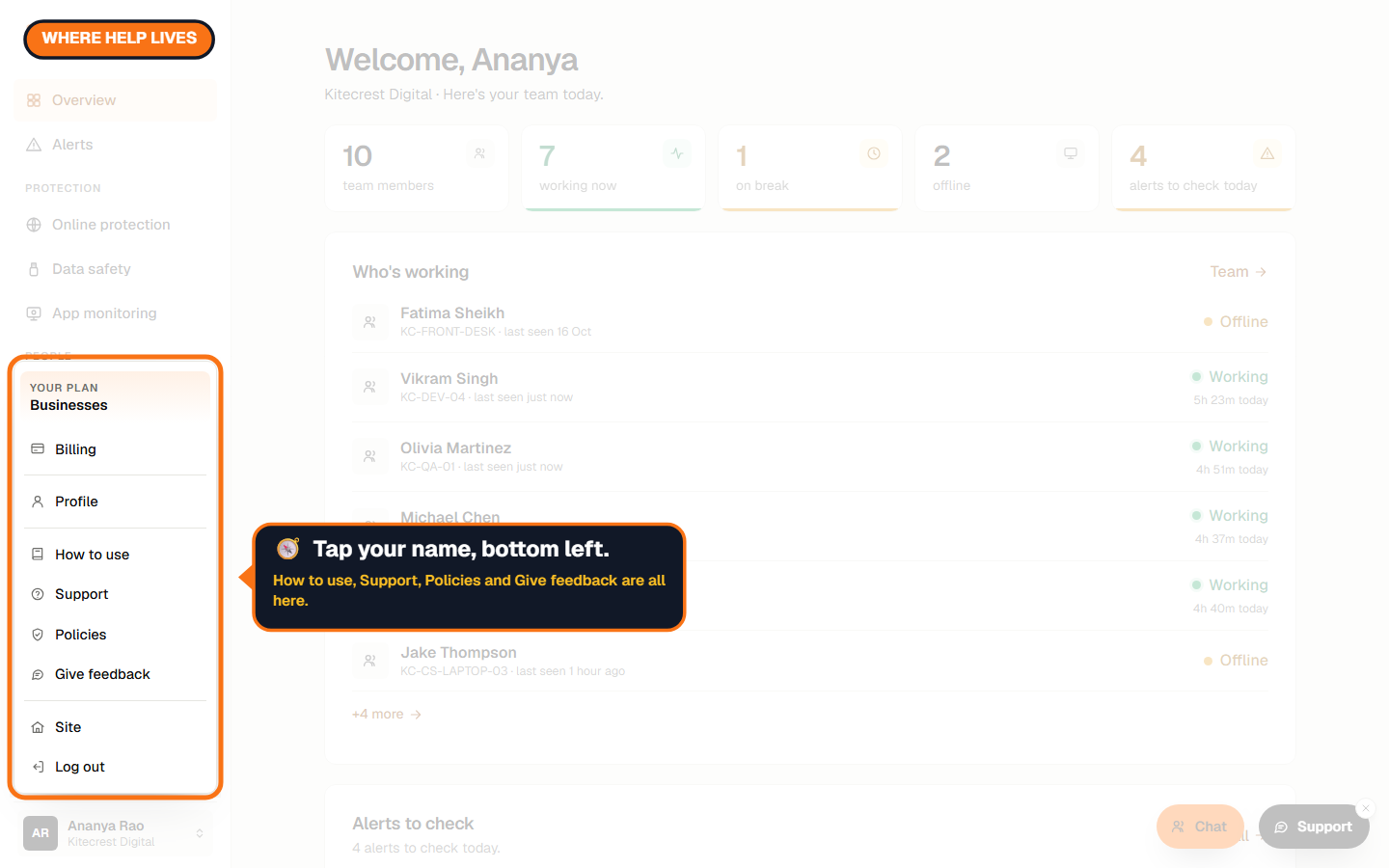
How to use, and the tour
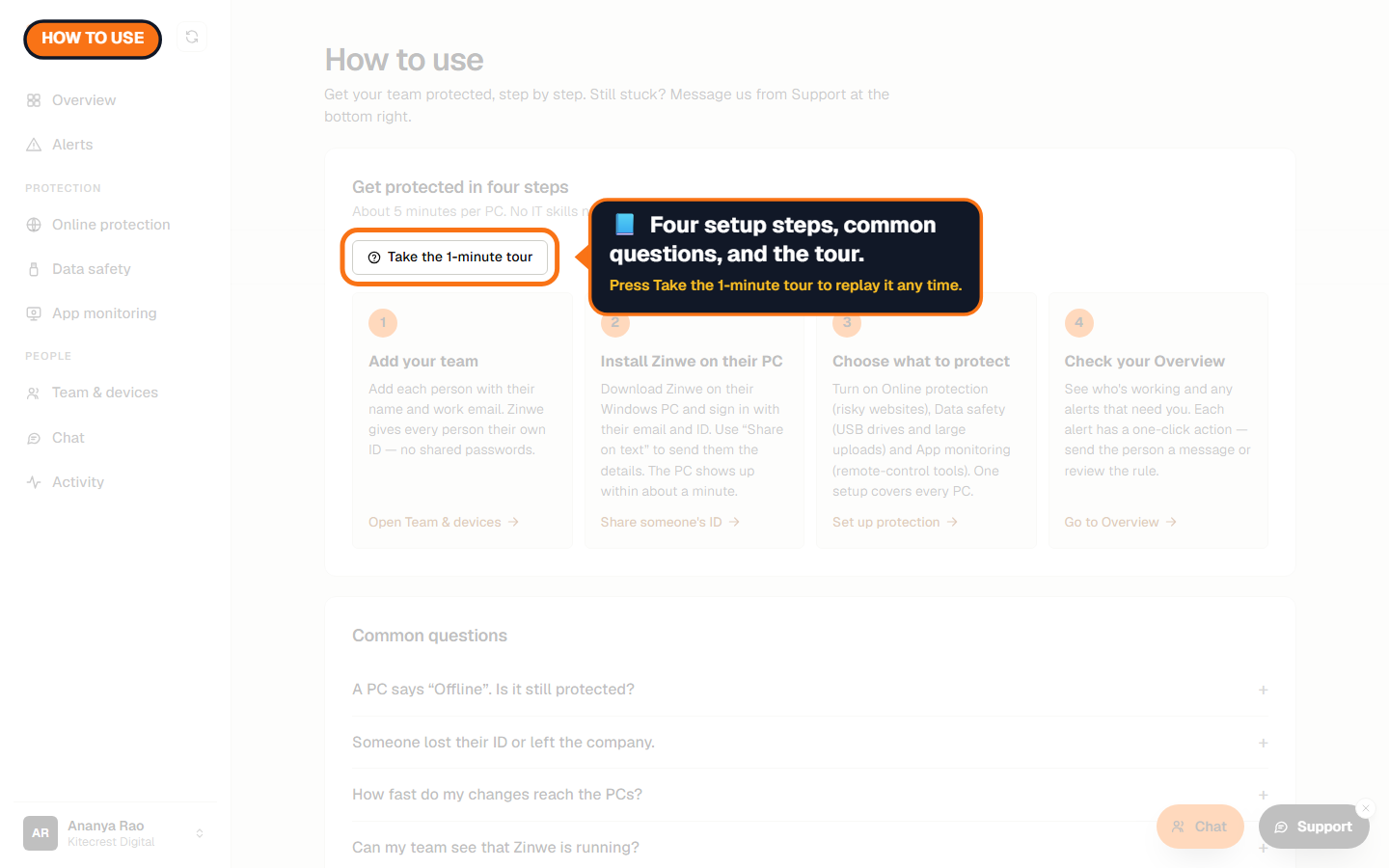
Four setup steps with links, and answers to common questions. Press Take the 1-minute tour to walk around the dashboard again.
Support: message the Zinwe team
Choose Support in the menu, or press the floating Support button. A person answers, here and by email. Your past conversations are listed too.
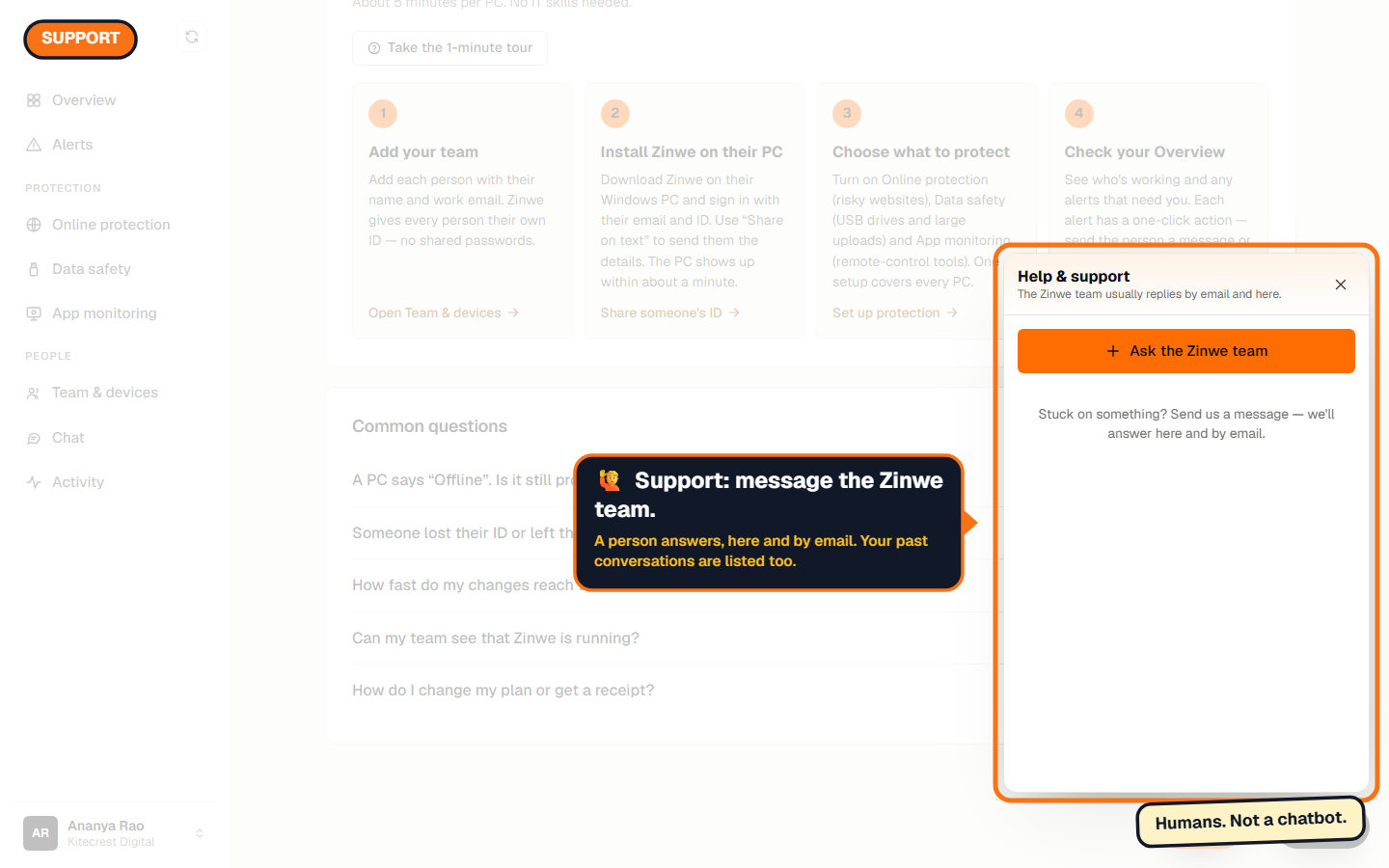
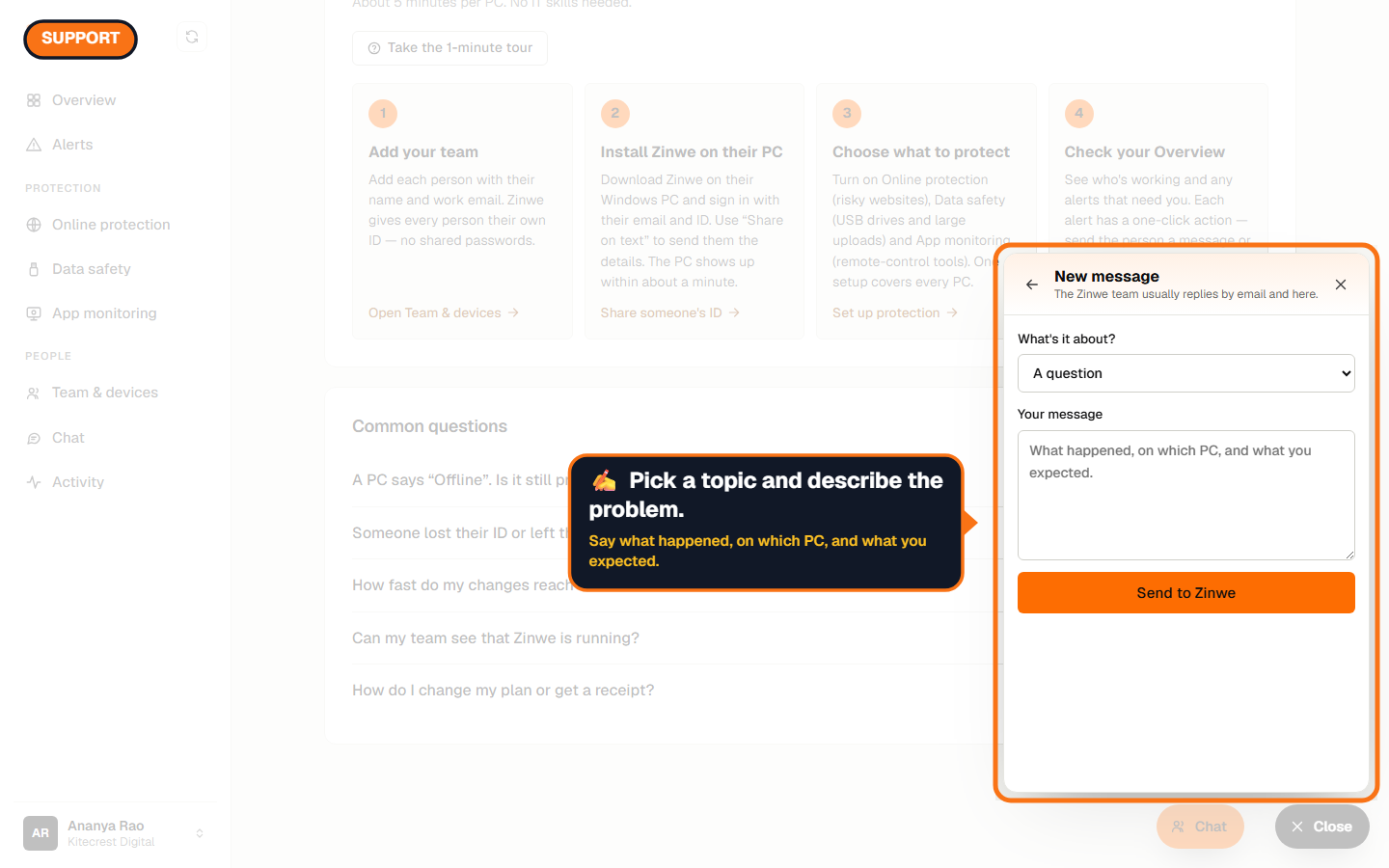
Press Ask the Zinwe team, pick what it's about, and describe what happened, on which PC, and what you expected.
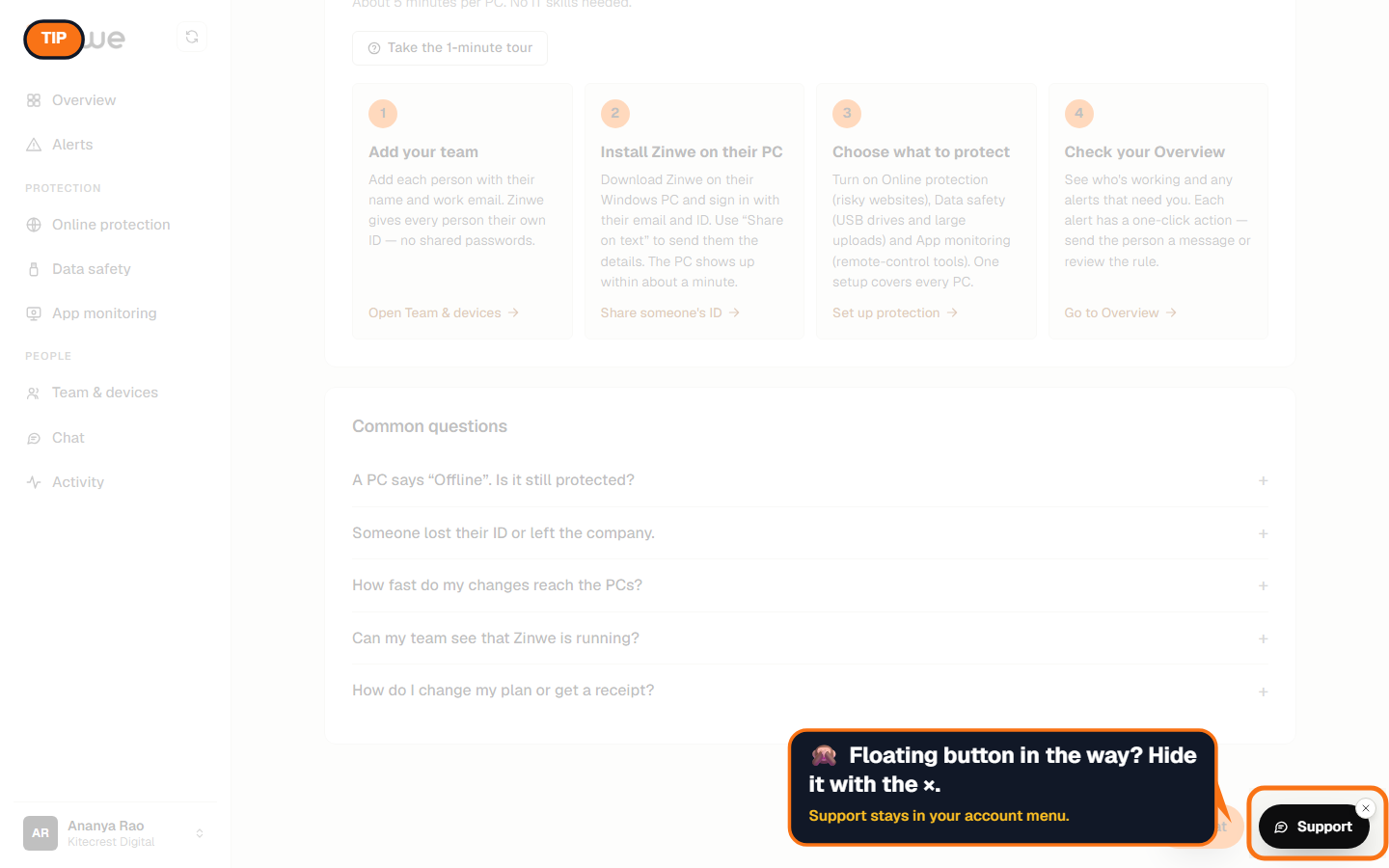
Floating button in the way? Hide it with its small ×. Support stays in your account menu, and the button comes back when we reply.
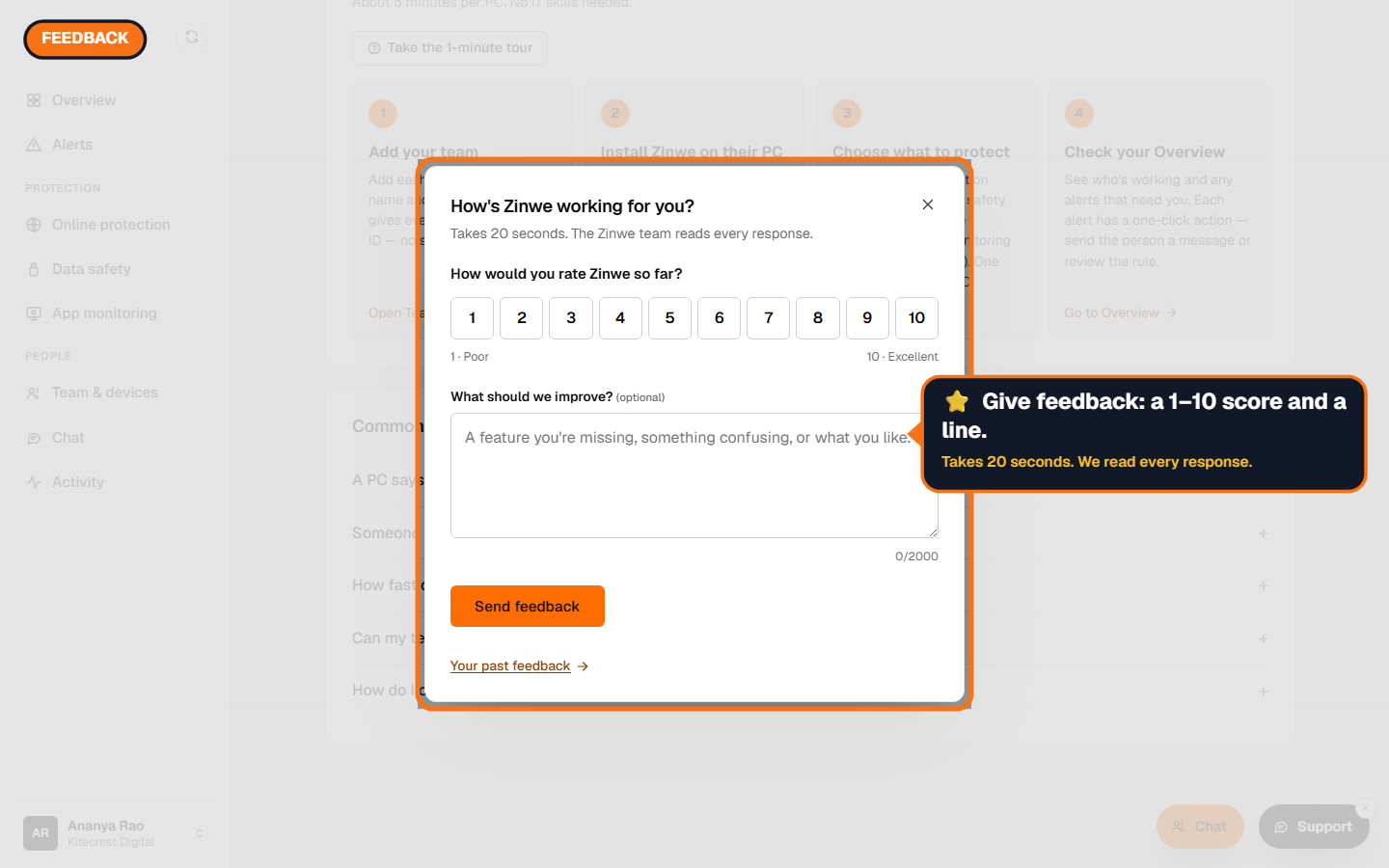
Give feedback
A 1 to 10 score and a line on what to improve. It takes 20 seconds, and we read every response.
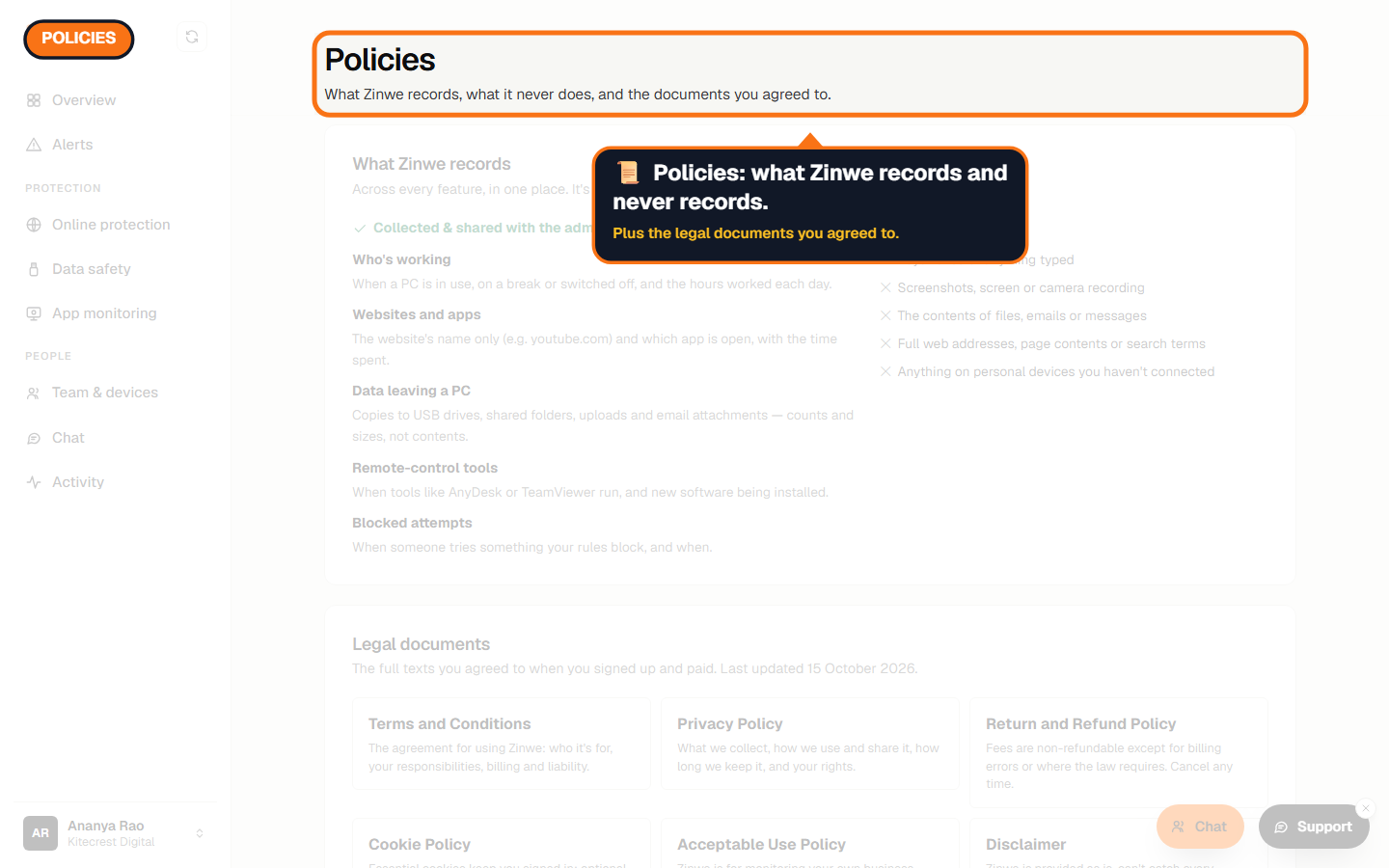
Policies
What Zinwe records, what it never records, and the legal documents you agreed to.
The How to use Zinwe series
Get started
- Zinwe in 5 minutes
- Create your free account
- Log in
- Get help: tour, How to use, Support (you are here)
Set up
Protect your data
- Read and handle an alert
- Control pen drives
- Block remote-access tools
- Block websites
- New-software alerts
Your team
Your plan