Tutorial
How to manage your team: new Member IDs, removing people and PC slots
Everything on a team member's card: their PC and consent, their Member ID, a new ID when one is shared by mistake, removing someone who leaves, and your PC slots.
Zinwe team · · 2 min read
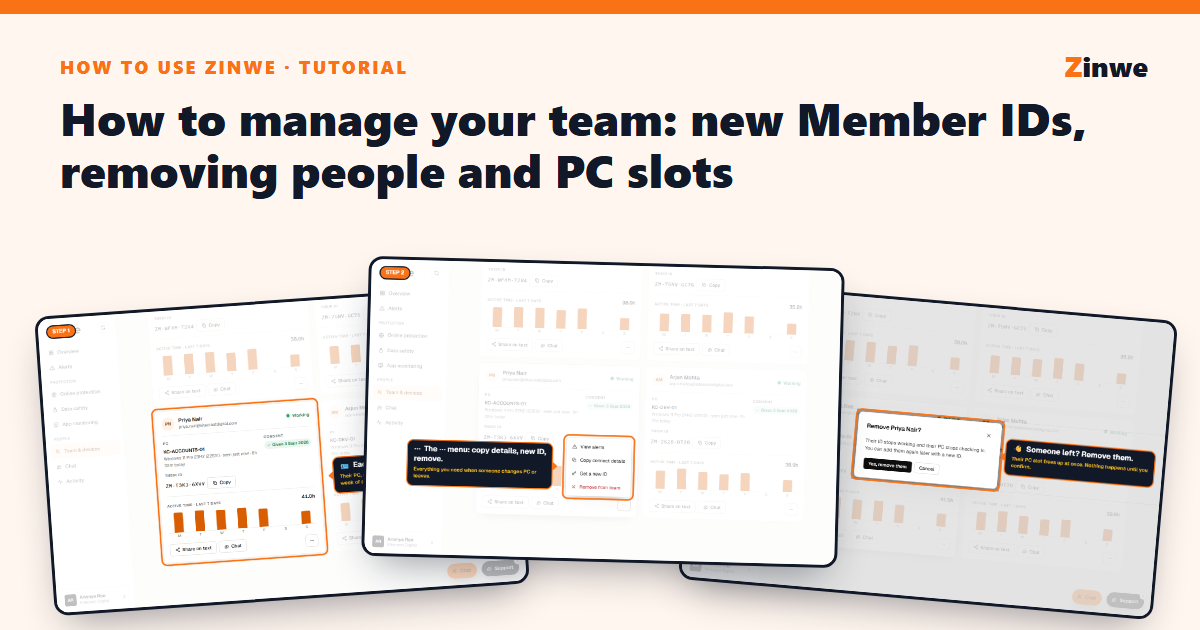
Short answer: on Team & devices, each person has a card. Its ⋯ menu lets you copy their connect details, get them a new Member ID, or remove them.
The screenshots come from our demo account: a sample company with made-up staff.
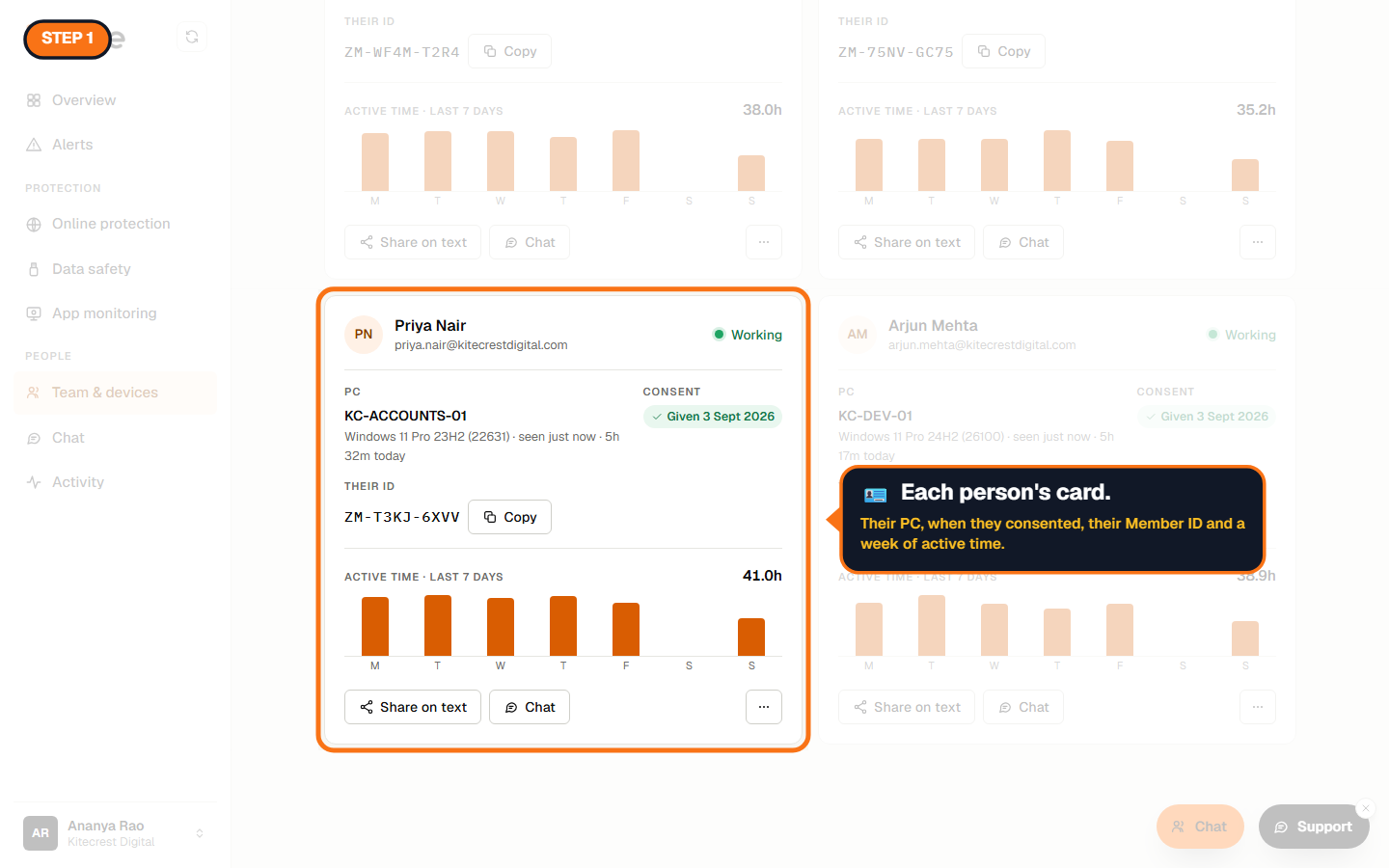
Step 1: Read the card
Their PC and Windows version, when the PC was last seen, when they gave consent, their Member ID, and a week of active time.
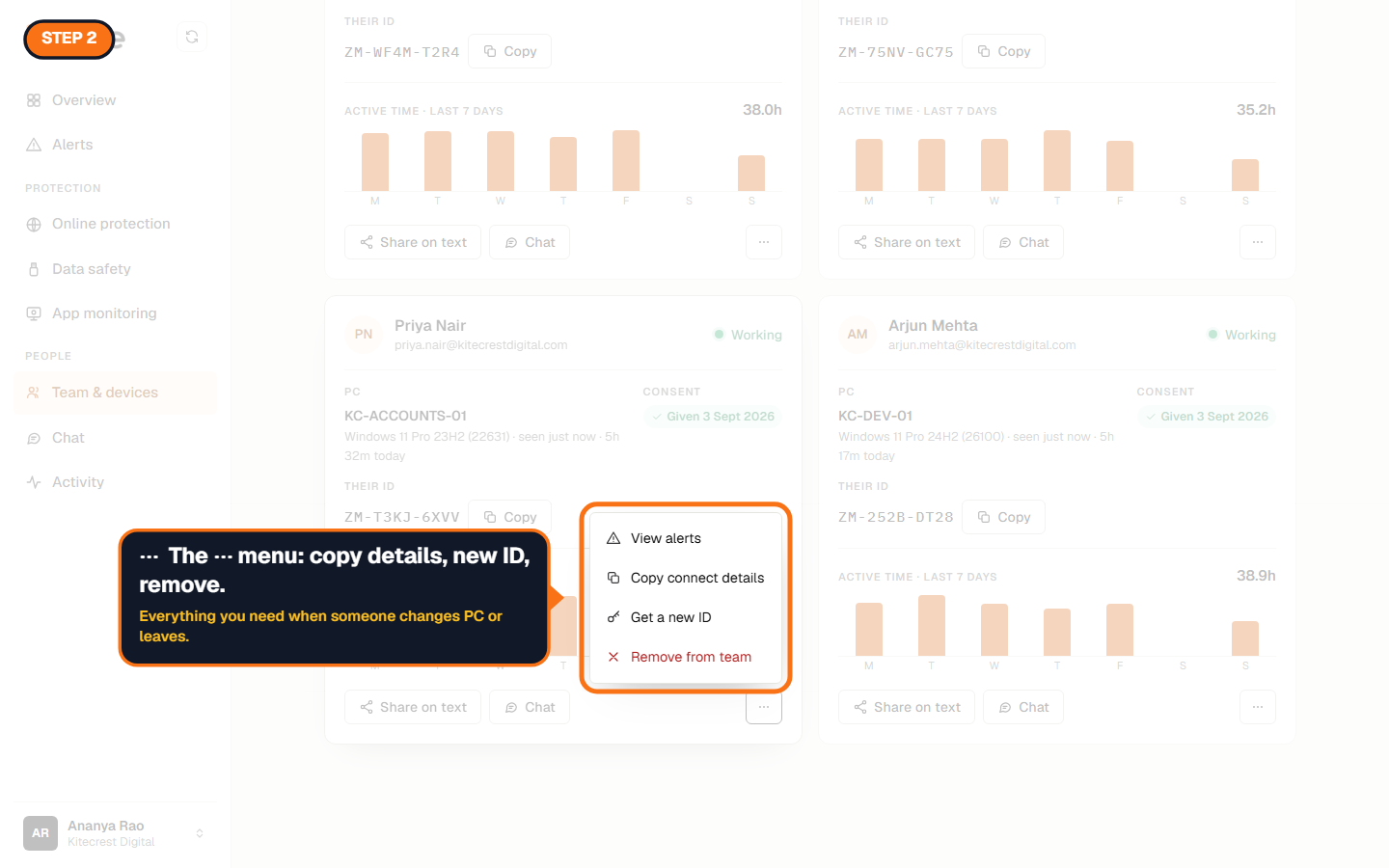
Step 2: The ⋯ menu
Copy details (download link, email and ID), New ID, and Remove.
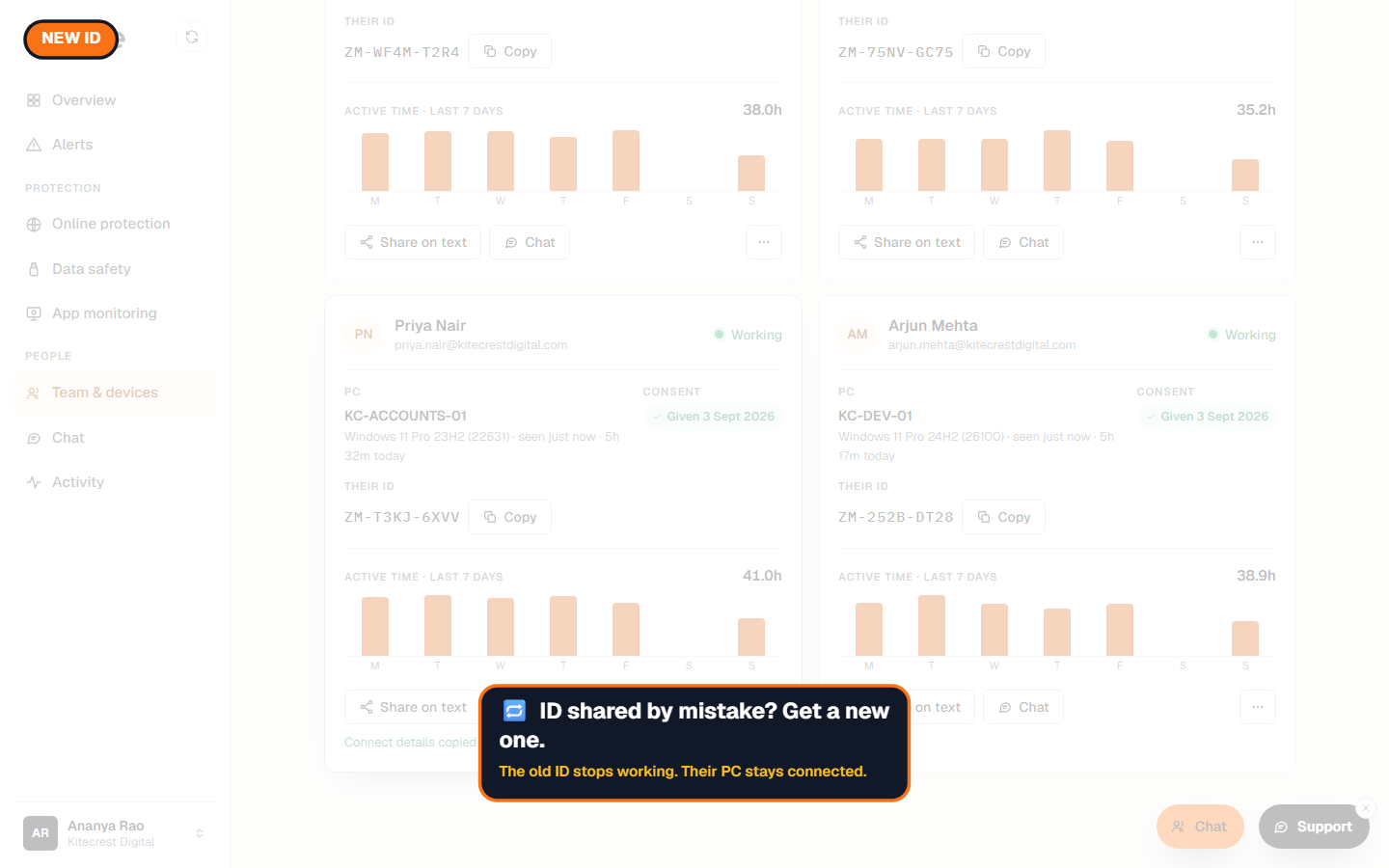
Get a new Member ID
Shared an ID by mistake? Their old ID and the invite email stop working straight away, and we email them the new one. A PC that's already connected keeps running; they only need the new ID to connect a PC again.
Remove someone who left
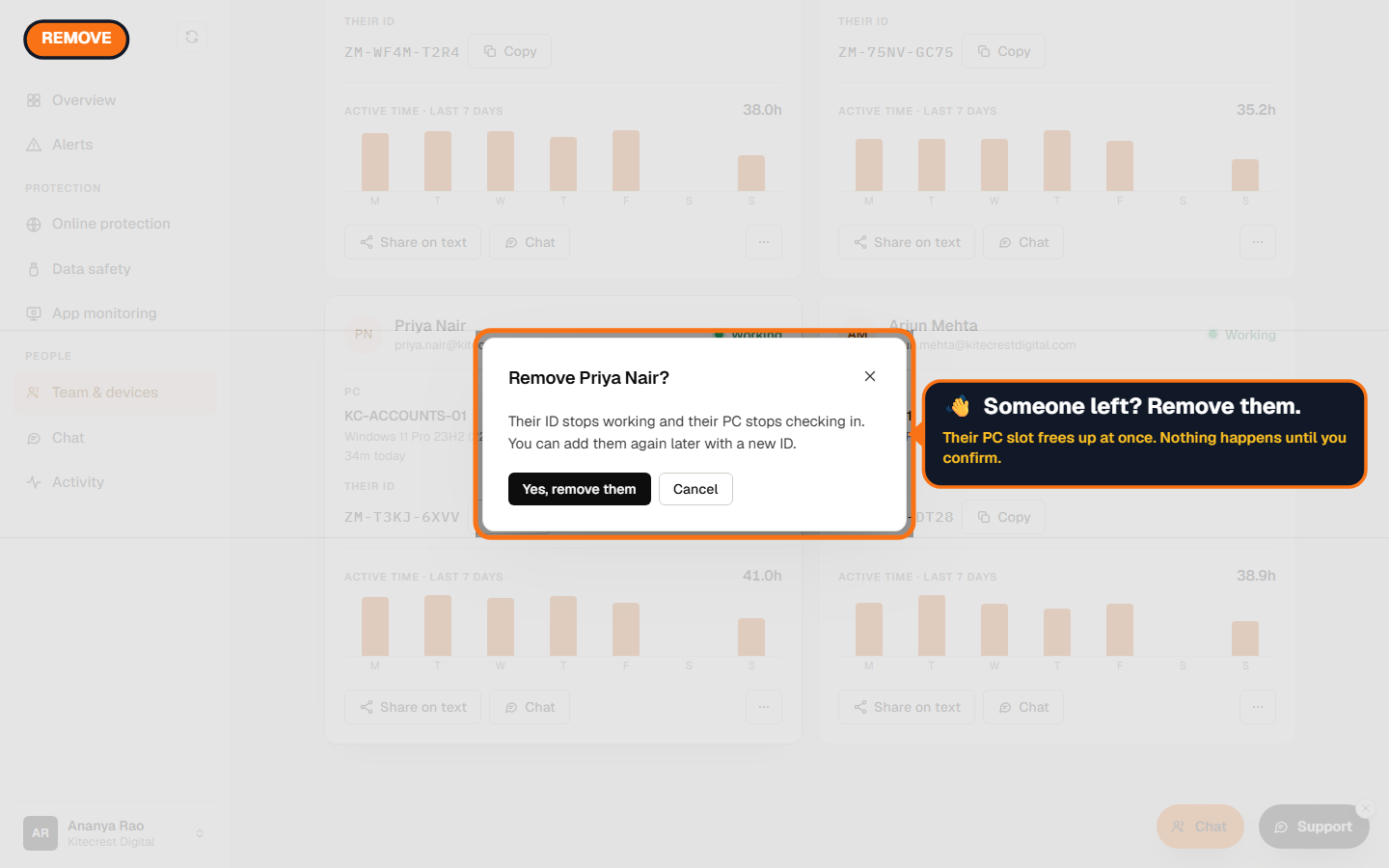
Their ID stops working and their PC stops checking in. Nothing happens until you confirm. You can add them again later with a new ID.
Keep an eye on PC slots
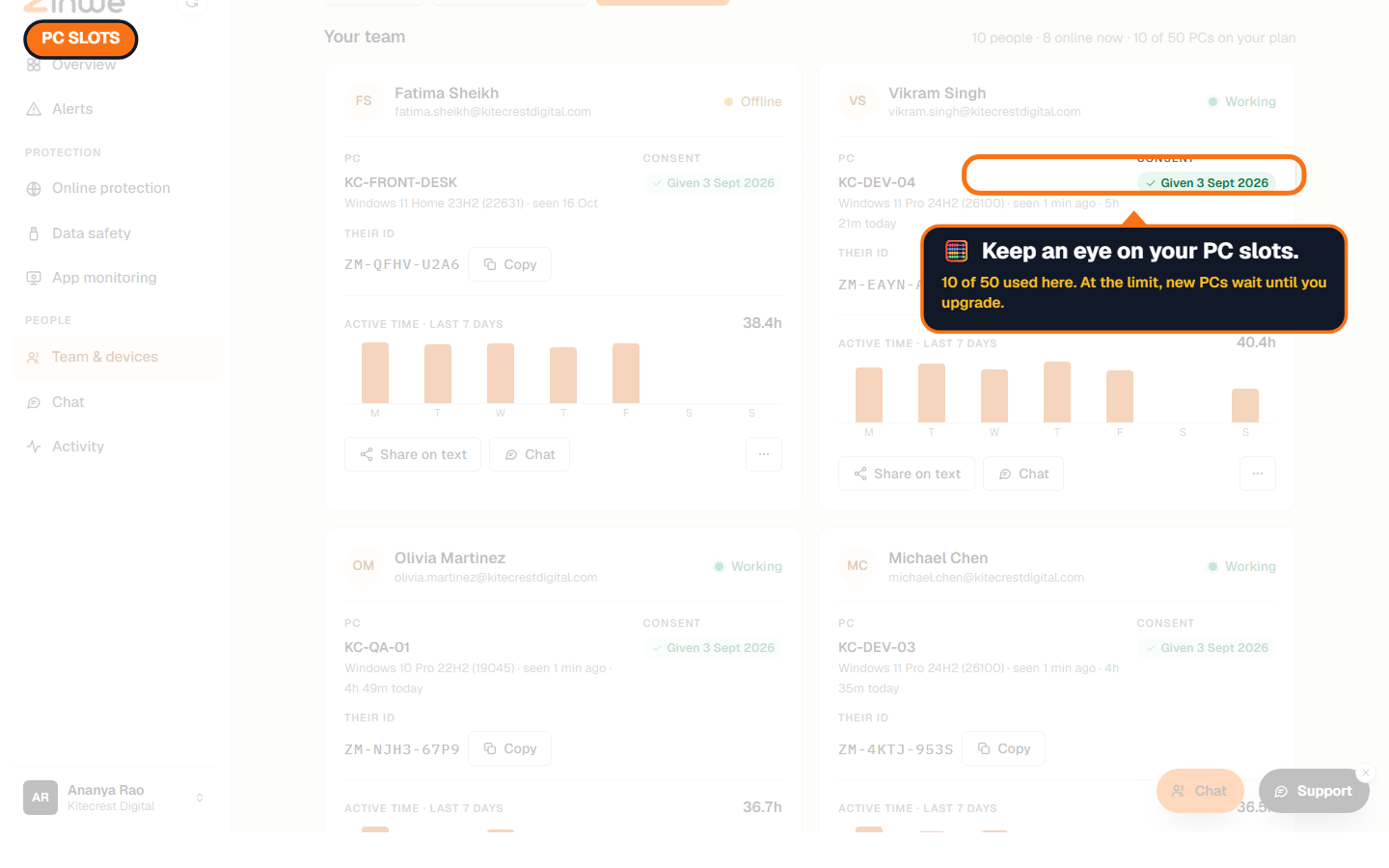
The line above your team shows how many people are online and how many PC slots you've used. At your plan's limit, new PCs can't connect until you upgrade. PCs already connected are never cut off.
The How to use Zinwe series
Get started
Set up
- Update your company details
- Add your team
- Manage your team (you are here)
Protect your data
- Read and handle an alert
- Control pen drives
- Block remote-access tools
- Block websites
- New-software alerts
Your team
Your plan