Tutorial
How to update your company details in Zinwe
Keep your company details right: where to find Profile, what each field is for (they go on your quotes and invoices), how to save changes, and where Billing and Password live.
Zinwe team · · 2 min read
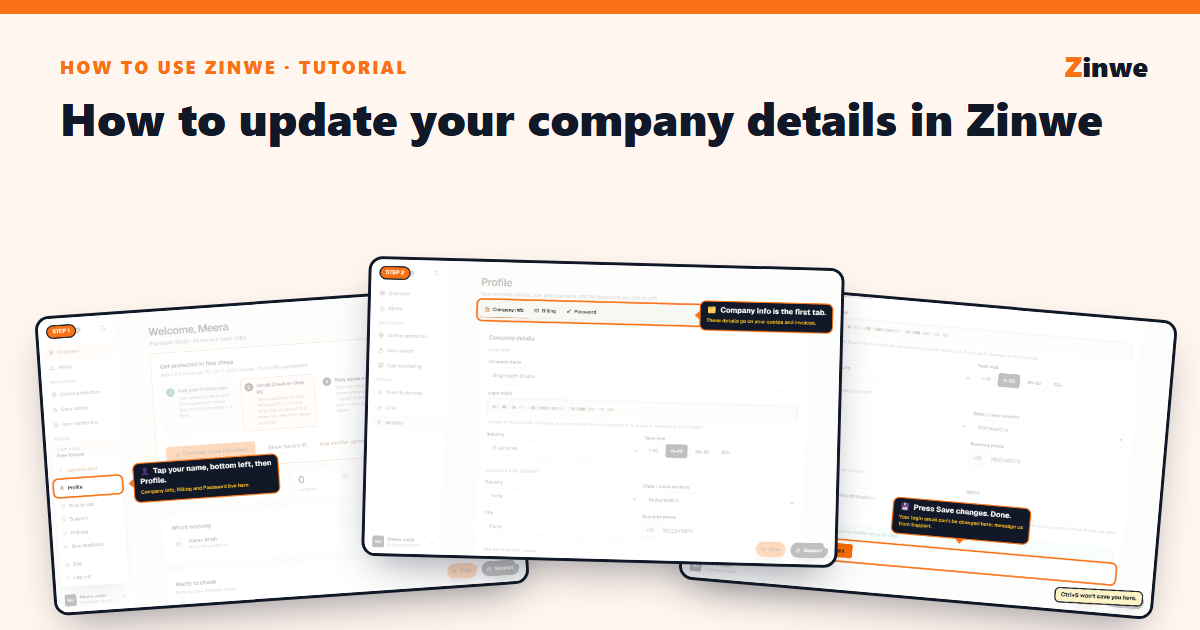
Short answer: tap your name at the bottom left, choose Profile, edit the fields on the Company info tab and press Save changes.
You filled most of this in when you signed up. It's worth checking once: these details appear on your quotes and invoices.
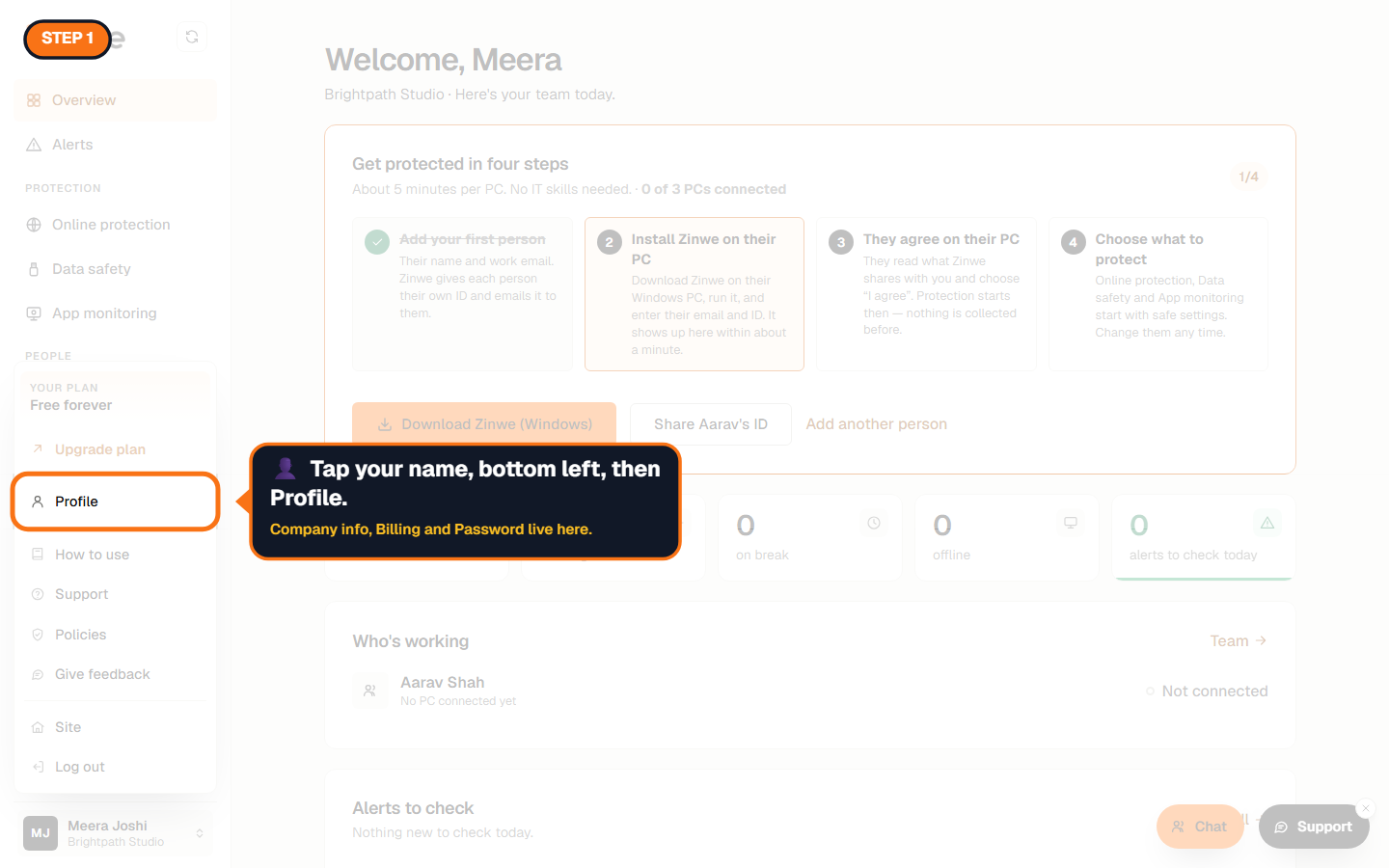
Step 1: Open Profile
Tap your name at the bottom left of the dashboard and choose Profile.
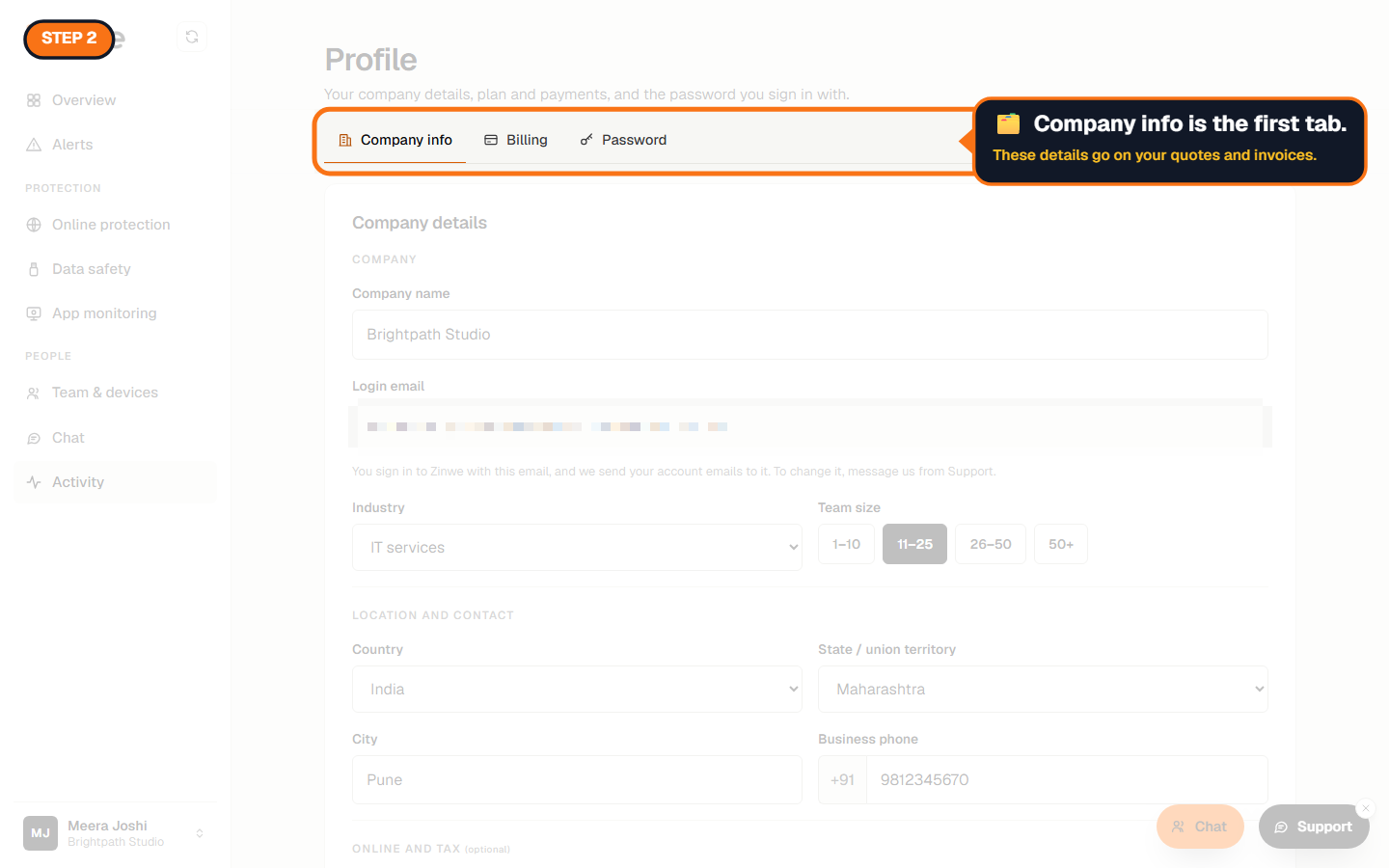
Step 2: Company info is the first tab
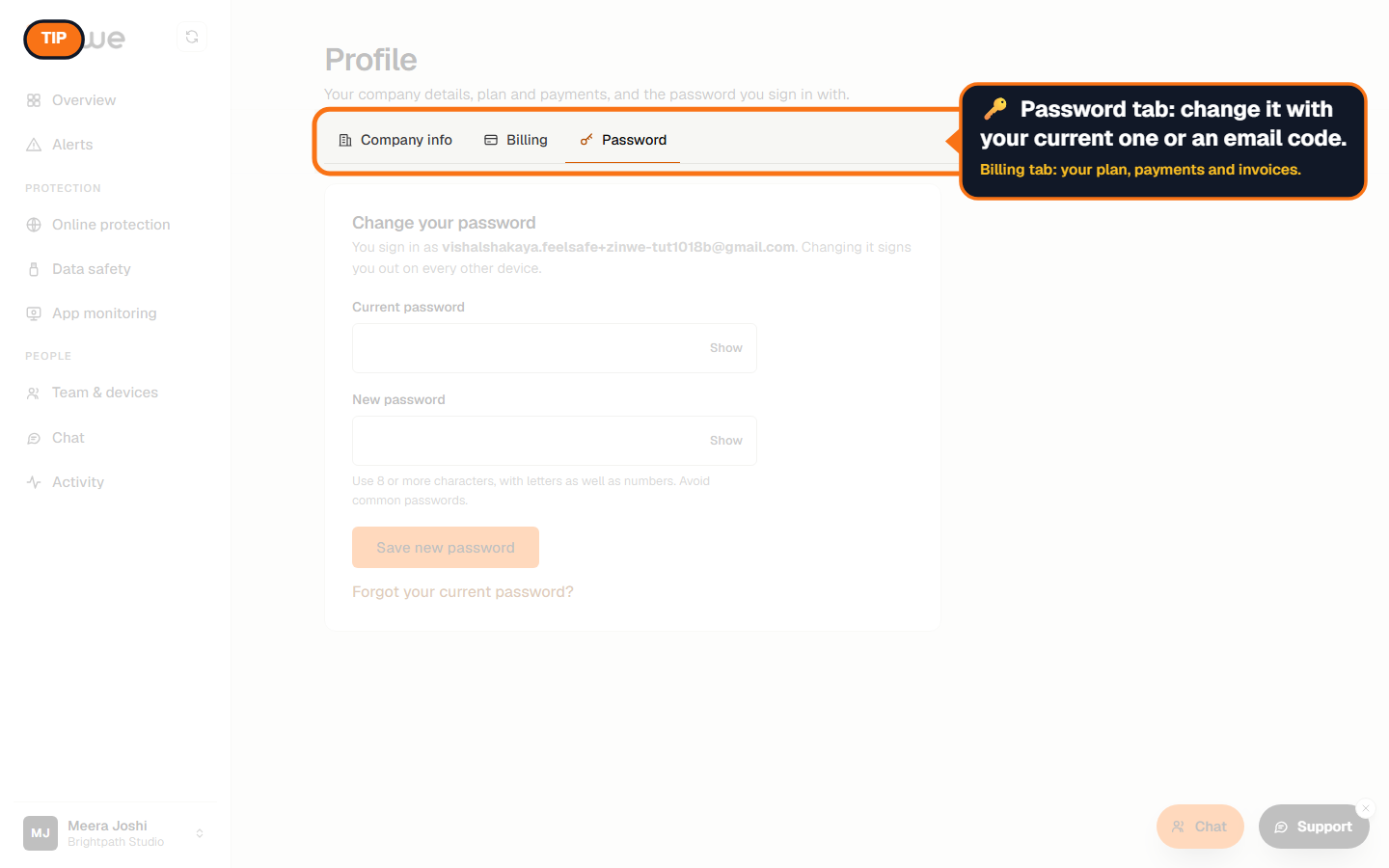
Profile has three tabs: Company info, Billing and Password.
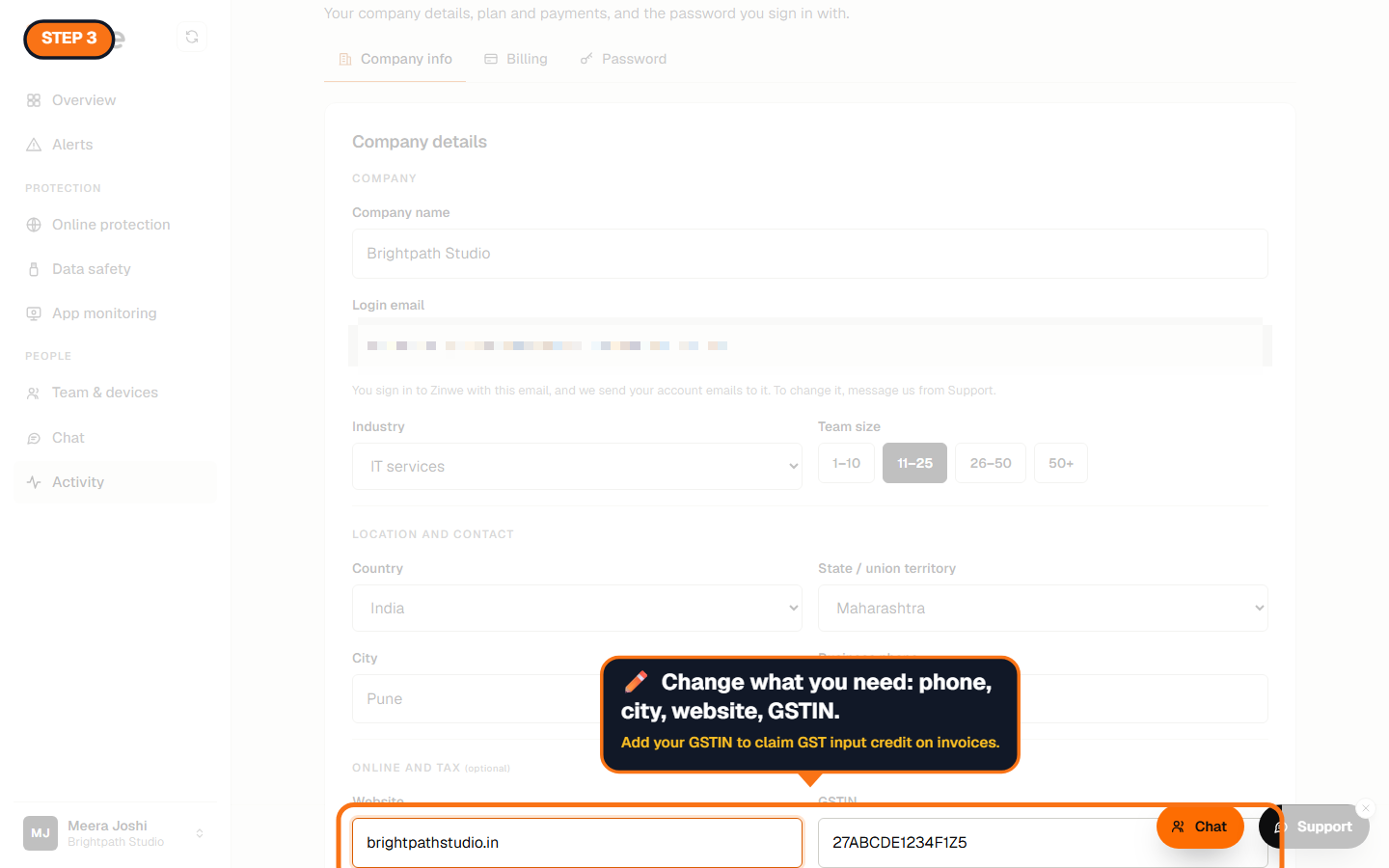
Step 3: Change what you need
- Company name: as you want it on invoices.
- Industry and team size: helps us suggest the right plan.
- Country, state and city: your state decides how GST is shown on Indian invoices.
- Business phone: a number we can reach you on about your account.
- Website (optional).
- GSTIN (optional): add it to claim GST input credit. It must be registered in the state you picked.
Step 4: Save
Press Save changes at the bottom. A green line confirms your details are up to date.
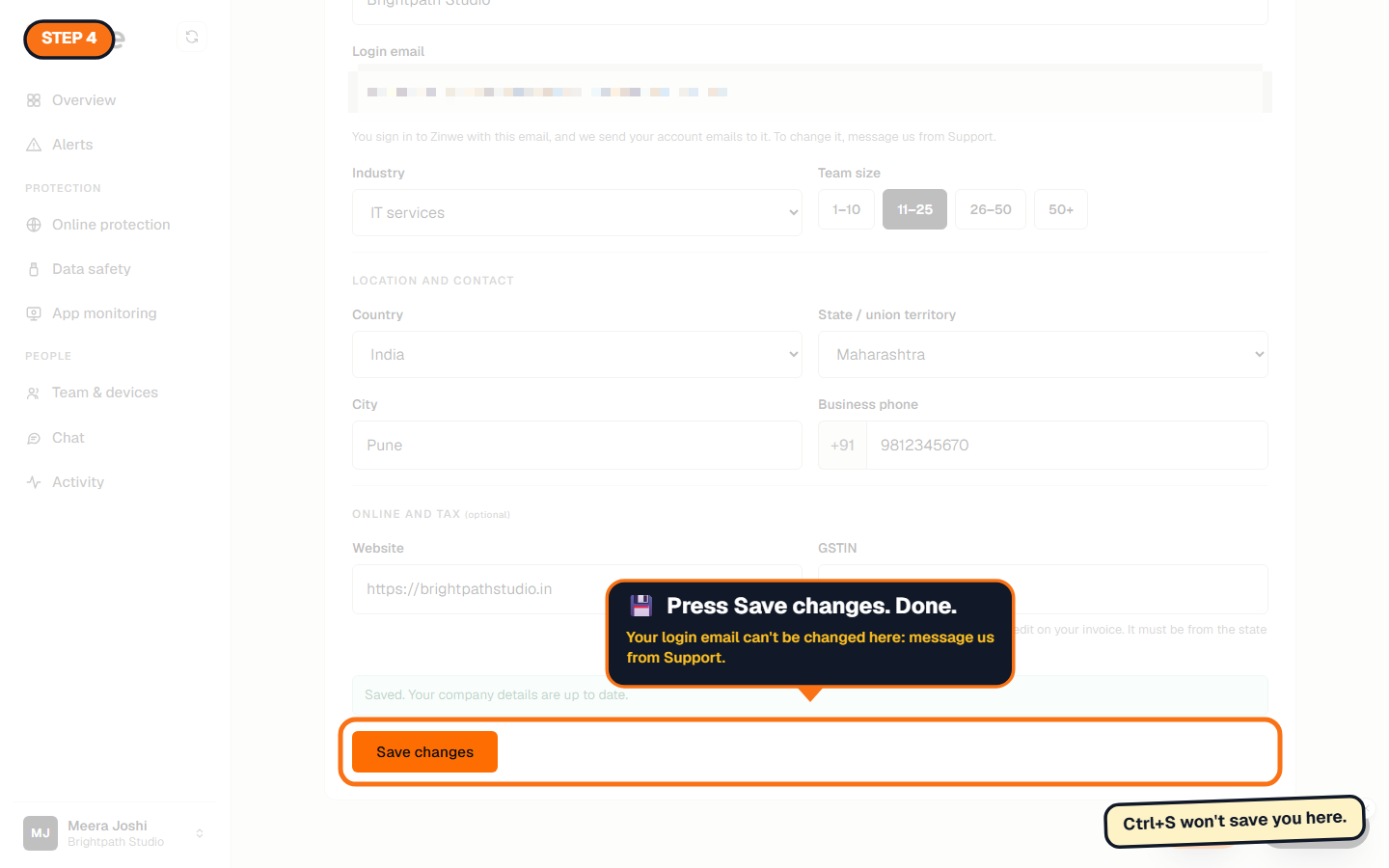
Your login email is shown but can't be changed here. To change it, message us from Support in your account menu.
The other two tabs
- Billing: your plan, what it costs, payments, invoices and a shareable quote.
- Password: change it with your current password, or with a code we email you.
The How to use Zinwe series
Get started
Set up
- Update your company details (you are here)
- Add your team
- Manage your team
Protect your data
- Read and handle an alert
- Control pen drives
- Block remote-access tools
- Block websites
- New-software alerts
Your team
Your plan