Tutorial
Your first Zinwe alert: how to read it and what to do next
Open Alerts, start with To check, read the alert like a sentence, then pick what happens next: message the person, block the tool, review the rule, or mark it handled.
Zinwe team · · 3 min read
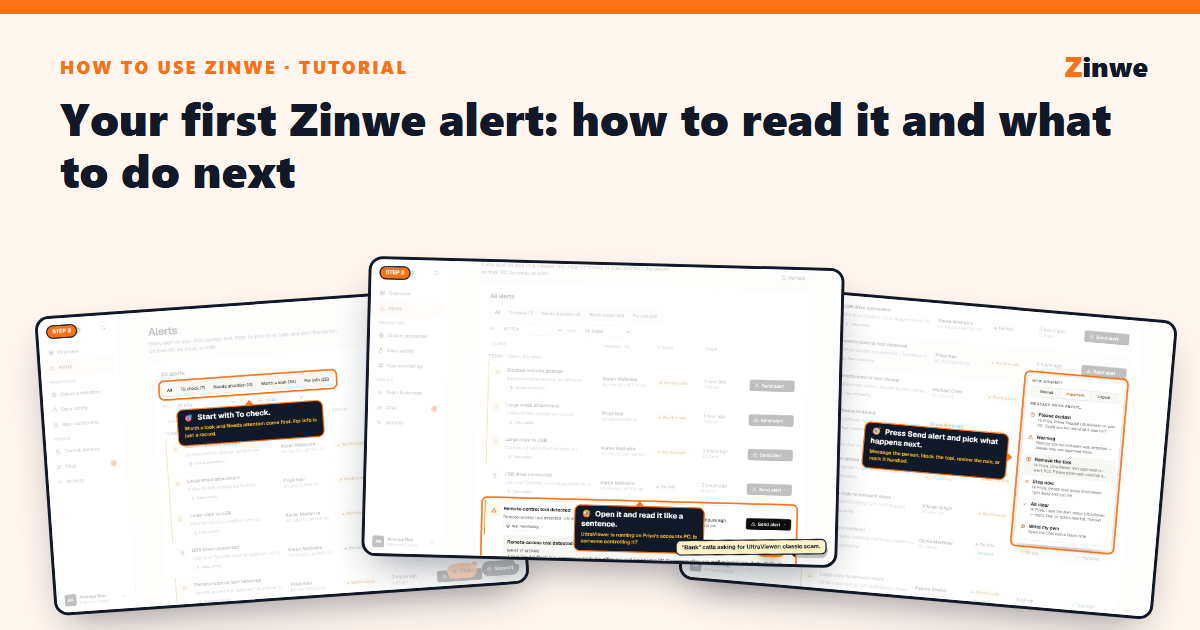
Short answer: open Alerts, pick To check, open the alert to see what it means, then use Send alert to message the person, block the tool, review the rule, or mark it handled.
The screenshots come from our demo account: a sample company with made-up staff.
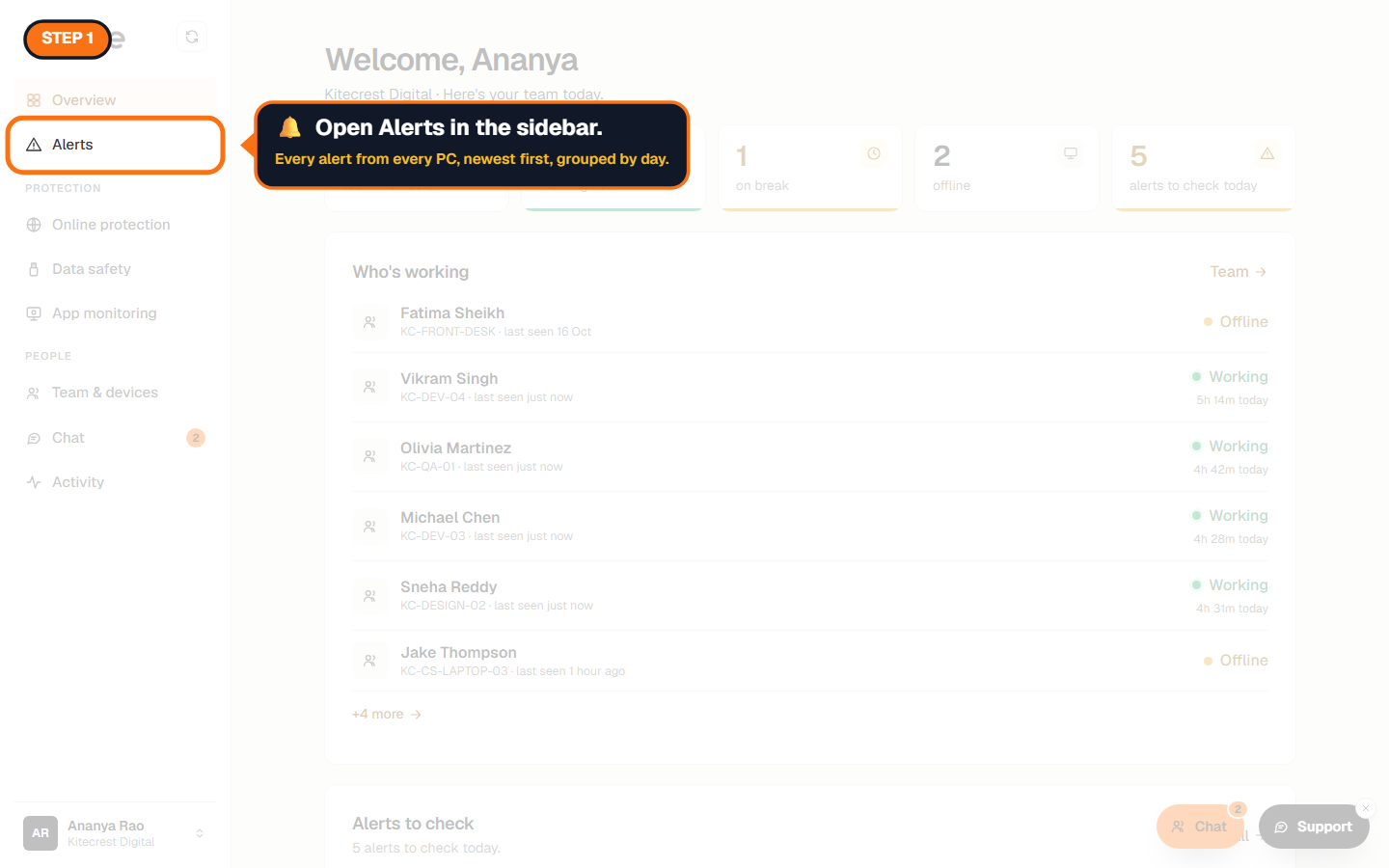
Step 1: Open Alerts
It's the second item in the sidebar. Every alert from every PC, newest first, grouped by day.
Step 2: Start with To check
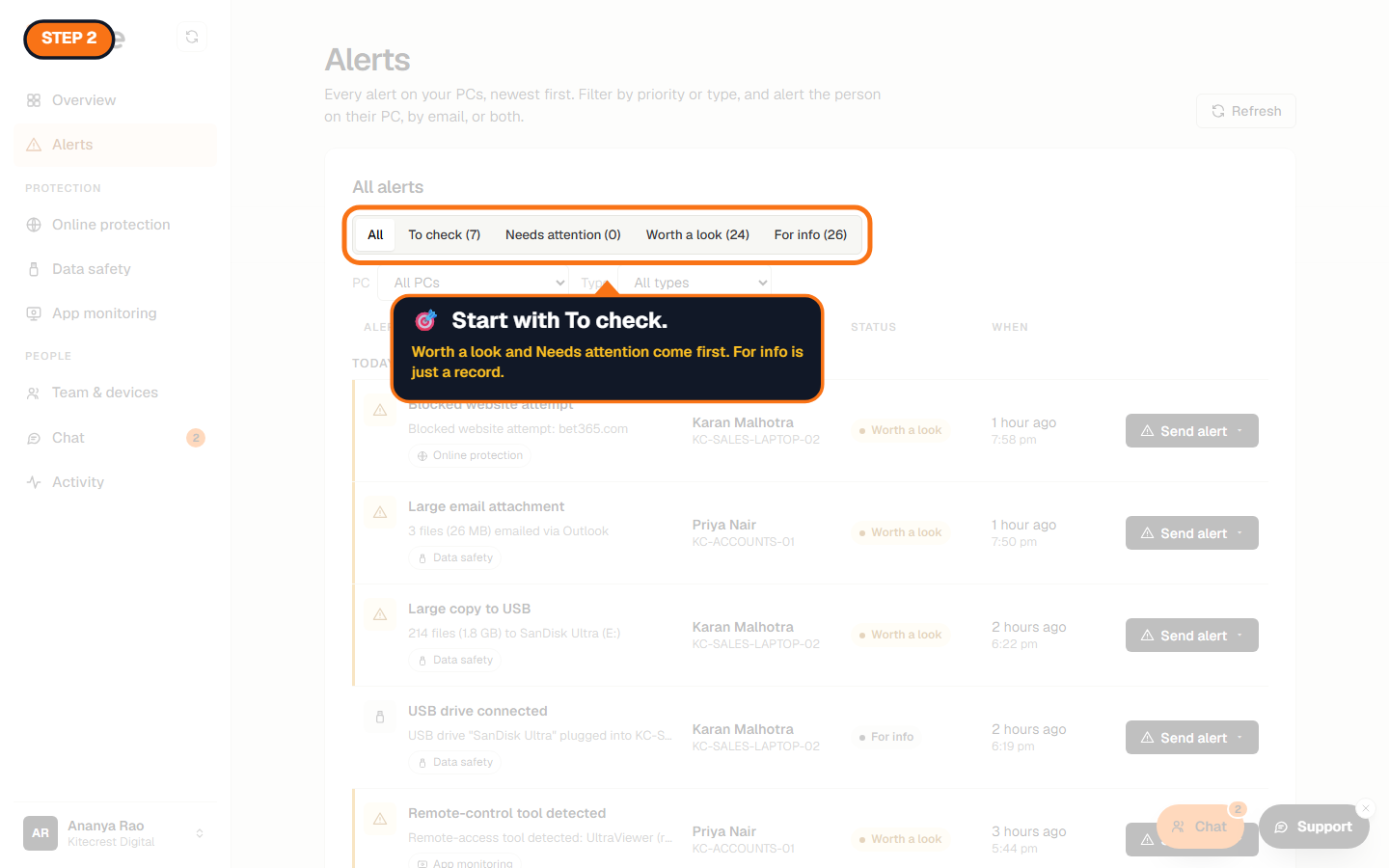
Alerts come in three levels:
- Needs attention: act on it today.
- Worth a look: probably fine, but check.
- For info: a record, like a pen drive plugged in.
To check shows the ones you haven't dealt with yet. You can also filter by PC or by type.
Step 3: Open it and read it
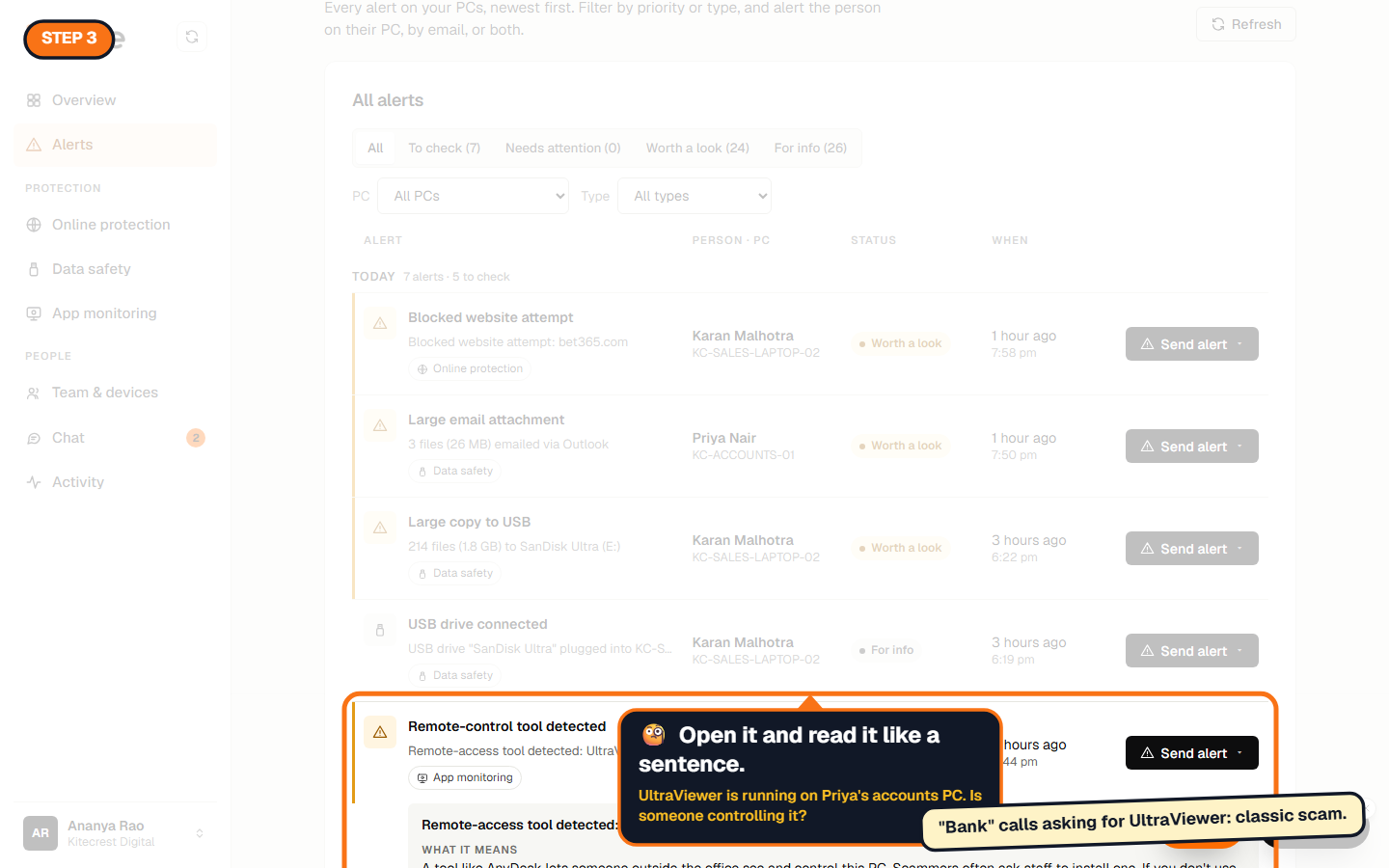
Click the alert. Zinwe says what happened, what it means in plain words, and when, with links to the rule and to every alert from that PC.
In our example, UltraViewer is running on Priya's accounts PC. Remote-control tools let someone outside the office see and control the PC. Scammers often ask staff to install one.
Step 4: Decide what happens next
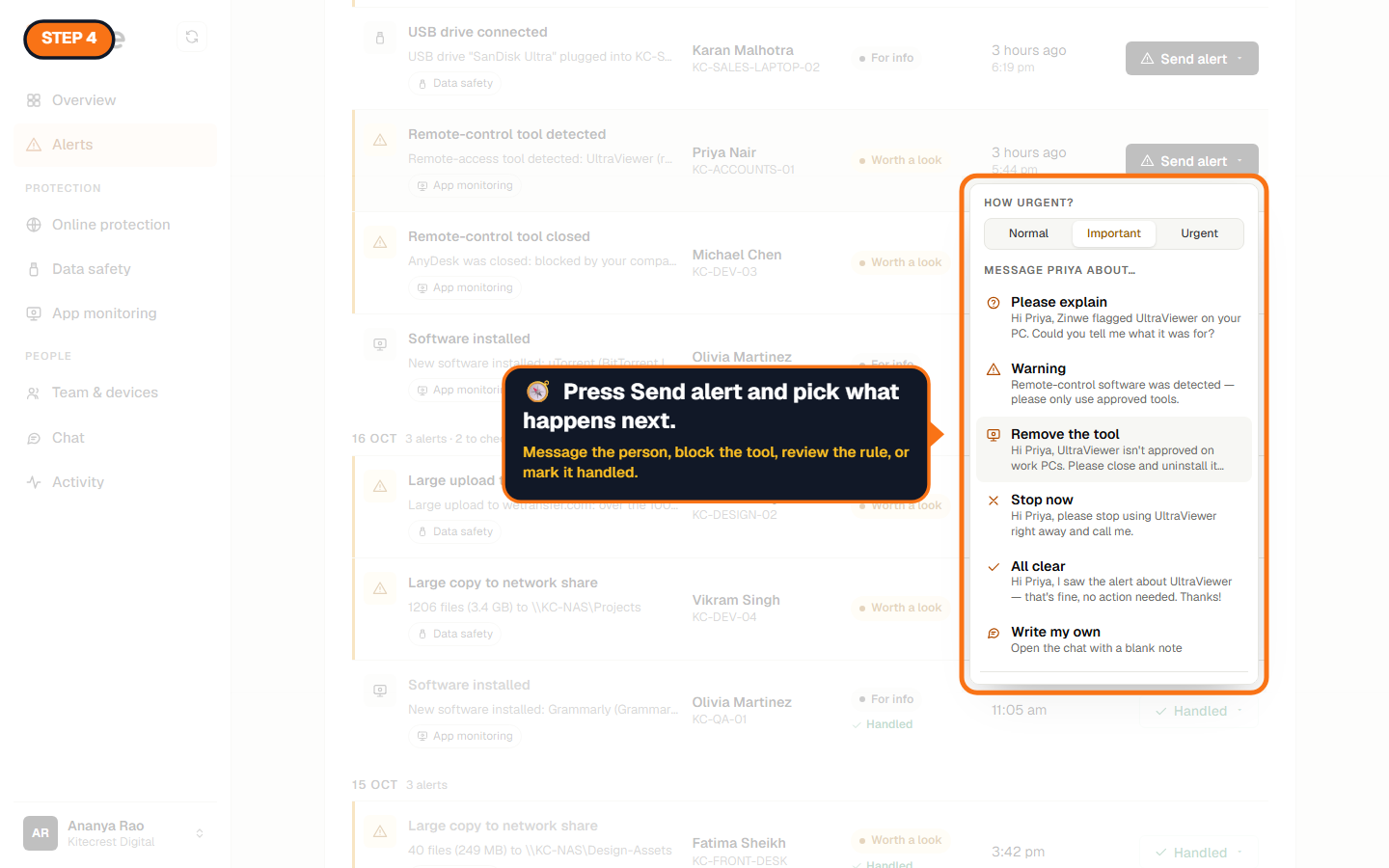
Press Send alert on the alert. Choose how urgent it is (Normal, Important or Urgent) and a message: Please explain, Warning, Remove the tool, Stop now, All clear, or write your own. For some alerts there's a one-click fix too, like Block UltraViewer.
Step 5: Mark it handled
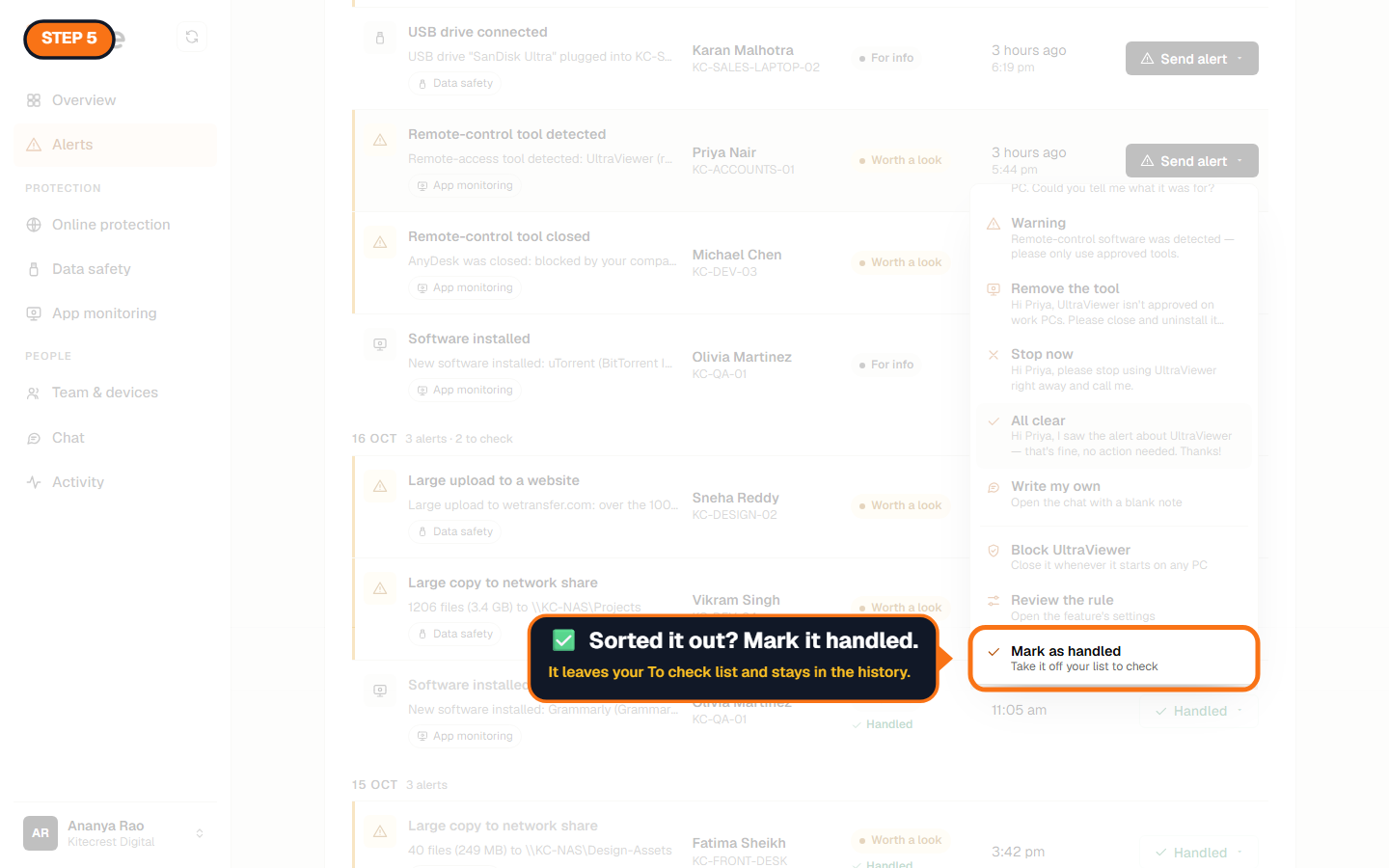
Sorted it out, or it was nothing? Choose Mark as handled. It leaves your To check list and stays in the history. Sending the person a message about the alert marks it handled too.
Good to know
- Zinwe never reads the files, messages or screen behind an alert. You see what happened, not what's inside.
- Alerts that need you also show on Overview each morning.
The How to use Zinwe series
Get started
Set up
Protect your data
- Read and handle an alert (you are here)
- Control pen drives
- Block remote-access tools
- Block websites
- New-software alerts
Your team
Your plan